Close Menu
JustwebworldJustwebworld
  • Astrology
  • Business & Finance
    • Cryptocurrency
    • Make Money
    • Entrepreneur
    • Brands
    • Companies
    • Personal Finance
      • Banking
      • Insurance
      • Trading and Investing
  • Tech
    • Computing
    • Cybersecurity
    • Electronics
    • Android
    • Apple
    • Gadgets
    • Social Media
    • Mobile Apps
    • Softwares
  • Education
    • Vocabulary
    • Abbreviations
    • General Knowledge
    • Writing & Translation
  • Lifestyle
    • Beauty & Cosmetics
    • Fashion & Style
    • Furniture & Decor
    • Luxury
    • People & Relationships
    • Pets and Animals
    • Shopping
    • Parenting
    • Gardening
    • Birthdays
  • Health
  • Travel
  • Auto
  • Gaming
  • Food
  • Entertainment
  • Sports
Facebook X (Twitter) Instagram Pinterest YouTube LinkedIn WhatsApp Telegram
Friday, January 30
  • About
  • Contact Us
  • Advertise With Us
  • Disclaimer
  • Terms & Conditions
  • Privacy Policy
JustwebworldJustwebworld
  • Astrology
  • Business & Finance
    • Cryptocurrency
    • Make Money
    • Entrepreneur
    • Brands
    • Companies
    • Personal Finance
      • Banking
      • Insurance
      • Trading and Investing
  • Tech
    • Computing
    • Cybersecurity
    • Electronics
    • Android
    • Apple
    • Gadgets
    • Social Media
    • Mobile Apps
    • Softwares
  • Education
    • Vocabulary
    • Abbreviations
    • General Knowledge
    • Writing & Translation
  • Lifestyle
    • Beauty & Cosmetics
    • Fashion & Style
    • Furniture & Decor
    • Luxury
    • People & Relationships
    • Pets and Animals
    • Shopping
    • Parenting
    • Gardening
    • Birthdays
  • Health
  • Travel
  • Auto
  • Gaming
  • Food
  • Entertainment
  • Sports
JustwebworldJustwebworld
Home » Technology » Using CapCut to Create A Live Stream Video

Using CapCut to Create A Live Stream Video

By Sophia Britt Technology Computing
Facebook Twitter LinkedIn Telegram Pinterest Reddit WhatsApp
Follow Us
WhatsApp Telegram

Live streaming has become increasingly popular for connecting with audiences in real-time. CapCut is a versatile free web video editing tool allowing you to create professional-looking live-stream videos easily.

In this step-by-step guide, we’ll walk you through the process of using CapCut to create an engaging live stream video.

Table of Contents

Toggle
  • Create A Live Stream Video – CapCut Tutorial
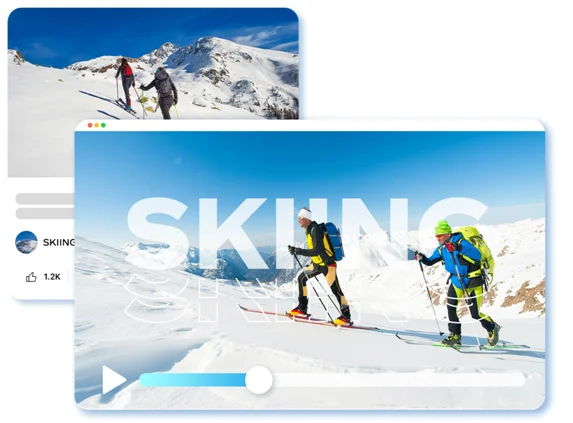
    • Step 1: Sign Up for CapCut
    • Step 2: Create a New Project
    • Step 3: Import and Arrange Media Files
    • Step 4: Edit and Enhance Your Video
    • Step 5: Add Text and Graphics
    • Step 6: Customize Video Settings
    • Step 7: Add Live Stream Features
    • Step 8: Add Background Music and Audio
    • Step 9: Add Transitions and Effects
    • Step 10: Fine-tune the Video Timeline
    • Step 11: Apply Filters and Color Corrections
    • Step 12: Review and Adjust Timing
    • Step 13: Save and Store Your Project
    • Step 14: Export and Share Your Live Stream Video
  • Conclusion

Create A Live Stream Video – CapCut Tutorial

Create A Live Stream Video - CapCut

Step 1: Sign Up for CapCut

  1. Go to your browser.
  2. Search for CapCut.
  3. Add your details, then tap Sign Up.

Step 2: Create a New Project

Create a New Project

  1. Click “+” to create a new project.
  2. Choose the desired aspect ratio for your live stream video, such as 16:9 for a standard widescreen format.
  3. Enter a name for your project and tap “Create” to proceed.

Step 3: Import and Arrange Media Files

  1. Tap on the “Media” button at the bottom of the screen to import media files for your live-stream video.
  2. Choose the desired media files from your device’s gallery or storage.
  3. Once imported, arrange the media files in the desired order by dragging and dropping them on the timeline.

Step 4: Edit and Enhance Your Video
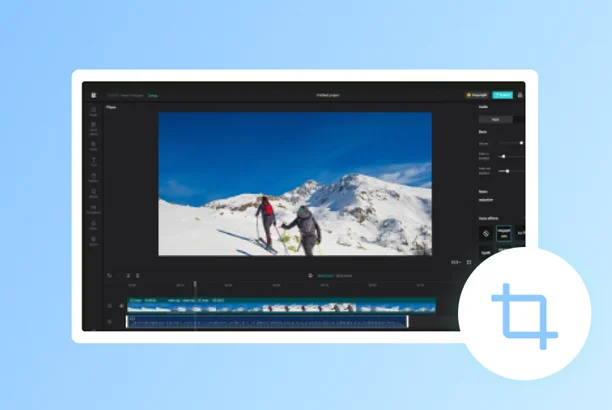
Edit and Enhance Your Video

  1. Tap on a media file on the timeline to select it.
  2. Use the editing tools at the bottom of the screen to enhance your video. These tools include trimming, cropping, adding filters, adjusting brightness/contrast, and more.
  3. Adjust each media file as needed to achieve your live-stream video’s desired look and feel.

Step 5: Add Text and Graphics

  1. Tap on the “Text” button at the bottom of the screen to add text to your live-stream video.
  2. Pick different font styles, colors, and sizes.
  3. Enter the desired text and position it on the screen by dragging it to the desired location.
  4. Use the “Graphics” button to add stickers, emojis, or other graphic elements to your video.

Step 6: Customize Video Settings

  1. Tap on the “Settings” button (gear icon) at the top right corner of the screen.
  2. In the settings menu, you can adjust various video settings such as resolution, frame rate, and bitrate.
  3. Customize these settings based on your live stream platform’s requirements or your personal preferences.
  4. Once you’ve made the desired changes, tap on the back button to return to the main editing screen.

Step 7: Add Live Stream Features

  1. CapCut allows you to incorporate live stream features such as overlays, animations, and real-time comments.
  2. Click “Live Stream.”
  3. Choose from the available live stream features and select the ones you want to include in your video.
  4. Customize the settings for each feature, such as the position and duration of overlays or the appearance of real-time comments.
  5. Preview the video with the live stream features to ensure they are placed and functioning as desired.

Step 8: Add Background Music and Audio
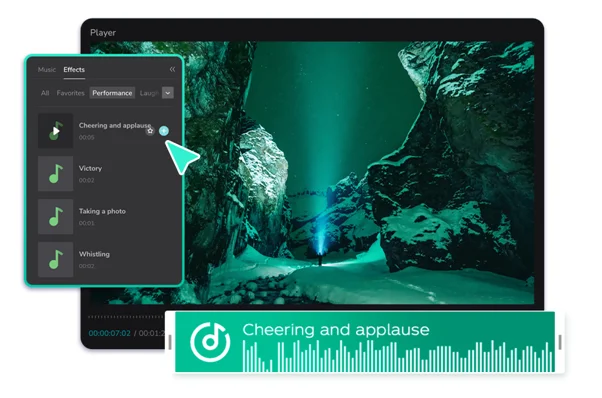
Add Background Music and Audio

Also Read: Four Tips for a Smooth Software or Hardware Implementation Four Tips for a Smooth Software or Hardware Implementation
  1. Tap on the “Music” button at the bottom of the screen to add background music to your live-stream video.
  2. Choose from the preloaded music library or import your own audio files.
  3. Adjust the volume and duration of the background music as needed.
  4. If desired, tap the “Voiceover” button to record and add your narration or commentary to the video.
  5. Also, remove any unwanted background using a background remover available in CapCut.

Step 9: Add Transitions and Effects

  1. Tap on the “Transition” button at the bottom of the screen to add transitions between different media files.
  2. Choose from a range of transition options and apply them to the desired locations on the timeline.
  3. Adjust the duration and style of each transition to create smooth and seamless visual transitions between your video clips.
  4. Tap on the “Effects” button to add visual effects such as blurs, color adjustments, or overlays.
  5. Experiment with different transitions and effects to give your live stream video a polished and professional look.

Step 10: Fine-tune the Video Timeline

  1. Use the timeline at the bottom of the screen to precisely control the timing and order of your video clips, text, and graphics.
  2. Drag and adjust the length of each clip to create the desired pacing and timing for your live-stream video.
  3. Ensure that the transitions between clips are smooth and the overall flow of the video is coherent.
  4. Trim or split video clips as needed to remove any unwanted sections or refine the storytelling of your live stream video.

Step 11: Apply Filters and Color Corrections

  1. Tap on the “Filters” button at the bottom of the screen to apply pre-set filters to your video.
  2. Choose from various filters to enhance your live-stream video’s overall mood and aesthetics.
  3. Adjust the intensity or customize the filter settings to achieve the desired look.
  4. Additionally, use the “Adjust” button to fine-tune your video clips’ brightness, contrast, saturation, and other color parameters.

Step 12: Review and Adjust Timing

  1. It’s crucial to ensure that the timing of your video aligns with your live stream plan.
  2. Tap on the “Timeline” button at the bottom of the screen to view the timeline more closely.
  3. Review the duration of each media file, transition, and effect to ensure they flow seamlessly.
  4. Adjust the timing by dragging the edges of media files or transitions on the timeline as needed.
  5. Pay attention to the overall pacing and make necessary adjustments to create an engaging live-stream video.

Step 13: Save and Store Your Project

  1. Once you’re satisfied with your editing and adjustments, tap on the back button to return to the main editing screen.
  2. Tap on the save button at the top right corner of the screen to save your project.
  3. CapCut will prompt you to choose a storage location or create a new folder to store your project.
  4. Select the desired storage location and tap “Save” to securely store your project.

Step 14: Export and Share Your Live Stream Video
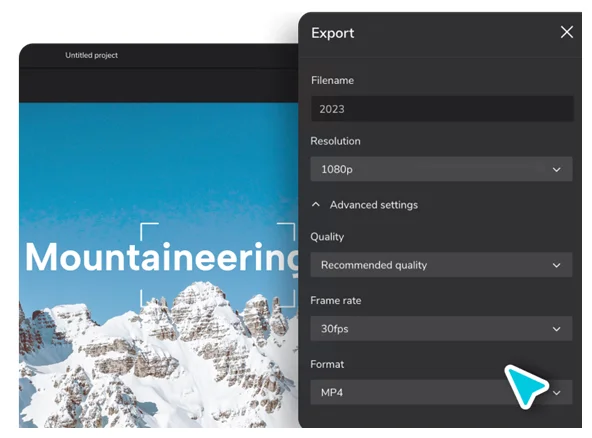
Export and Share Your Live Stream Video

Also Read: Salesforce CPQ In Service Cloud Is Scaling Up Its Data Integration Strategy Salesforce CPQ In Service Cloud Is Scaling Up Its Data Integration Strategy
  1. After saving your project, tap on the export button at the bottom of the screen to export your live-stream video.
  2. Choose the desired video quality and format suitable for your live-streaming platform or audience.
  3. Wait for the exporting process to complete.
  4. Once exported, you can share your live-stream video directly to your preferred live-streaming platform or save it to your device for future use.
  5. Follow the respective platform’s guidelines to start your live stream and share your video with your audience.

Conclusion

Creating an engaging live stream video with CapCut is a straightforward process that allows you to customize and enhance your content using various editing tools, effects, and features. By following the step-by-step guide outlined above, you can produce professional-looking live-stream videos that captivate and connect with your audience. Experiment with different editing techniques and unleash your creativity to make your live streams truly stand out.

Becoming The Best Creative Video Editor With Video Editing Tools.

cards
Powered by paypal
Follow on WhatsApp Follow on Telegram
Share. Facebook Twitter Pinterest LinkedIn Tumblr Telegram WhatsApp Copy Link
Previous ArticleWhy Magento Is the Future of Online Shopping Carts: A Look At Emerging Trends
Next Article How to Support Your Child On Their Backpacking Adventures
Sophia Britt

Sophia Britt is a versatile content writer with a talent for creating engaging and informative content across various topics. Her writing is clear, compelling, and designed to connect with readers. Whether it's tech, business, lifestyle, or travel, she knows how to make words work. Always curious and creative, Sophia delivers content that stands out.

Related Posts

Turn Your Business Email Clutter-Free With Greenmor Mail

CNC Machining, 3D Printing, and Injection Molding: Choosing the Right Process for Your Product Development

JS Precision: How JS Precision Drives Innovation In Aerospace and Medical Manufacturing

From Google Rankings to ChatGPT Answers: Can Tesseract AI Track It All?

Best Laptop Under โ‚น60,000 In 2025: Is It The Right Balance Between Budget And Performance?

Turn Your Imagination Into Reality With CapCut AI Image Generator

Leave A Reply

Subscribe to Blog via Email

Enter your email address to subscribe to this blog and receive notifications of new posts by email.

Join 43.2K other subscribers
Categories
Latest Posts

Lossy vs Lossless: Which Image Compression Type to Choose for Your Project

How to Make Instant International Money Transfers in Emergencies

Why Loitering Prevention Is Becoming a Retail Security Essential

No Space Left! Why Parking Is the New Urban Crisis Shaking Modern Cities

Why Ultra-Fast Delivery is Becoming a Lifestyle Essential

How to Claim Your Travel Insurance from the UAE: A Step-by-Step Claim Process Guide

Super Pro Suspension Choices for Quiet Performance Driving

Why People Feel Less Hopeful About the Future ๐Ÿ˜”

GTA 6 Feels More Real Than Real Life ๐Ÿ˜ฎ๐ŸŽฎ โ€” And That Changes Everything

Confident Aging: How Senior Housing Supports Self-Assurance

The content on this website is provided solely for educational and informational purposes. We do not promote, endorse, or deal in any products, services, or activities mentioned. While we strive to share accurate and up-to-date information, we make no warranties regarding completeness, reliability, or accuracy. Any action you take based on the information found here is strictly at your own risk, and we will not be liable for any losses or damages in connection with the use of our website.

DMCA.com Protection Status
Quick Links
Age Calculator
Angel Number Calculator
Case Converter
Sudoku Online
Word Counter
Love Calculator
Jack Doherty YouTuber
Snake Dream Meaning
Get Rid of Cockroaches
Indian Cricket Team Coaches
Best Volleyball Team Names
Useful Links
Number to Words
Period Calculator
Yes-No Picker Wheel
Demon Name Generator
Kingdom Name Generator
Harry Potter Name Generator
Daddy Yankee Biography
Crocodile Dream Meaning
Goa Budget Trip Guide
Maryse Mizanin WWE Diva
Best Cricket Team Names
Helpful Resources
Colors Name In English
Best Computer Brands
WhatsApp Web
Most Beautiful Beaches
Tesla Cybertruck Review
Richest Actors in the World
India Jarvis Actress
Cat Dream Meaning
Belmar Beach New Jersey
Aryna Sabalenka Tennis Superstar
Best WhatsApp Group Names
Explore More
Good Morning Handsome
Best English Songs of All Time
Cricket World Cup Winners
Ways to Say Rest In Peace
Britainโ€™s Got Talent Winners
American Idol Winners
Dude Perfect Net Worth
Horse Dream Meaning
Ramakrishna Beach Visakhapatnam
Anastasia Potapova Tennis Star
Best Funny Team Names
Facebook X (Twitter) Instagram Pinterest YouTube Tumblr LinkedIn WhatsApp Telegram Threads RSS
  • About
  • Contact Us
  • Advertise With Us
  • Disclaimer
  • Privacy Policy
  • Terms & Conditions
  • Web Stories
Copyright ยฉ 2012-2026. JustWebWorld - All Rights Reserved.

Type above and press Enter to search. Press Esc to cancel.

ร—

๐Ÿ‘‡ Bonus Reads for You ๐ŸŽ

Telehealth - Technology meets health care
Telehealth: A Game-Changer for Urban-Rural Healthcare Disparities
Digital Yuan and Chinese E-commerce Industry
Digital Yuan and the Chinese E-commerce Industry
Masking Data In SQL Server
5 Steps to Masking Data In SQL Server
Way to Spy On Someone's iPhone
Is There A Way to Spy On Someone’s iPhone?