Close Menu
JustwebworldJustwebworld
  • Astrology
  • Business & Finance
    • Cryptocurrency
    • Make Money
    • Entrepreneur
    • Brands
    • Companies
    • Personal Finance
      • Banking
      • Insurance
      • Trading and Investing
  • Tech
    • Computing
    • Cybersecurity
    • Electronics
    • Android
    • Apple
    • Gadgets
    • Social Media
    • Mobile Apps
    • Softwares
  • Education
    • Vocabulary
    • Abbreviations
    • General Knowledge
    • Writing & Translation
  • Lifestyle
    • Beauty & Cosmetics
    • Fashion & Style
    • Furniture & Decor
    • Luxury
    • People & Relationships
    • Pets and Animals
    • Shopping
    • Parenting
    • Gardening
    • Birthdays
  • Health
  • Travel
  • Auto
  • Gaming
  • Food
  • Entertainment
  • Sports
Facebook X (Twitter) Instagram Pinterest YouTube LinkedIn WhatsApp Telegram
Wednesday, April 15
  • About
  • Contact Us
  • Advertise With Us
  • Disclaimer
  • Terms & Conditions
  • Privacy Policy
JustwebworldJustwebworld
  • Astrology
  • Business & Finance
    • Cryptocurrency
    • Make Money
    • Entrepreneur
    • Brands
    • Companies
    • Personal Finance
      • Banking
      • Insurance
      • Trading and Investing
  • Tech
    • Computing
    • Cybersecurity
    • Electronics
    • Android
    • Apple
    • Gadgets
    • Social Media
    • Mobile Apps
    • Softwares
  • Education
    • Vocabulary
    • Abbreviations
    • General Knowledge
    • Writing & Translation
  • Lifestyle
    • Beauty & Cosmetics
    • Fashion & Style
    • Furniture & Decor
    • Luxury
    • People & Relationships
    • Pets and Animals
    • Shopping
    • Parenting
    • Gardening
    • Birthdays
  • Health
  • Travel
  • Auto
  • Gaming
  • Food
  • Entertainment
  • Sports
JustwebworldJustwebworld
Home » Technology » Computing » Windows » How to Reset Forgotten Windows 10 Password Within 5 Minutes

How to Reset Forgotten Windows 10 Password Within 5 Minutes

By Michael Austin Windows
Facebook Twitter LinkedIn Telegram Pinterest Reddit WhatsApp
Follow Us
WhatsApp Telegram

Forgot Windows 10 Password? Don’t know how to access your computer anymore? The whole internet and technical forums are filled with these questions. Resetting Windows 10 password is not an enigma anymore since there are myriad of solution that could recover the forgotten password.

We have crafted a number of ways to recover Windows 10 password and in this tutorial we will show you two ways that could accomplish this task.

Table of Contents

Toggle
  • How to Reset Windows 10 Password Easily
    • Solution #1: By Resetting Microsoft Account Password
    • Solution #2: By using UUkeys Windows Password Mate.

How to Reset Windows 10 Password Easily

How to Reset Windows 10 Password

Recovering Windows 10 password is significantly easier since the login password used is the same password you use for Microsoft account. All Microsoft related services such as Xbox, Skype, outlook, etc. are associated with the same password.

Likewise, Windows 10 also uses the same Microsoft account as the default account type. So, we will show you how to take this as your benefit to recover Windows 10 Password.

Solution #1: By Resetting Microsoft Account Password

Fortunately resetting Microsoft account is quite simple. You only require to have access to a different working computer or mobile device with a stable internet connection. Follow these steps to reset Microsoft and Windows 10 password.

Step 1. Head on to https://account.live.com/password/reset and select “I Forgot my Password” and hit next.
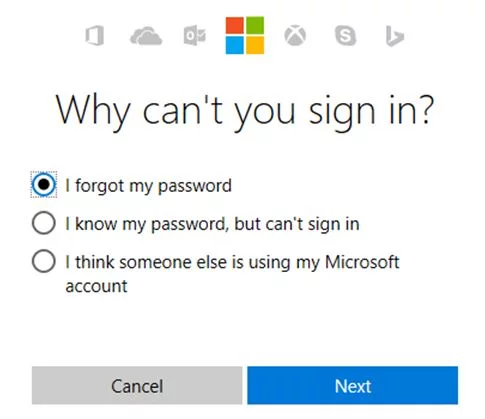
I Forgot my Password

Step 2. Provide your Microsoft email ID or phone number on the next page and click ‘Next’.
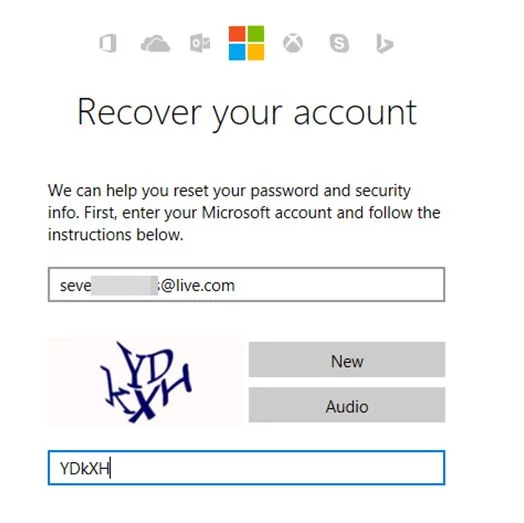
Recover Your Windows 10 Account

Step 3. Choose how you want to receive the one time security code. You can either choose Email or phone number to receive the code.

Step 4. Enter the code that you just received and proceed to the next page.

Also Read: How To Fix A Stuck Windows Update How To Fix A Stuck Windows Update

Step 5. You will be asked to input the new password. Enter any password in the empty fields and make sure to remember it this time.

Reset Your Windows 10 Password

Step 6. Turn on the computer and enter the password that you just set up in the above step.

You should be able to access your computer perfectly. Please remember that you will have to use this new password in all other Microsoft services including the Windows 10 login password. But if by any chance you do not remember the email or phone number used to create the Microsoft problem then this method will not work for you.

In that case you will be required to use a rather professional password recovery tool. We will be using UUkeys Windows Password Mate in this guide in the next method to recover Windows 10 Password.

Solution #2: By using UUkeys Windows Password Mate.

UUkeys Windows Password Mate is the best and rhetorical Windows recovery tool that is used to completely remove the password from the Windows login screen. Additionally, you won’t lost any data from your computer and you do not need any email or phone number to use this software.

While other tools can take hours to recover the Windows 10 password, this program can reset the password within a blink of an eye. Let us expose how to use this software.

Requirements:

  1. A different functioning computer.
  2. An empty USB flash drive (1 GB storage)
  3. UUkeys Windows Password Mate Program.

Step 1. Download the software on a different working computer or laptop and install the program. Installation process is quite easy and should be done within few moments. Next, launch the program to see the benefits of using it.

Also Read: How to Install Windows 10 On Your Computer from USB/DVD How to Install Windows 10 On Your Computer from USB/DVD

Step 2. Plug in the USB flash drive on your computer and let the software recognize the device. (Alternately, you can use a writable CD/DVD0

Step 3. Choose the USB flash drive name from the drop down option and click on “Burn USB’ to start copying all the files to the flash drive. This may take few minutes and it is recommended to keep the flash drive connected to your PC to avoid any suspension.
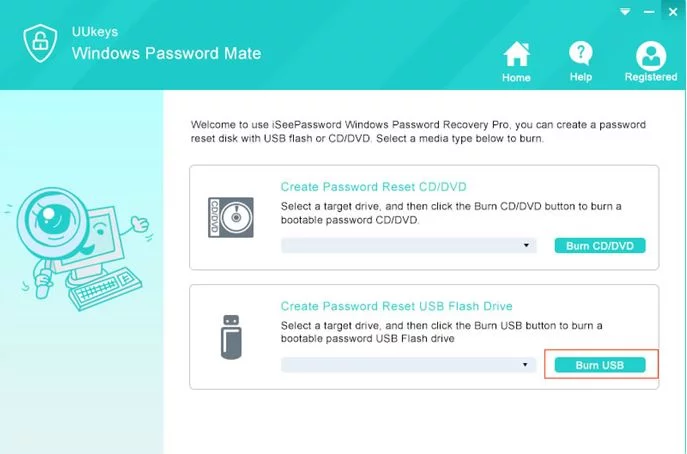
UUkeys Windows Password Mate

After the process is completed, the software will appear with a pop up message saying “Burning Successfully”.
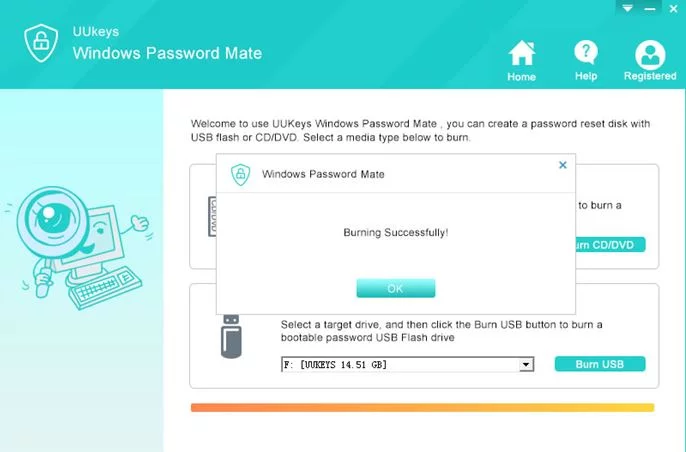
UUkeys Windows Password Mate - Reset Password

Step 4. Eject the flash drive and re-insert it on the locked computer and reboot it.

Step 5. Keep pressing F8, Del or Esc key to launch the boot menu and choose the USB flash drive name and press Enter.

Step 6. UUkeys Windows Password Mate will be loaded automatically and you will be seeing the following screen. First, select the operating system and choose the main username from the middle column for which you are trying to reset the password and click “Reset Password”.
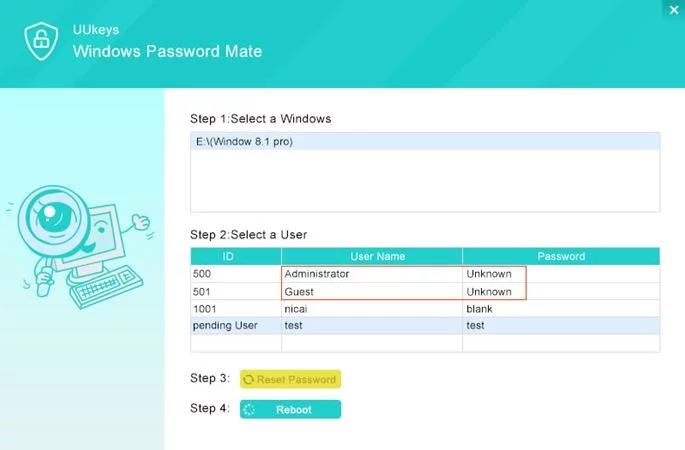
UUkeys Windows Password Mate Tool

Step 7. Wait few moments while the tool resets the password and then click on “Reboot”.

That should be all. You may now access your computer without any password.

Summary:

So, if you ever forget your Windows 10 password then you can use the tips mentioned in this article to reset it. You can use the same software to reset passwords for other Windows versions as well including Windows 10, 8, 8.1, 7, XP, 2000, etc.

UUkeys has been tested in all the Windows version computers and has a 100% success rate to reset passwords. It is recommended to set up a new password as soon you have access to your computer to avoid any stranger to access your computer. 🙂

Also Read: How to Enable or Disable a Windows 10 User Account How to Enable or Disable a Windows 10 User Account

cards
Powered by paypal
Follow on WhatsApp Follow on Telegram
Share. Facebook Twitter Pinterest LinkedIn Tumblr Telegram WhatsApp Copy Link
Previous ArticleHow To Use Creative Design And Collaboration Hand-In-Hand
Next Article Things You Need To Know About Improving Your IT Skills
Michael Austin
  • Website
  • Facebook
  • X (Twitter)
  • Pinterest
  • Instagram
  • LinkedIn

Michael Austin is an expert writer who loves creating engaging and easy-to-understand content. With years of experience, he specializes in writing well-researched articles that inform, inspire, and entertain readers. His clear and simple writing style makes complex topics easy to grasp. Whether it's trending news, helpful guides, or expert insights, Michael’s content is designed to be valuable and SEO-friendly, ensuring it reaches the right audience. Stay connected for his latest articles!

Related Posts

How To Fix A Stuck Windows Update

Simple Ways To Disable Microsoft Compatibility Telemetry In Windows 10

How to Fix the BSOD Error 0x4 INVALID_DATA_ACCESS

How to Optimize Your PC Performance – 7 Tools Which Help You to Boost It Up

Fix Msvcp100.dll Missing Or Not Found Error In Windows 10

How to Effectively Protect Your Windows 10 PC Or Laptop?

Leave A Reply

Subscribe to Blog via Email

Enter your email address to subscribe to this blog and receive notifications of new posts by email.

Join 42.5K other subscribers
Categories
Latest Posts

Cheapest Isn’t Always Best: What to Check Before You Compare Policies

Best Free AI Tools for Students 2026 | Homework Help, Assignments, Writing & Study Tools

Best Health Insurance in India for 2026: What has Changed and Why the Evaluation Criteria Have Evolved

Bookshelf Design, Furniture Stores in Kochi: Stylish Bookshelves and Where to Find Them in Kochi

Cloudways Review 2026: Fastest Managed Cloud Hosting for WordPress? Pricing, Speed & SEO Secrets

DupDub AI Review 2026: Best AI Voice Generator & Video Dubbing Tool for Creators

Cultivating Mindful Online Habits

Avoiding False Either Or Choices

Best Term Insurance Calculator Online – Calculate Life Cover, Premium & Coverage Instantly

Your Trash Tells Burglars More Than You Think

The content on this website is provided solely for educational and informational purposes. We do not promote, endorse, or deal in any products, services, or activities mentioned. While we strive to share accurate and up-to-date information, we make no warranties regarding completeness, reliability, or accuracy. Any action you take based on the information found here is strictly at your own risk, and we will not be liable for any losses or damages in connection with the use of our website.

DMCA.com Protection Status
Quick Links
Age Calculator
Angel Number Calculator
Case Converter
Sudoku Online
Word Counter
Love Calculator
Jack Doherty YouTuber
Snake Dream Meaning
Get Rid of Cockroaches
Indian Cricket Team Coaches
Best Volleyball Team Names
Useful Links
Number to Words
Period Calculator
Yes-No Picker Wheel
Demon Name Generator
Kingdom Name Generator
Harry Potter Name Generator
Daddy Yankee Biography
Crocodile Dream Meaning
Goa Budget Trip Guide
Maryse Mizanin WWE Diva
Best Cricket Team Names
Helpful Resources
Colors Name In English
Best Computer Brands
WhatsApp Web
Most Beautiful Beaches
Tesla Cybertruck Review
Richest Actors in the World
India Jarvis Actress
Cat Dream Meaning
Belmar Beach New Jersey
Aryna Sabalenka Tennis Superstar
Best WhatsApp Group Names
Explore More
Good Morning Handsome
Best English Songs of All Time
Cricket World Cup Winners
Ways to Say Rest In Peace
Britain’s Got Talent Winners
American Idol Winners
Dude Perfect Net Worth
Horse Dream Meaning
Ramakrishna Beach Visakhapatnam
Anastasia Potapova Tennis Star
Best Funny Team Names
Facebook X (Twitter) Instagram Pinterest YouTube Tumblr LinkedIn WhatsApp Telegram Threads RSS
  • About
  • Contact Us
  • Advertise With Us
  • Disclaimer
  • Privacy Policy
  • Terms & Conditions
  • Web Stories
Copyright © 2012-2026. JustWebWorld - All Rights Reserved. | Sitemap

Type above and press Enter to search. Press Esc to cancel.

×

👇 Bonus Reads for You 🎁

"BOOTMGR is Missing" - How to Fix?
How to Fix ‘BOOTMGR’ Is Missing Errors?
System Service Exception
Fix System Service Exception Windows 10 Error
Effectively Protect Your Windows 10 PC
How to Effectively Protect Your Windows 10 PC Or Laptop?
Firewall for Windows Computer
Windows Firewall – Personal Computer Firewall Software