

HDMI is the standard connection for TVs, games consoles and home cinema, while DisplayPort is built mainly for computer monitors. For a PC gaming monitor that has both, DisplayPort is usually the better choice. For a TV, console or soundbar setup, HDMI is the one you need, since those devices rarely have DisplayPort at all.
The version numbers on the box matter less than whether every part of your setup supports the resolution and refresh rate you want. This guide explains the differences, shows how much bandwidth common setups actually need, and helps you choose the right cable.
Key takeaways
- TV, console or soundbar: use HDMI.
- PC with a high-refresh monitor: DisplayPort is usually the safer pick.
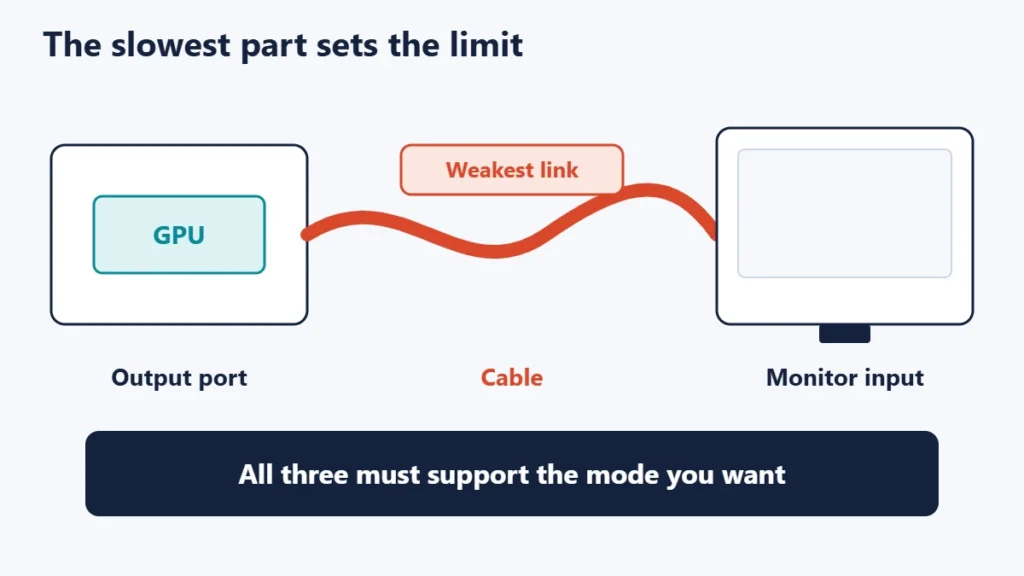
- Your connection is only as fast as its slowest part: the output port, the cable and the screen’s input.
- The newest versions both reach very high bandwidth: up to 96 Gbps for HDMI 2.2 and 80 Gbps for DisplayPort 2.1.
- Check specific features such as 4K at 120 Hz or VRR, not just a version number.
What is the difference between HDMI and DisplayPort?
Both carry digital video and audio from a source, such as a computer or console, to a screen. They come from different organisations with different priorities. HDMI is aimed at consumer electronics and includes TV-friendly features such as an audio return channel to a soundbar. DisplayPort is developed by VESA, the Video Electronics Standards Association, and focuses on computers, with features such as running several monitors from one port.
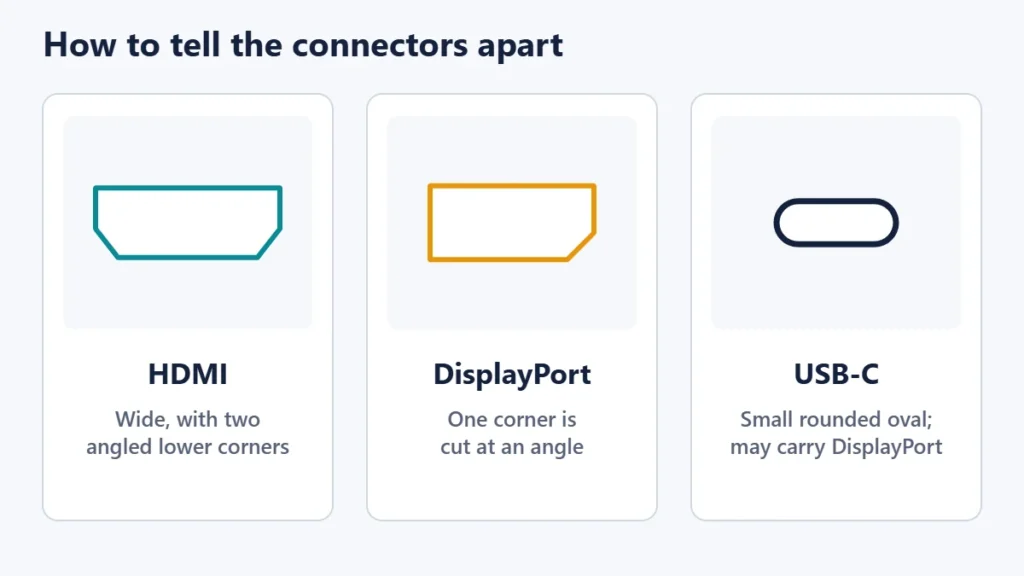
| HDMI | DisplayPort | |
|---|---|---|
| Found on | TVs, consoles, streaming boxes, monitors, laptops | PC graphics cards, monitors, some laptops via USB-C |
| Newest version | HDMI 2.2 | DisplayPort 2.1b |
| Top bandwidth | Up to 96 Gbps with an Ultra96 cable | Up to 80 Gbps with a DP80 cable |
| Sound to a soundbar or receiver | Yes, through ARC and eARC | Carries audio, but no return channel |
| Several monitors from one port | Not a standard feature | Yes, through Multi-Stream Transport |
| Variable refresh for games | VRR | Adaptive-Sync |
| Over USB-C | Rare | Common, through DisplayPort Alt Mode |
HDMI versions explained
The HDMI Licensing Administrator describes HDMI 2.2 as supporting up to 96 Gbps of bandwidth, with resolutions and refresh rates that include 8K at 60 Hz and 4K at 120 Hz, and resolutions up to 10K. It states that higher combinations, up to 12K at 120 Hz and 16K at 60 Hz, will also be supported. A new Ultra96 HDMI Cable is required for the full 96 Gbps, and HDMI 2.2 is backward compatible with earlier versions.
The previous generation brought the Ultra High Speed HDMI Cable, introduced with HDMI 2.1 and on sale since 2020, for systems up to 48 Gbps. That generation is what most current TVs and consoles use for 4K at 120 Hz.
HDMI’s gaming and media features include:
- Variable Refresh Rate (VRR): reduces lag, stutter and screen tearing.
- Auto Low Latency Mode (ALLM): switches a TV into its low-latency game setting automatically.
- Quick Media Switching (QMS): removes the blank pause when a video changes frame rate.
- eARC: sends high-quality audio from the TV to a soundbar or receiver.
- Latency Indication Protocol (LIP): new in HDMI 2.2, it helps keep sound and picture in sync, especially through a receiver or soundbar.
DisplayPort versions explained
VESA’s DisplayPort 2.1 uses faster “UHBR” link rates. According to VESA, a certified DP40 cable supports up to 40 Gbps, and a certified DP80 cable supports up to 80 Gbps across four lanes. A newer DP80LL (“low loss”) active cable carries the full UHBR20 rate over up to three metres. VESA says DisplayPort 2.1b was announced in January 2025, with a maximum usable payload of 77.37 Gbps.
Other DisplayPort features include:
- Multi-Stream Transport (MST): drives several screens from a single DisplayPort output, where your graphics card and screens support it.
- Adaptive-Sync: variable refresh for smooth gaming, supported since DisplayPort 1.2a.
- DisplayPort over USB-C: lets a USB-C port carry the DisplayPort signal, which is how many laptops connect to monitors.
- Display Stream Compression (DSC): a visually lossless compression standard. VESA says it can reduce the bandwidth needed by more than 67 percent.
How much bandwidth do you actually need?
Maximum speeds only mean something once you know what your own setup needs. The figures below are our own calculation of the raw picture data alone: width × height × refresh rate × bits per pixel. Real connections need extra capacity for timing data and encoding, so treat these numbers as a floor.
| Setup | Raw picture data |
|---|---|
| 1080p at 144 Hz, 8-bit colour | About 7.2 Gbps |
| 1440p at 165 Hz, 8-bit colour | About 14.6 Gbps |
| 4K at 60 Hz, 10-bit colour | About 14.9 Gbps |
| 4K at 120 Hz, 10-bit colour | About 29.9 Gbps |
| 4K at 144 Hz, 10-bit colour | About 35.8 Gbps |
| 4K at 240 Hz, 10-bit colour | About 59.7 Gbps |
| 8K at 60 Hz, 10-bit colour | About 59.7 Gbps |
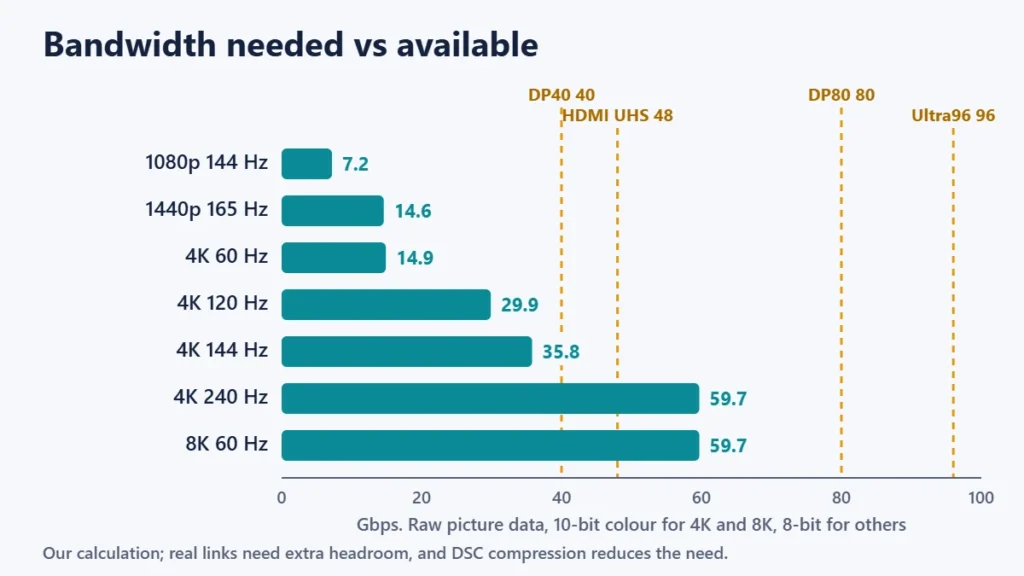
Two lessons stand out. Most 1080p and 1440p monitors are well within the range of either connection. Demanding setups such as 4K at 240 Hz are where the newest versions, or compression through DSC, become necessary.
Which should you use?
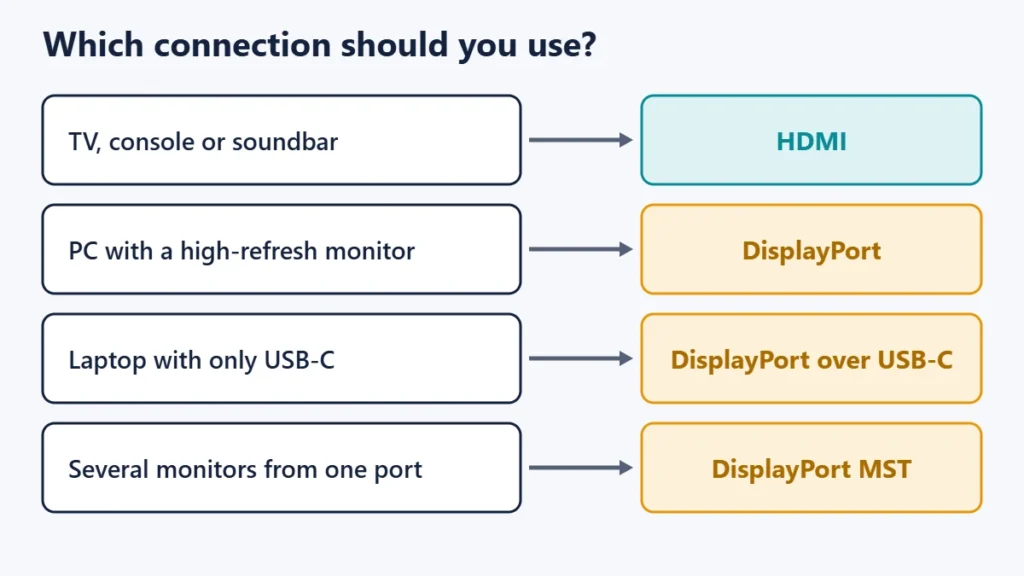
| Your setup | Best choice | Why |
|---|---|---|
| Games console to TV | HDMI | Consoles and TVs use HDMI, with VRR and ALLM for gaming |
| TV to soundbar or receiver | HDMI with eARC | Only HDMI carries audio back from the TV |
| Gaming PC to monitor with both ports | DisplayPort, usually | Built for PCs, with Adaptive-Sync and high refresh rates |
| Laptop with only USB-C | USB-C to DisplayPort, or a USB-C monitor | DisplayPort Alt Mode is widely supported |
| Several monitors from one port | DisplayPort MST | A feature HDMI does not offer as standard |
| Office 1080p monitor | Either | Both have plenty of capacity |
If you use USB-C or Thunderbolt docks, our guide to USB-C vs Thunderbolt explains what each port can carry. For a broader setup, see how to add a monitor to your laptop.
How to choose the right cable
The cable must support the bandwidth your setup needs, and its specification should be printed on the packaging.
- For HDMI at 4K 120 Hz: look for an Ultra High Speed HDMI Cable. For HDMI 2.2’s full capability, you need an Ultra96 cable.
- For DisplayPort 2.1: look for VESA-certified DP40 or DP80 cables, and consider DP80LL for longer runs at the highest speeds.
- Keep runs short where you can, since high speeds are harder to sustain over long cables.
- Check both ends. A newer cable cannot add features that your graphics card or screen does not have.
- Confirm the setting. After connecting, check your screen’s settings or display menu to see that the refresh rate you expect is selected.
Adapters and conversion
Converting a DisplayPort output to an HDMI screen is usually straightforward with a simple adapter or cable. Going the other way, from an HDMI output into a DisplayPort-only monitor, generally needs an active, powered converter. Adapters can also limit resolution, refresh rate or variable refresh support, so check the adapter’s specifications against your target mode.
Common mistakes
- Using the cable that came in a drawer. Older cables may cap your refresh rate without any obvious warning.
- Plugging into the motherboard instead of the graphics card. On a desktop PC with a separate graphics card, connect the monitor to the card’s ports.
- Relying on a version number alone. Look for the specific features you need, such as 4K at 120 Hz, VRR or eARC, in the product’s specifications.
- Leaving the refresh rate at the default. Many computers start at 60 Hz until you change it.
- Choosing the wrong TV input. Some TVs support their fastest modes or eARC only on specific HDMI ports, so check the labels.
Buying a new screen? Our guide to buying a gaming monitor covers what to check, and conference rooms with several screens may need an HDMI matrix.
Frequently asked questions
Is DisplayPort better than HDMI?
For PC monitors, DisplayPort is often the better choice. For TVs, consoles and home cinema, HDMI is the right connection. Neither is better in every case.
Does HDMI or DisplayPort affect picture quality?
Not if both can carry the mode you choose. A digital signal either arrives correctly or fails, so differences come from supported resolution, refresh rate and colour depth, not sharpness.
Can I use HDMI for 144 Hz?
Often, yes, depending on the resolution and the HDMI version of both devices. 1080p at 144 Hz needs relatively little bandwidth, while 4K at 144 Hz needs much more.
Do HDMI cables carry audio?
Yes, and so does DisplayPort. Only HDMI offers ARC and eARC, which send audio from a TV back to a soundbar or receiver.
Can I connect two monitors with one DisplayPort?
Possibly, using Multi-Stream Transport, if your graphics card, operating system and monitors support it. A dock or MST hub may be needed.
Is USB-C the same as DisplayPort?
No. USB-C is a connector shape. Many USB-C ports can carry DisplayPort video, but not all of them do, so check your device’s specifications.
The quick answer
Connecting to a TV, console or soundbar? Use HDMI. Connecting a PC to a monitor that has both? Use DisplayPort unless you have a reason not to. Whatever you choose, make sure the output, the cable and the screen all support the resolution and refresh rate you want. That one check prevents most display problems.

Justwebworld has published guides since 2012. How we write and update articles Report an error
