

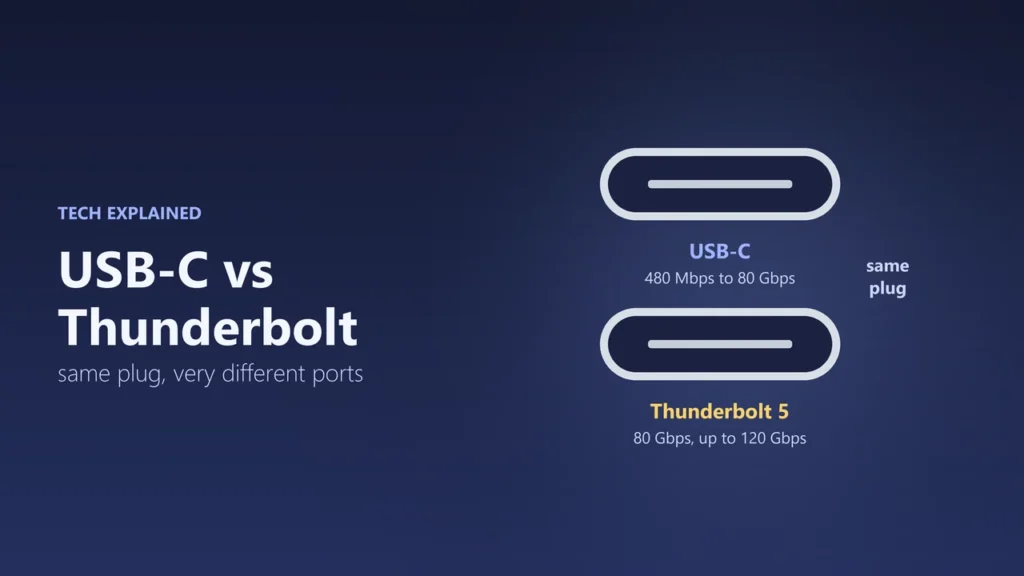
USB-C is the shape of the plug and port. Thunderbolt is a fast connection standard from Intel that uses that same USB-C plug. So every Thunderbolt 3, 4 or 5 port is also a USB-C port, but most USB-C ports are not Thunderbolt. A plain USB-C port can be as slow as 480 Mbps or as fast as 80 Gbps. Thunderbolt 4 always gives you 40 Gbps, and Thunderbolt 5 runs at 80 Gbps, with up to 120 Gbps in one direction for displays.
That is why two ports that look exactly the same can behave very differently. One may charge your laptop, run two monitors and copy files in seconds. The other may only charge your phone. This guide explains the difference between USB-C, USB4 and Thunderbolt, using the official specs from the USB Implementers Forum (USB-IF) and Intel, and shows how to tell which port you have.
USB-C, USB4 and Thunderbolt: three different things
Most of the confusion comes from mixing up a connector with the technology that runs through it. Here are the three layers:
- USB-C (USB Type-C) is the oval, reversible connector. It says nothing about speed or power on its own. The USB-IF, the group behind USB, owns the name.
- USB speed standards (USB 2.0, USB 3.2 and USB4) decide how fast data moves. The USB-IF now asks makers to label products by speed: USB 5Gbps, USB 10Gbps, USB 20Gbps, USB 40Gbps and USB 80Gbps.
- Thunderbolt is Intel’s connection brand. Thunderbolt 3, 4 and 5 all use the USB-C connector. For Thunderbolt 4 and 5, every computer, accessory and cable must pass Intel’s certification.
The two families are closely linked. The USB-IF says USB4 is based on the Thunderbolt protocol that Intel contributed, and Intel’s own timeline dates that contribution to 2019. Intel also requires every Thunderbolt 4 and Thunderbolt 5 computer to meet the USB4 specification.
Is Thunderbolt faster than USB-C?
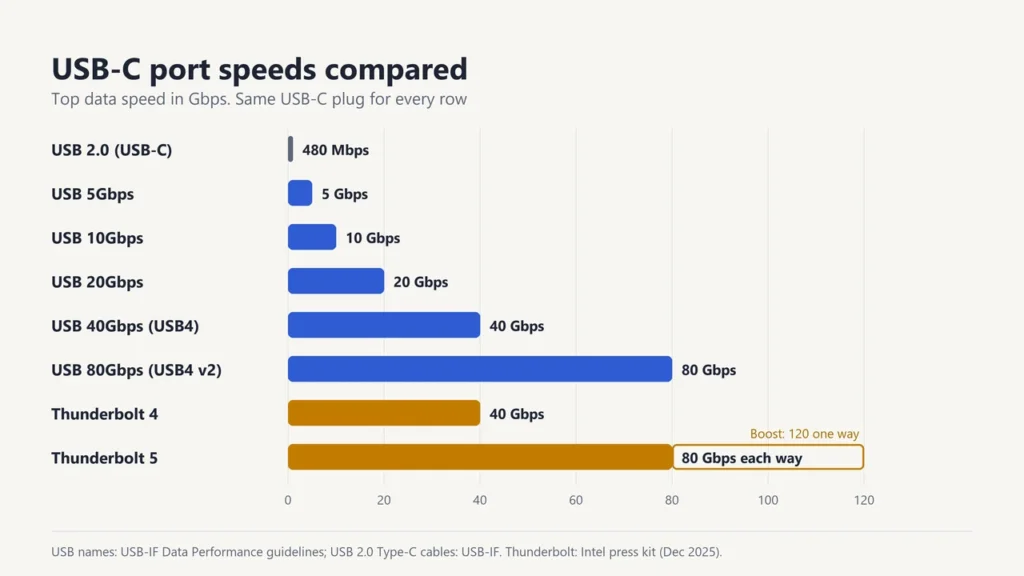
Thunderbolt guarantees a high speed. USB-C does not, because USB-C is only the plug. The speed depends on the standard behind the port:
| Port or cable label | Top data speed |
|---|---|
| USB 2.0 (USB-C shape) | 480 Mbps |
| USB 5Gbps | 5 Gbps |
| USB 10Gbps | 10 Gbps |
| USB 20Gbps | 20 Gbps |
| USB 40Gbps (USB4) | 40 Gbps |
| USB 80Gbps (USB4 Version 2.0) | 80 Gbps |
| Thunderbolt 3 | 40 Gbps |
| Thunderbolt 4 | 40 Gbps |
| Thunderbolt 5 | 80 Gbps each way, or up to 120 Gbps one way with Bandwidth Boost |
These are signalling speeds in gigabits per second. Divide by 8 to get gigabytes: 40 Gbps is 5 GB/s in theory, and real file copies are slower. Our guide to Mbps vs MB/s explains the bits and bytes.
So a USB4 port at 40 Gbps matches Thunderbolt 4 on raw speed. Thunderbolt’s real advantage is the list of features every certified port must have, which is covered below.
Thunderbolt 5 vs Thunderbolt 4 vs USB4: the minimum requirements
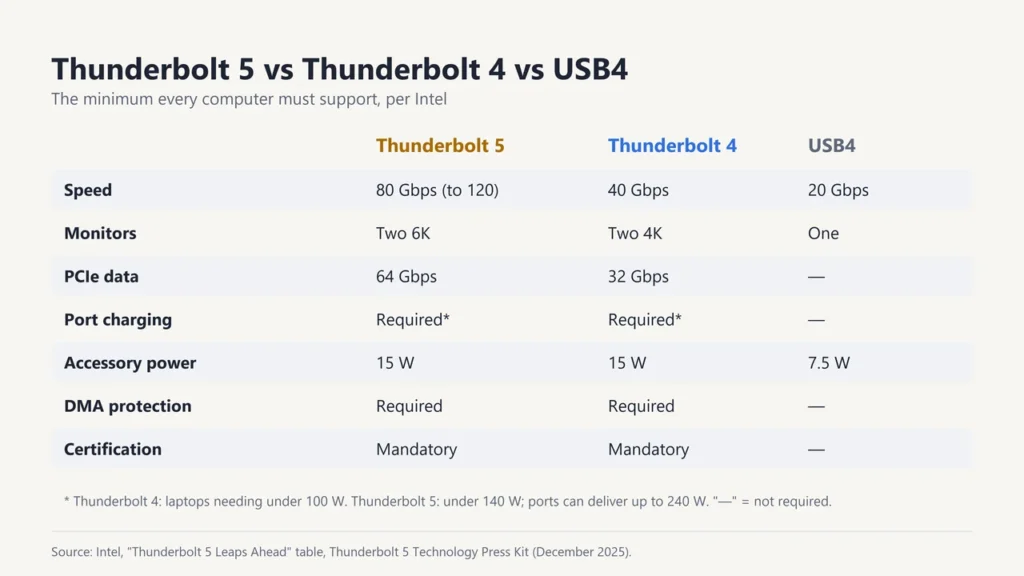
A USB4 port can do a lot, but it does not have to. Intel publishes the minimum that every Thunderbolt computer must support, and compares it with the minimum for USB4. This table comes from Intel’s Thunderbolt 5 press kit (December 2025):
| Minimum on the computer | Thunderbolt 5 | Thunderbolt 4 | USB4 |
|---|---|---|---|
| Speed | 80 Gbps (up to 120 Gbps) | 40 Gbps | 20 Gbps |
| Monitors | Two 6K | Two 4K | One monitor |
| PCIe data (for fast drives and docks) | 64 Gbps | 32 Gbps | Not required |
| Charging through the port | Required for laptops that need under 140 W; up to 240 W possible | Required for laptops that need under 100 W | Not required |
| Power for accessories | 15 W | 15 W | 7.5 W |
| Wake from sleep through a dock | Yes | Yes | Not required |
| DMA attack protection | Required | Required | Not required |
| Certification | Mandatory | Mandatory | Not mandatory |
The key word is minimum. A laptop sold with “USB4” might run at 20 Gbps and one screen, or at 40 Gbps with two screens. A laptop with Thunderbolt 4 must reach 40 Gbps and two 4K screens. That certainty is what you pay for.
DMA protection matters for security. It stops a plugged-in device from reading the computer’s memory directly without permission. Intel requires it on every Thunderbolt 4 and 5 computer.
What is Thunderbolt 5 Bandwidth Boost?
Bandwidth Boost lets a Thunderbolt 5 link send up to 120 Gbps in one direction while receiving 40 Gbps in the other. Normally the link runs at 80 Gbps each way.
Intel says it switches on when there is heavy video traffic, such as very high-resolution or high refresh rate monitors. Intel lists support for two 8K monitors at 60 Hz or three 4K monitors at 144 Hz, if the computer’s graphics can drive them. The 120 Gbps figure is transmit speed only, and Intel notes that you need a Thunderbolt 5 accessory to get full performance.
Charging: how much power can USB-C carry?
Up to 240 W. Charging over USB-C uses the USB Power Delivery (USB PD) standard. Before its Revision 3.1 update, announced in 2021, USB PD stopped at 100 W (20 V at 5 A). Revision 3.1 added 28 V, 36 V and 48 V levels, for 140 W, 180 W and 240 W.
Thunderbolt does not raise that ceiling. Thunderbolt 5’s top figure of 240 W is the same as the USB PD maximum, and Intel says ports can be designed to deliver up to that amount. The difference is the guarantee. Thunderbolt requires charging on at least one port of every Thunderbolt 4 laptop that needs less than 100 W, and every Thunderbolt 5 laptop that needs less than 140 W. USB4 does not. For the actual wattage, check the laptop, the charger and the cable, because all three must support the same level.
Do you need a special cable for Thunderbolt?
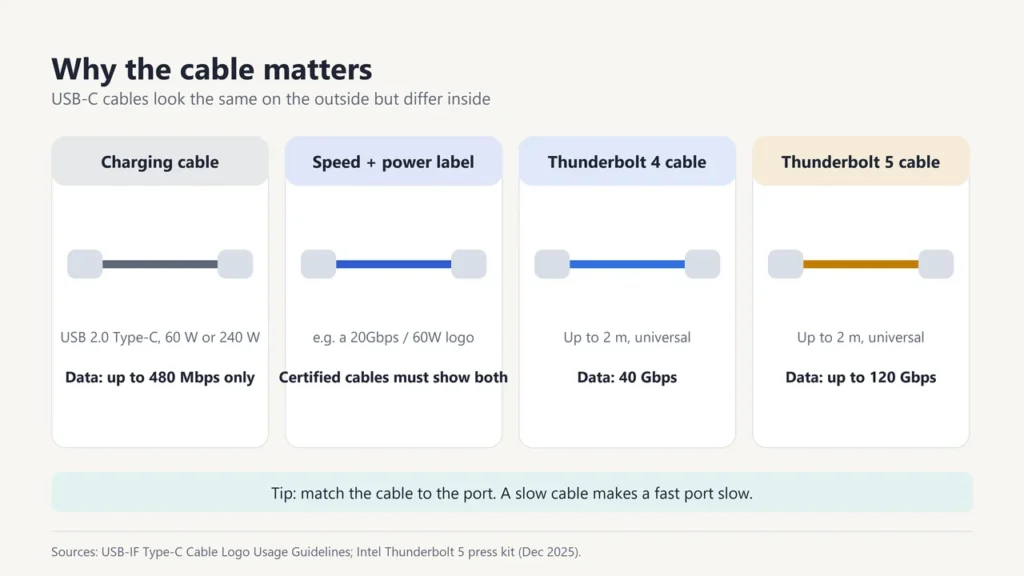
For full speed, yes. A cable can slow down a fast port, because USB-C cables differ inside even when the ends look the same.
- Certified USB-C cables are labelled. The USB-IF requires every certified USB-C to USB-C cable to carry a logo with its data speed and power rating. For example, a USB 20Gbps cable that handles 60 W must show a 20Gbps/60W logo.
- Charging-only cables can be slow. USB 2.0 Type-C cables rated 60 W or 240 W carry data at only up to 480 Mbps, and that speed does not have to appear on the logo.
- Thunderbolt cables are certified by Intel. Thunderbolt 5 cables up to 2 metres long carry up to 120 Gbps, and Thunderbolt 4 cables of that length carry 40 Gbps. For USB4, Intel lists these 2-metre universal cables as optional.
A simple rule: use the cable that came with your Thunderbolt dock or drive, or buy one with the Thunderbolt logo or a USB-IF speed logo that matches your port.
How to tell if your port is Thunderbolt or plain USB-C
Look next to the port first. Intel says the simple test is to look for the Thunderbolt logo, a lightning bolt, on the computer and the accessory. USB ports may show a USB-IF speed logo, such as “USB 10Gbps” or “USB 40Gbps”, instead.
If there is no logo, check the maker’s spec sheet for the exact model. Search the spec page for these words:
- “Thunderbolt 4” or “Thunderbolt 5”: you get the full Intel minimums from the table above.
- “USB4” with a speed (40Gbps or 80Gbps): fast data, but check how many monitors it supports and whether it charges.
- “USB-C” with 5, 10 or 20 Gbps: fine for drives and phones. Check for “DisplayPort” before you plug in a monitor.
- “Power Delivery” or “PD” with a wattage: how much power the port gives or takes.
Can you plug USB-C devices into a Thunderbolt port?
Yes. Because Thunderbolt 4 and 5 computers must meet the USB4 specification, normal USB-C devices such as phones, flash drives and chargers work in them. The USB-IF says USB4 works with USB 3.2, USB 2.0 and Thunderbolt 3 devices, and the link runs at the best speed both ends share.
The other way round needs more care. A Thunderbolt accessory plugged into a plain USB-C port may not work at all, or may lose features, if it needs Thunderbolt functions such as PCIe for fast storage or graphics docks. Check the accessory’s requirements before you buy.
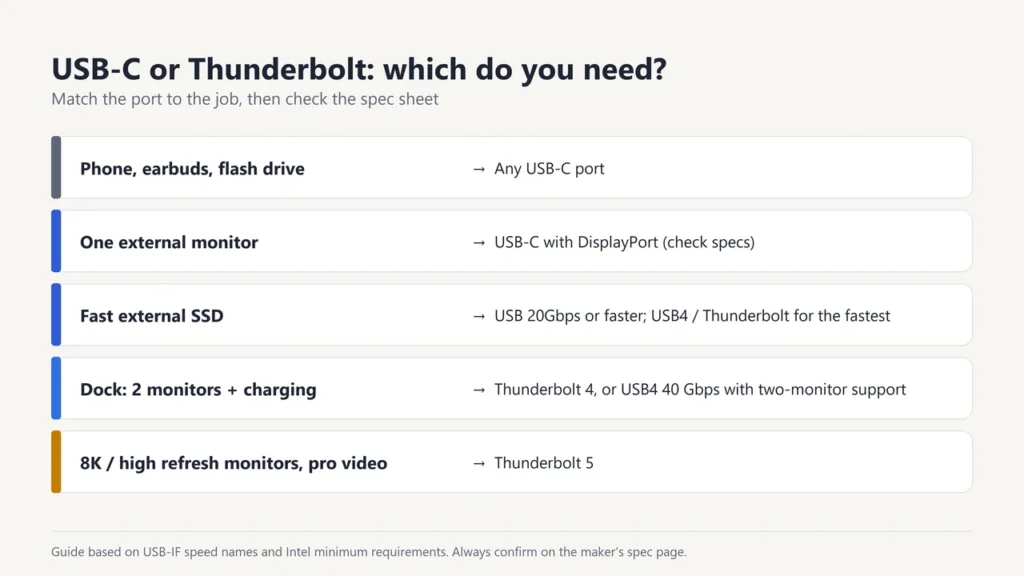
USB-C or Thunderbolt: which do you need?
- Charging a phone, earbuds or power bank, or using a flash drive: any USB-C port is enough.
- One external monitor: USB-C works if the port supports video (DisplayPort). Check the spec sheet.
- A fast external SSD: USB 20Gbps or faster helps. USB4 or Thunderbolt is better for the fastest drives.
- One cable to a desk dock with two monitors, charging and drives: Thunderbolt 4, or a USB4 port the maker lists as 40 Gbps with two-monitor support.
- Very high-resolution or high refresh rate monitors, external graphics or pro video work: Thunderbolt 5.
If you are setting up a second screen, our guide on how to add a monitor to your laptop walks through the steps. And if your home network is the slow link rather than the cable, see Wi-Fi 6 vs Wi-Fi 7.
USB-C vs Thunderbolt FAQ
Is Thunderbolt the same as USB-C?
No. USB-C is the connector shape. Thunderbolt 3, 4 and 5 use that connector, but add Intel’s certified speed, display, charging and security minimums.
Is USB4 the same as Thunderbolt 4?
Not quite. Both can reach 40 Gbps, and USB4 is based on the Thunderbolt protocol. But Intel’s USB4 minimum is only 20 Gbps and one monitor, while every Thunderbolt 4 computer must do 40 Gbps and two 4K monitors.
How fast is Thunderbolt 5?
80 Gbps in each direction. With Bandwidth Boost it can send up to 120 Gbps one way, while receiving 40 Gbps, for demanding displays.
Can I use a Thunderbolt cable as a normal USB-C cable?
Yes. Intel calls Thunderbolt 4 and 5 cables “universal” cables. They have USB-C ends and work with USB-C devices too. The reverse is the problem: a cheap USB-C cable may limit a Thunderbolt connection.
What does the lightning bolt next to a USB-C port mean?
It is the Thunderbolt logo. Intel tells buyers to look for it to find Thunderbolt computers and accessories. A port without it may still be fast USB, so check the spec sheet.
Can all USB-C ports charge a laptop?
No. Charging depends on USB Power Delivery support in the laptop, charger and cable. Thunderbolt 4 and 5 laptops must charge through at least one port, unless they need more power than Intel’s limits, while USB4 does not require it.
What is the fastest USB-C speed?
USB 80Gbps (USB4 Version 2.0) is the fastest USB speed the USB-IF lists. Thunderbolt 5 matches it at 80 Gbps and adds Bandwidth Boost up to 120 Gbps one way.

Justwebworld has published guides since 2012. How we write and update articles Report an error
