

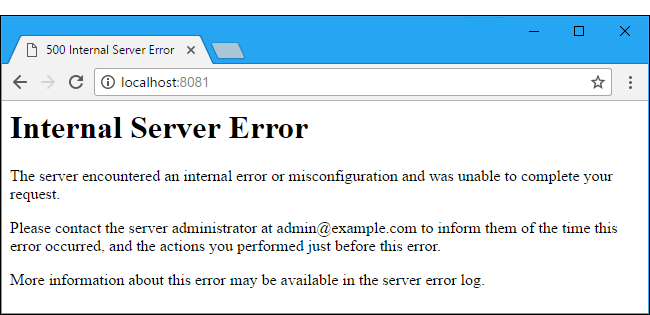
When you encounter an error like this, though it does not tell you how to correct the error or the source of the error, do not panic, this article will take you through how to solve the issue with ease.
How to Fix the Internal Server Error In WordPress

Internal Server Error may occur due to the following reasons:
- Corrupted .htaccess file
- Corrupted plugin(s) or theme(s)
- Corrupted WordPress core file
- Memory Limit
Now that you know the likely sources of Internal Server Error, we can proceed to solve it anytime we come across it, but before we proceed, take note of the action you performed last on your website before encountering this error as it will help to identify the source of the error quickly.
For example, let’s say you just activated a new theme and then an Internal Server error shows up, you would have known that the source of this error is the theme you just activated.
1) Corrupted .htaccess File
The .htaccess (Hypertext Access) file is a configuration file that is used to control the directory it lives in and all the child directory inside the host directory. In this case, your “public_html” or “www” is the parent/host directory and all other directories under either of these two are children/subdirectories. The .htacces file has control over all of them.
You can a replace a corrupted .htaccess file using either of these methods:
- If you can log in to your WordPress Admin area, Go to Settings -> Permalinks, just click on “Save Changes” button without really changing any settings. This will generate a new .htaccess file. Reload your webpage to see if the error has been corrected. If the error persists, use the second method.
- This method requires you logging into your FTP server, or you can use the file manager in your Control Panel, details for logging into FTP server can be found on Control panel or hosting account. Once logged in, navigate to “public_html” or “www” directory and double-click. By default, some hosting company has hidden the .htaccess file, if this is the case, Goto setting and allow “show hidden files”. Once the file is visible, right-click and select “rename”, append “_old” to the file name i.e. “.htaccess_old” and then save. This method will also force WordPress to generate a new .htaccess file. Reload your webpage to see if the error has been corrected.
2) Corrupted plugins or themes
As important to WordPress as they are, poorly coded plugins and themes may be the source of Internal Server Error, once you are certain that the error is caused by either plugin or theme, logging into your FTP server, locate and double-click “publick_html” directory inside the directory, also locate and double-click the “wp-content” directory. If the error has been isolated to plugin issue, rename the “plugins” directory and append “_deactivated” i.e. “plugins_deactivated”, this action will prevent WordPress from loading your plugins, thus correcting the error.
If the error has been isolated to themes issue, double-click themes directory and locate your current theme’s directory, right-click on the folder and rename to something else. This action will force WordPress to load the default theme. Reload your webpage to see if the error has been corrected.
3) Corrupted WordPress core file
WordPress core files can also succumb to virus attack, thus altering their code structure and resulting in Internal Server Error. When this happens, the first step is to backup your database (this can be done from your Control Panel under the database section), save to your local disk. You may also back up your “wp-contents” directory.
The next step is to reset your website (this can also be done from your Control Panel) and re-install the WordPress script. If you can identify the corrupted file or directory, you can delete and re-upload the individual file or directory from a fresh WordPress script.
4) Insufficient Memory Limit
While executing codes, the server needs enough memory to complete the execution task, WordPress has been optimized to handle memory limit just fine. For example, if PHP has been allocated 64MB, you do not need to set the value to 64M as WordPress will automatically use all 64MB if need be.
There are some cases where your hosting service provider has allocated memory less than needed and does not allow for increasing PHP memory limit, in this case, WordPress will not be able to use all the 64MB as hosting service provider allocation overrule the WordPress allocation. The step to take is to contact your host and ask them to increase your memory limit.
Once it has been increased, logging to your FTP server, navigate to your “public_html” directory, inside the directory, look for a file called “wp-config.php.” Right-click on the file and select “View/Edit”, a prompt box may pop up asking you to select an editor, select the default. Immediately after the “<?php”, go to new line(press enter) and type the code “define(‘WP_MEMORY_LIMIT’, ‘64M’);”. Save the file and reload your web page. If error persists, keep increasing memory limit via the above method.
5) To Find and Correct WordPress Errors Faster You Can Enable Error Reporting
WordPress has a powerful tool called the “debug mode”. WordPress Debug Mode is all in one error detector even when not dealing with Internal Server error. This tool allows you to pinpoint the exact source of any error on your website. It generates a text file that states the location within your WordPress directory and timestamp of the error.
To enable error reporting, you have to edit your “wp-config.php” file, locate the file (it can be found inside “public_html” or “www” directory), right-click and select “View/Edit”, underneath the opening tag “<?php”, add the following codes:
define(‘WP_DEBUG’, true);
define(‘WP_DEBUG_LOG’, true);
define(‘WP_DEBUG_DISPLAY’, false)
define(‘WP_DEBUG’, true); activates the debug mode.
define(‘WP_DEBUG_LOG’, true); tells WordPress to save and update a file debug.log in your home directory.
define(‘WP_DEBUG_DISPLAY’, false); hides the error from the public so that only you can see it.
Login to your FTP server and locate debug.log file in your website root directory, edit the file view the error logs.
Need more tutorials on solving WordPress errors using error log? There is great post on how to fix it on 000webhost blog post.

Justwebworld has published guides since 2012. How we write and update articles Report an error
