

A 403 Forbidden error means the web server understood your request but refuses to let you see the page. Unlike a server crash, a 403 is a deliberate refusal, caused by file permissions, a server rule, a security tool or a block on your connection. As a visitor you can try a few quick checks, but most 403s can only be fixed by the website’s owner.
This guide explains how a 403 differs from similar errors, what visitors can try, and the order site owners should work through to find the cause, from file permissions to firewall rules.
Key takeaways
- 403 means “refused”, not “missing” (404) or “please sign in” (401).
- Visitors can try checking the address, clearing cookies, signing in and turning off a VPN.
- The usual causes for owners are file permissions, server rules, missing index files and security tools.
- Never “fix” a 403 with 777 permissions. It opens files to anyone on the server.
- Undo recent changes first, since a new rule, plugin or setting is often the trigger.
What a 403 Forbidden error means
The HTTP standard, RFC 9110, says a 403 “indicates that the server understood the request but refuses to fulfill it”. It adds that if credentials were supplied, the server considers them insufficient, and that a request “might be forbidden for reasons unrelated to the credentials”. A server may even choose to return a 404 Not Found instead, to hide that the page exists.
| Code | Meaning | Will signing in help? |
|---|---|---|
| 401 Unauthorized | The request lacks valid credentials | Yes, that is what it asks for |
| 403 Forbidden | The server understood but refuses access | Only if the refusal is about your account |
| 404 Not Found | The page does not exist, or is being hidden | No |
| 500 to 504 | The server failed or could not respond | No; see our guide to 502, 503 and 504 errors |
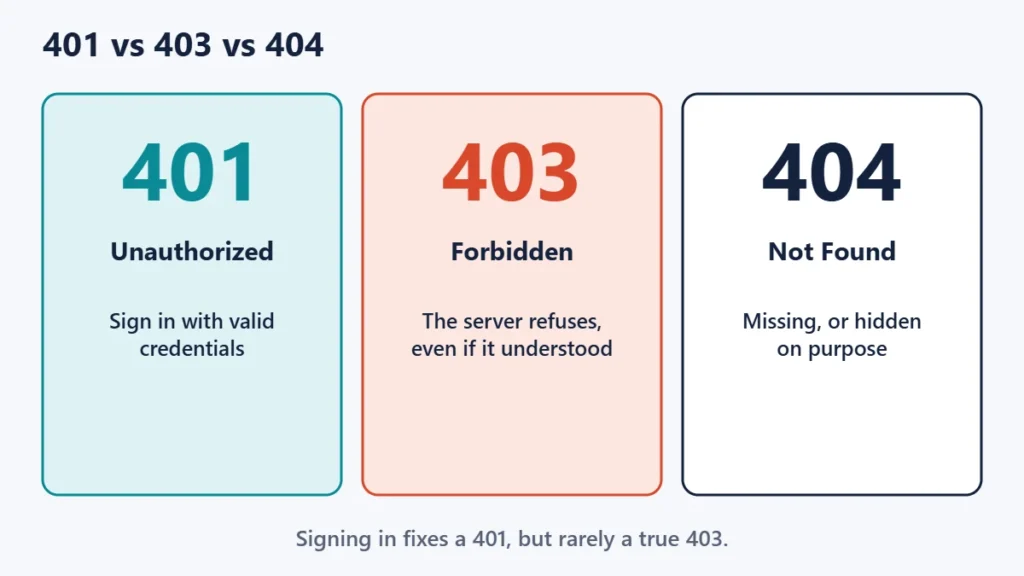
MDN Web Docs describes 403 failures as tied to application logic, such as insufficient permissions for a resource, and notes that for a true 403, re-authenticating makes no difference.
What to try as a visitor
- Check the address. A mistyped path, or a link to a folder instead of a page, can trigger a 403.
- Reload, then clear the site’s cookies and cache. Old login data can confuse permission checks.
- Sign in if the page is for members, and confirm your account has access.
- Turn off any VPN or proxy. Some sites block traffic from VPN services, data centres or certain countries.
- Try another network. If the page works on mobile data, your network’s address may be blocked. Our guide to checking if a site is down for everyone covers the same test.
- Contact the website if the problem continues, and include the page address and the time.
Common causes for site owners
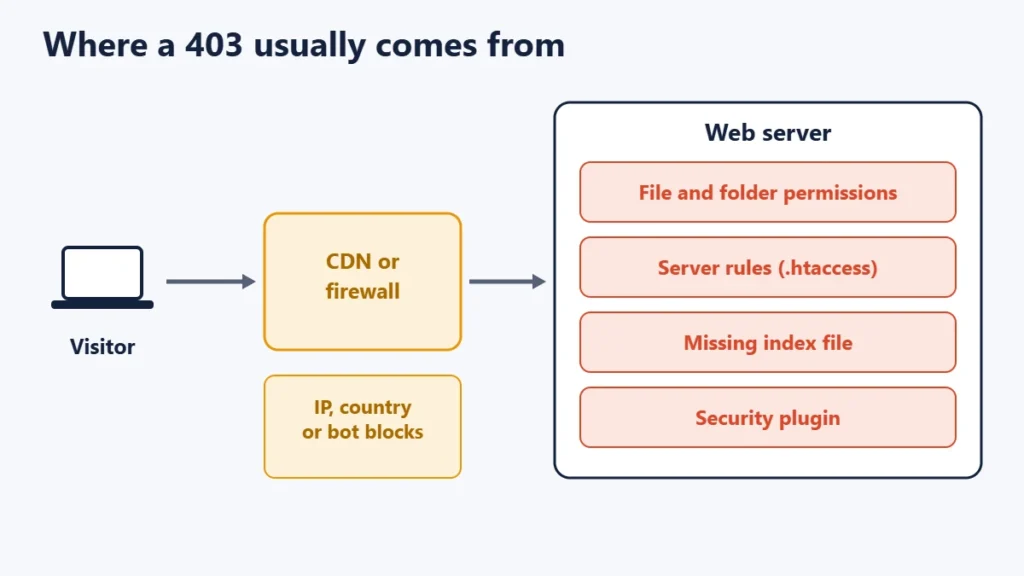
1. Wrong file or folder permissions
Web servers need permission to read your files. If a file or folder is locked down too tightly, or owned by the wrong user, the server refuses to serve it. This often happens after uploading files by FTP, restoring a backup or moving hosts.
2. Server rules that deny access
Configuration files such as Apache’s .htaccess can block folders, file types or IP addresses. Apache’s documentation describes Require all denied as denying access unconditionally. A rule added by a plugin, a security guide or a previous developer can block more than intended.
3. A missing index file
When someone requests a folder, the server looks for an index file such as index.php or index.html. If none exists and directory listing is turned off, many servers respond with a 403 rather than showing the folder’s contents. This is common after a failed upload or a misconfigured document root.
4. Security plugins and firewalls
Security plugins, web application firewalls and hosting security tools block requests that look suspicious. They can be triggered by login attempts, unusual characters in a form or a sudden burst of requests, which sometimes blocks legitimate users or even the site owner.
5. IP, country and bot blocks
Blocks can sit at the host or at a CDN in front of the site. If the error page carries a CDN’s or security service’s branding, check that service’s firewall rules first. Our guide to CDNs explains how they sit in front of your server.
Getting file permissions right
Permissions on Linux hosting are written as three digits, for the file’s owner, its group and everyone else. Each digit adds up read (4), write (2) and execute (1).
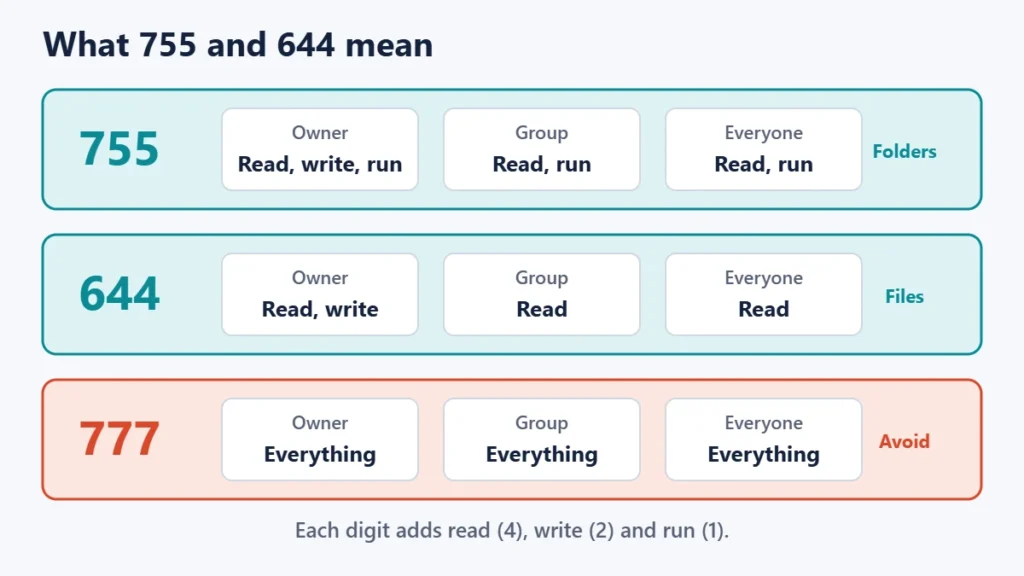
For WordPress on shared hosting, WordPress’s own documentation recommends 755 or 750 for directories and 644 or 640 for files, with wp-config.php at 440 or 400 so that other users on the server cannot read it. It also warns to use 777 only if necessary and only temporarily. Change permissions through your host’s file manager or an FTP program, and ask your host if you are unsure, since the right values can depend on how the server runs.
A troubleshooting order for site owners
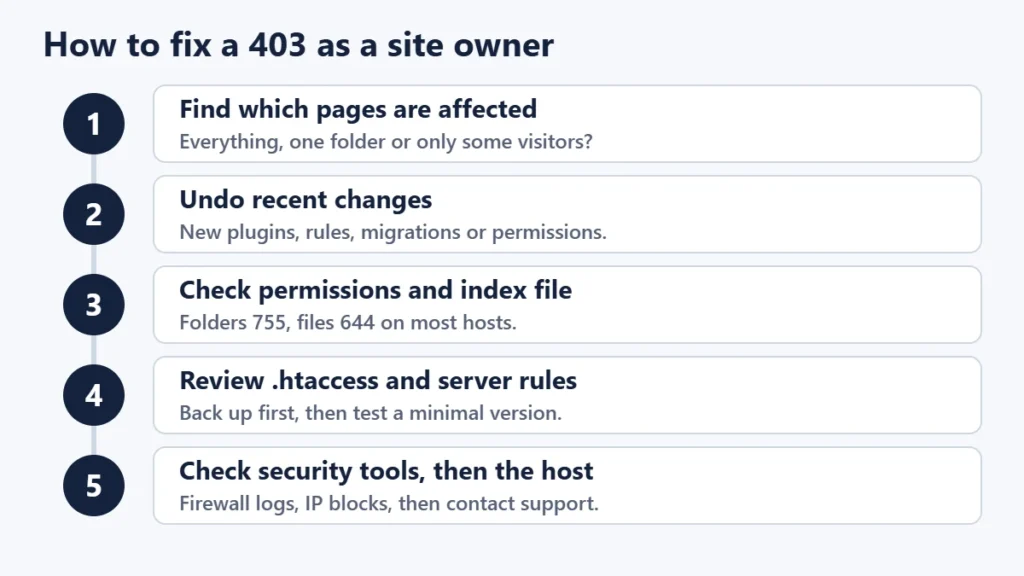
- Find the scope. Does the 403 affect every page, one folder, the admin area or only certain visitors?
- Undo recent changes, such as a new plugin, security rule, migration or permission change.
- Check permissions and the index file in the affected folder.
- Review server rules. Make a backup copy of
.htaccess, then test with a minimal version. On WordPress, re-saving the permalink settings regenerates its standard rules. - Check security plugins and firewall logs for blocked requests, and allowlist your own IP address if you have locked yourself out.
- Contact your host with the page address, the time and your IP address. If you are not sure who runs the server, see how to find who hosts a website.
If the error changes to a 500 after editing server rules, the new rules probably contain a mistake. Restore your backup and see our guide to the 500 Internal Server Error.
Common mistakes
- Setting everything to 777. It may hide the error, but it lets anyone on the server change your files.
- Deleting .htaccess without a backup. Keep a copy so that you can restore custom rules.
- Blocking your own IP address with a security plugin after repeated login attempts.
- Forgetting the CDN. A firewall rule at the CDN can block visitors before they reach your server.
- Returning 403 for pages you want in search results. Search engines cannot index pages they are refused.
Frequently asked questions
Is a 403 error my fault?
Usually not. It is the website’s server refusing access. Your VPN, network address or account permissions can occasionally be the reason.
Can a VPN cause a 403 error?
Yes. Some sites block VPN and data centre addresses. Turn off the VPN and try again.
What is the difference between 401 and 403?
A 401 means you need valid credentials. A 403 means the server understood the request and refuses it, often for reasons other than signing in.
Why do I get a 403 on my own WordPress admin page?
Common reasons are a security plugin or firewall blocking your IP address, wrong permissions, or server rules protecting the admin folder. Check recent changes and firewall logs first.
Can permissions be too open?
Yes. Some servers refuse to run files with unsafe permissions, and open permissions are a security risk either way. Stick to your host’s recommended values.
Does a 403 error affect SEO?
If search engines are refused, they cannot crawl or index the page. Make sure that pages you want found are not blocked by mistake.
The short version
A 403 is the server saying “no”. Visitors can check the address, clear cookies, sign in and switch off a VPN, then contact the site. Site owners should undo recent changes, check permissions and index files, review server rules and security tools, and only then contact their host.

Justwebworld has published guides since 2012. How we write and update articles Report an error
