

A website shows “Not secure” when it is loaded over plain HTTP instead of HTTPS, when its security certificate has a problem, or when an HTTPS page loads some content insecurely. The fix for site owners is to install a valid certificate, redirect every visitor to HTTPS and clear up any insecure links on the page.
Visitors should take the warning seriously, especially on pages that ask for passwords or payment details. This guide explains what the browser labels mean, the main causes, and a step-by-step fix that covers the mixed content problems many site owners miss.
Key takeaways
- “Not secure” usually means no HTTPS, so data is not encrypted on its way to the site.
- Certificates can be free. Let’s Encrypt issues them at no charge, and many hosts set them up automatically.
- Installing a certificate is not enough. You also need to redirect HTTP to HTTPS and update your site’s address.
- Mixed content can break parts of an HTTPS page, because browsers block insecure scripts and styles.
- Automate renewals. Certificate lifetimes are getting shorter.
What the browser warnings mean
Google’s Chrome help explains that “Not secure” means the site does not use a private connection, so someone may be able to view or change the information you send or receive. It notes that the site owner must fix this by securing the site with HTTPS. A separate “Dangerous” warning means you should not use the site at all.
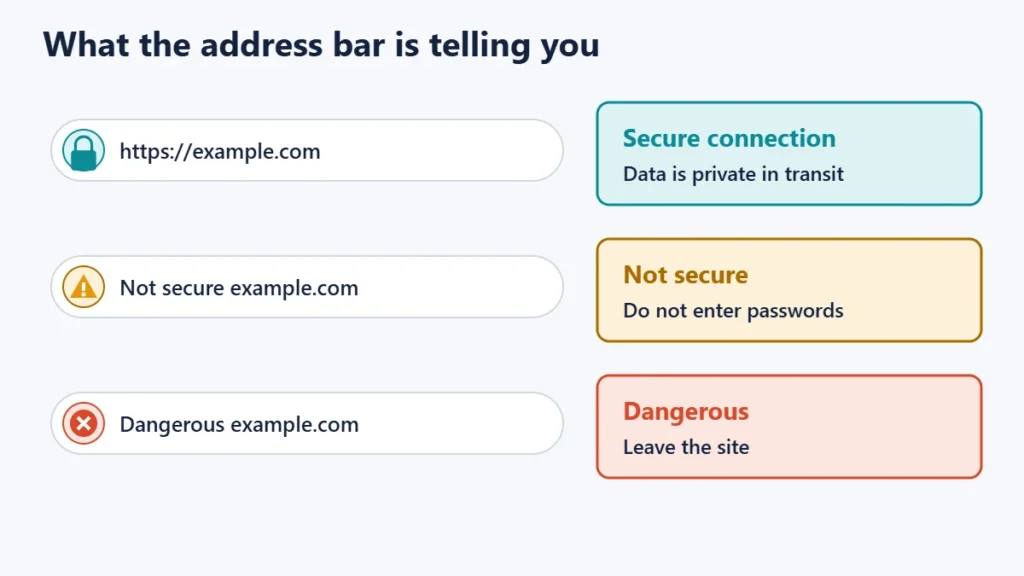
| What you see | What it means | Safe to enter a password? |
|---|---|---|
| Normal padlock or default secure icon | The connection is private between you and the site | The connection is protected; still check you are on the right site |
| Not secure | No private connection, or a problem with it | No |
| Dangerous | The site has been flagged as unsafe | No. Leave the site |
| Full-page certificate error | The certificate is invalid for this site | No |
A secure connection protects data in transit, but it does not prove a site is trustworthy. Fake sites can use HTTPS too, which is one reason phishing-resistant sign-in methods such as passkeys are worth using.
The five main causes
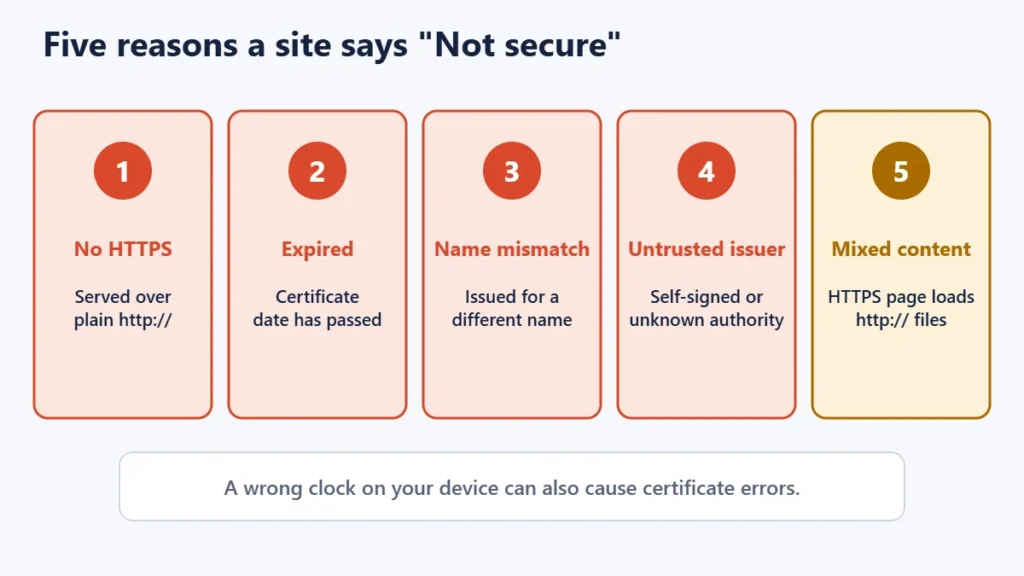
- No HTTPS at all. The site is served over
http://, often because no certificate was ever set up. - An expired certificate. Chromium describes this as a certificate that, by your device’s clock, has expired or is not yet valid. A wrong clock on your own device can cause the same error.
- A name mismatch. The certificate was issued for a different name, such as the bare domain but not its www version.
- An untrusted issuer. The certificate is self-signed or issued by an authority the browser does not trust.
- Mixed content. The page itself is HTTPS, but some images, scripts or styles still load over HTTP.
How to fix “Not secure” on your website
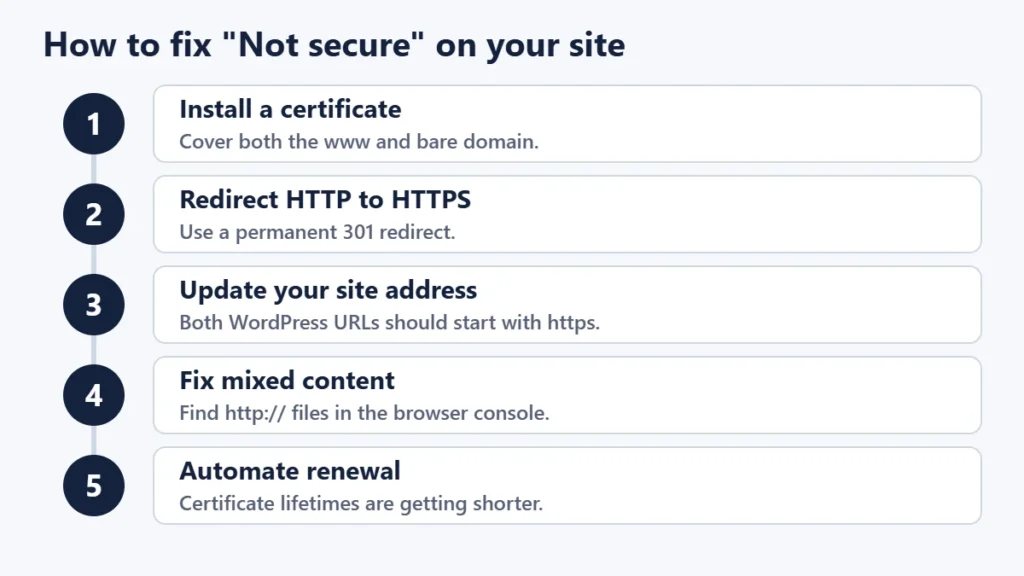
Step 1: Get and install a certificate
Check your hosting dashboard first. Many hosts include free certificates that can be switched on with one click. Let’s Encrypt, a nonprofit certificate authority, issues certificates without charge and is designed so that servers can obtain and renew them automatically. Some hosts add a fee for managing certificates, so check what your plan includes. Make sure the certificate covers every name your site uses, including both the www and bare versions. Our guide to choosing an SSL certificate explains the different types.
Step 2: Redirect HTTP to HTTPS
Set up a permanent 301 redirect so that anyone visiting the http:// address lands on https://. Many hosts have a “force HTTPS” setting. Our guide to 301 and 302 redirects explains why a permanent redirect matters.
Step 3: Update your site’s own address
Your website platform may still generate links with http://. In WordPress, check that both addresses under Settings, General start with https. WordPress’s documentation also describes a FORCE_SSL_ADMIN setting in wp-config.php that forces logins and admin sessions to use HTTPS. Our guide to installing SSL on WordPress walks through the WordPress side in more detail.
Step 4: Fix mixed content
MDN Web Docs defines mixed content as a secure page that fetches resources over HTTP. Today’s browsers automatically upgrade insecure images, audio and video to HTTPS, and block insecure requests for other resource types, such as scripts, stylesheets, frames and fonts. A blocked script or stylesheet can leave a page looking broken or missing features.
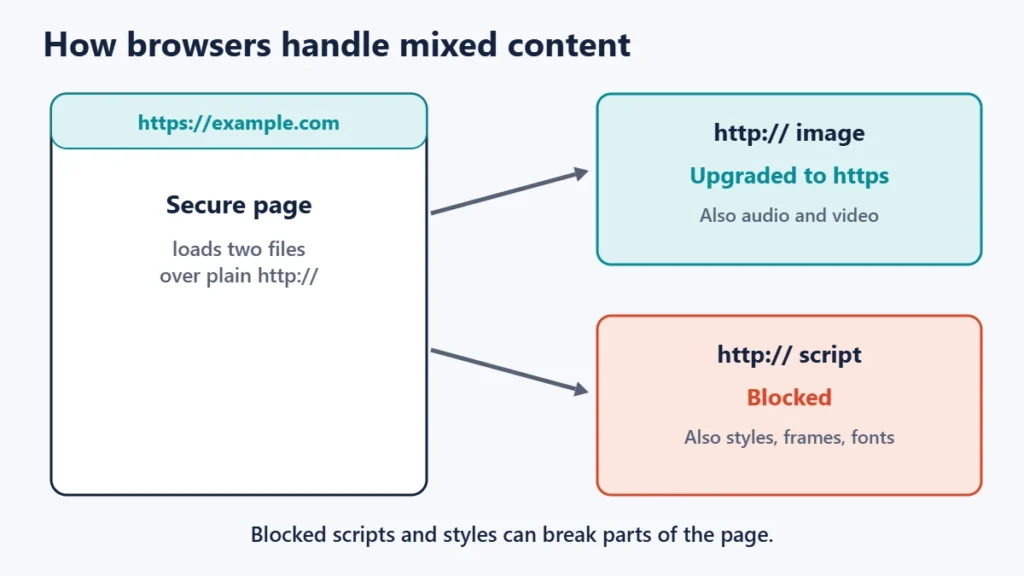
To find mixed content, open the page, press F12 to open developer tools, and look in the Console for mixed content warnings. Then update the affected links to https in your content, theme, widgets or settings. Search-and-replace tools can update old links in a database, but back up the site first.
Step 5: Automate renewal
Let’s Encrypt’s default certificates are currently valid for 90 days. The organisation has announced that lifetimes will be cut to 45 days by 2028 in line with industry requirements, and that renewing on a fixed 60-day schedule will no longer be enough. Use automatic renewal through your host or software rather than calendar reminders.
Optional: HSTS
Once HTTPS works everywhere, you can add HSTS, a mechanism defined in RFC 6797 that tells browsers to use only secure connections to your site. Add it last and with care, because browsers will refuse plain HTTP to your site for as long as the policy lasts.
Redirect loops after switching to HTTPS
If the site starts reloading endlessly, or shows a “too many redirects” error, two settings are probably fighting each other. WordPress’s documentation warns that a site behind a reverse proxy that provides SSL can fall into an infinite redirect loop unless it is configured to recognise the proxy’s HTTPS signal. Check your CDN’s SSL mode and your host’s HTTPS settings together, and remove duplicate redirect rules. Our guide to CDNs explains how a proxy sits in front of your server.
What to do as a visitor
- Do not enter passwords or payment details on a page marked “Not secure” or “Dangerous”.
- Check the address carefully for misspellings that suggest a fake site.
- Check your device’s date and time if many sites show certificate errors at once.
- Avoid clicking through certificate warnings unless you understand exactly why they appear.
Common mistakes
- Installing a certificate without a redirect. Visitors on http:// still see the warning.
- Covering only one version of the domain. The www or bare version then shows a name mismatch.
- Leaving old http:// links in place. Mixed content can break scripts and styles.
- Relying on manual renewal. Shorter certificate lifetimes make missed renewals more likely.
- Turning on HSTS too early. Browsers will refuse HTTP until the policy expires.
Frequently asked questions
Is it safe to use a site that says Not secure?
Reading public information is usually low risk. Do not enter passwords, personal details or payment information.
Is an SSL certificate free?
It can be. Let’s Encrypt issues free certificates, and many hosts include free certificates in their plans.
Why does my site still say Not secure after installing SSL?
Usually because visitors are not redirected to HTTPS, the site’s own address still uses http, or the page loads mixed content.
Does HTTPS affect search rankings?
HTTPS is widely recommended for every website. A site that shows security warnings can also lose visitors’ trust, whatever its rankings.
How long does an SSL certificate last?
Let’s Encrypt’s default certificates last 90 days today, and lifetimes across the industry are getting shorter. Automate renewal.
What is the difference between SSL and TLS?
TLS is the modern successor to SSL. People still say “SSL certificate”, but today’s secure connections use TLS.
The short version
“Not secure” means the connection is not private, or something is wrong with it. Install a certificate that covers every version of your domain, redirect HTTP to HTTPS, update your site’s address, fix mixed content, and automate renewal. Visitors should keep personal details off any page that shows the warning.

Justwebworld has published guides since 2012. How we write and update articles Report an error
