

WP-Cron is WordPress’s built-in system for running scheduled tasks, such as publishing scheduled posts, checking for updates and running plugin jobs. Unlike a real server scheduler, it only runs when someone visits your site. The WordPress developer handbook explains that WP-Cron works by checking, on every page load, a list of scheduled tasks to see what needs to be run.
That design works for most sites but has two side effects: on quiet sites, tasks can run late, and on busy sites, the checks add work to page loads. This guide explains how WP-Cron works, how to see what is scheduled, and when to replace it with a real server cron job.
Key takeaways
- WP-Cron runs scheduled WordPress tasks like publishing posts and plugin jobs.
- It is triggered by page visits, not by a real clock.
- Low-traffic sites can see tasks, including scheduled posts, run late.
- You can disable it with DISABLE_WP_CRON and use a server cron job instead.
- WP-CLI can list and run scheduled events.
How WP-Cron works
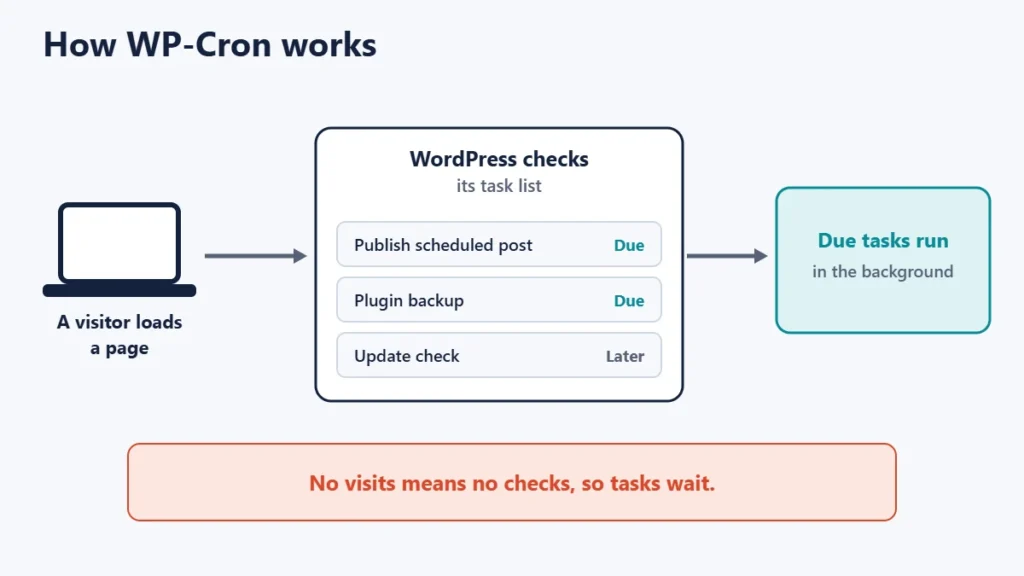
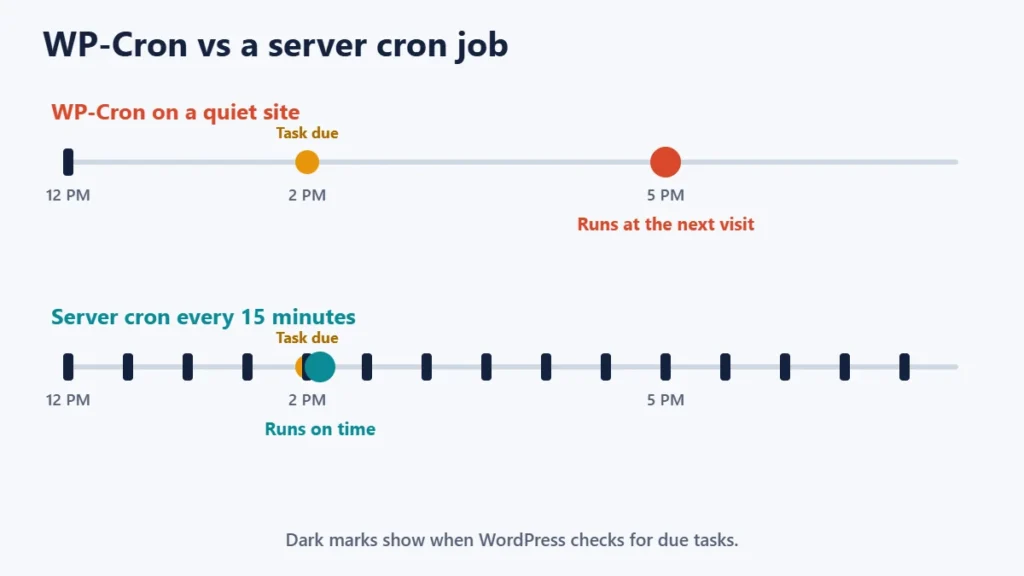
WordPress keeps a list of events, each with a time and a task to run. When a page loads, WordPress checks whether any event is due and, if so, runs it. The handbook is direct about the limitation: WP-Cron does not run constantly as the system cron does; it is only triggered on page load. It gives an example: if a task is scheduled for 2:00 PM and no page loads occur until 5:00 PM, the task runs late.
Recurring tasks use intervals. The handbook says WP-Cron uses intervals to simulate a system cron, with built-in options of hourly, twice daily, daily and weekly.
What WP-Cron runs
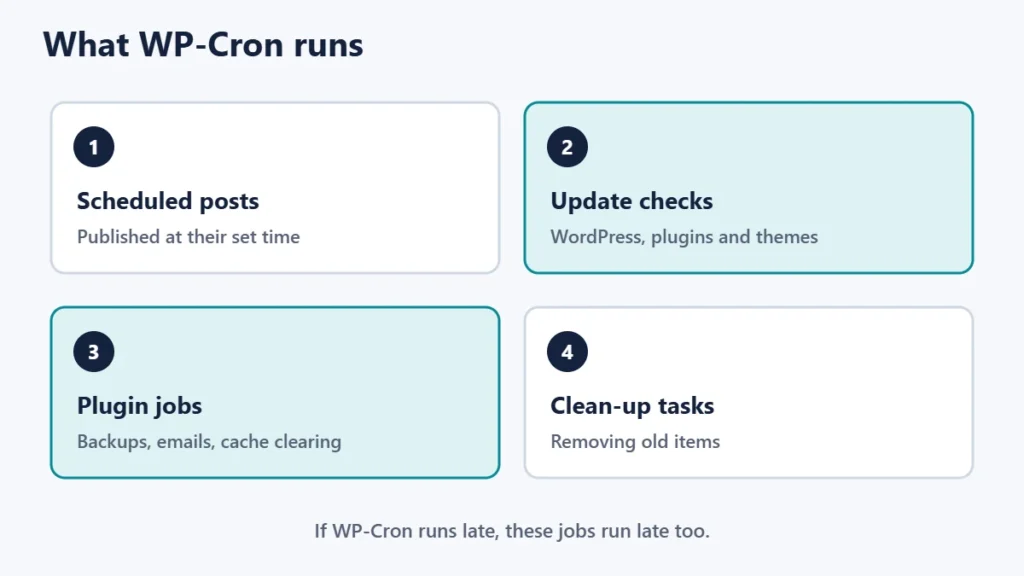
- Publishing scheduled posts at their set time.
- Checking for WordPress, plugin and theme updates.
- Plugin jobs, such as backups, sending emails, clearing caches and syncing data.
- Clean-up tasks, such as emptying old items.
WP-Cron vs a real server cron
| WP-Cron | Server cron job | |
|---|---|---|
| Triggered by | Page visits | The server’s clock |
| Runs on quiet sites | Only when someone visits | On schedule |
| Adds work to page loads | Yes, a check on each load | No |
| Set-up | None, built in | A cron job in your hosting panel or server |
| Best for | Most small sites | Busy sites or sites needing reliable timing |
Signs WP-Cron is causing problems
- “Missed schedule” posts that did not publish on time.
- Backups or emails that run hours late or not at all.
- Slow page loads on busy sites when heavy tasks run during visits.
- Tasks piling up if a plugin schedules jobs too often.
If a site is slow in general, see our website speed tips as well.
How to see what is scheduled
WP-CLI, WordPress’s command-line tool, has commands for this. Its documentation describes wp cron event list as listing scheduled cron events, and wp cron test as testing the WP-Cron spawning system and reporting its status. You need SSH access to your hosting to use WP-CLI. Some plugins also show scheduled events in the dashboard.
How to switch to a server cron job
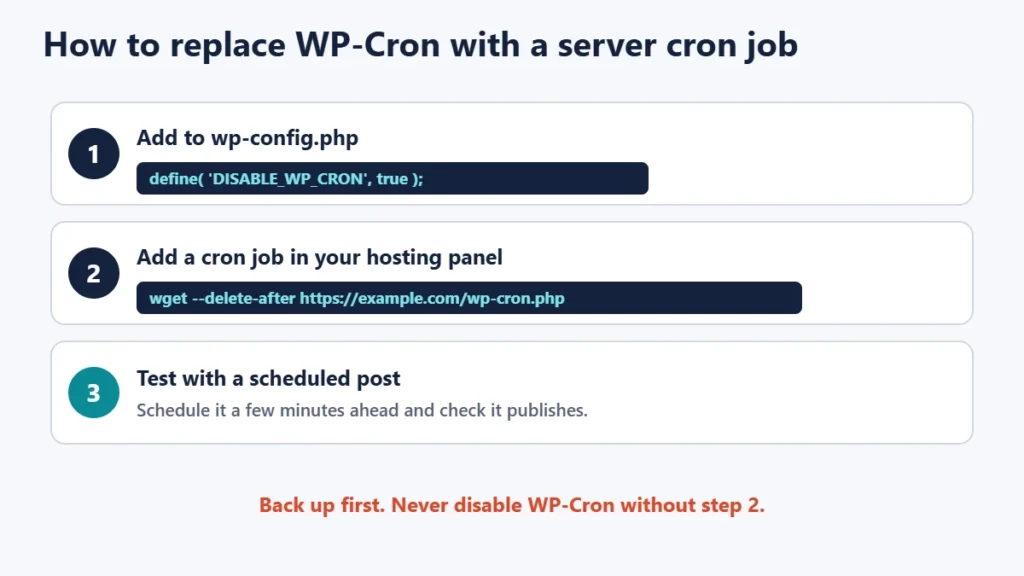
- Back up your site first, including
wp-config.php. Our guide to the 3-2-1 backup rule explains a solid approach. - Disable the page-load trigger. The handbook says WP-Cron can be disabled in
wp-config.phpby addingdefine( 'DISABLE_WP_CRON', true );. - Create a server cron job. The handbook’s suggestion is to use a tool to make a web request to the
wp-cron.phpfile. In most hosting panels, you add a cron job with a command likewget --delete-after https://example.com/wp-cron.php, replacing the address with your own. - Choose a sensible interval, such as every 5 or 15 minutes, depending on how precise your tasks need to be.
- Test it. Schedule a test post a few minutes ahead and check it publishes on time.
Some managed hosts already run WordPress cron on a schedule for you, so check your host’s documentation before changing anything.
Common mistakes
- Disabling WP-Cron without adding a server cron job. Scheduled tasks then stop running.
- Running the server job too often, such as every minute on a large site, adding load for little gain.
- Using the wrong address in the cron command, such as http instead of https behind a redirect.
- Ignoring plugins that schedule heavy jobs too frequently.
- Editing wp-config.php without a backup.
Frequently asked questions
Why did my scheduled post miss its time?
WP-Cron only runs when someone visits. On a quiet site, the post publishes on the next visit after its scheduled time.
Is it safe to disable WP-Cron?
Yes, as long as you replace it with a server cron job that calls wp-cron.php regularly.
How often should the server cron job run?
Every 5 to 15 minutes suits most sites. Choose based on how precise your scheduled tasks need to be.
Does WP-Cron slow down my site?
The check itself is light, but heavy tasks running during visits can slow busy sites.
Can I see what WP-Cron will run?
Yes, with WP-CLI’s wp cron event list, or with a plugin that shows scheduled events.
Is WP-Cron the same as a Linux cron?
No. It simulates one using page visits. A Linux cron runs on the server’s clock.
The short version
WP-Cron runs WordPress’s scheduled tasks, but only when someone loads a page. That can make tasks run late on quiet sites and add work on busy ones. If timing matters, disable it with DISABLE_WP_CRON and add a server cron job that requests wp-cron.php every few minutes, then test with a scheduled post. For a safe place to try changes, see our guide to WordPress staging sites.

Justwebworld has published guides since 2012. How we write and update articles Report an error
