

SSH (Secure Shell) is a way to log in to a server and run commands over an encrypted connection. RFC 4251, the standard that describes its architecture, defines it as a protocol for secure remote login and other secure network services over an insecure network. For website owners, SSH is how you manage a server, run tools such as WP-CLI, and transfer files securely with SFTP.
Many hosting plans include SSH access, sometimes switched off by default. This guide explains how SSH works, the difference between password and key logins, how SFTP fits in, and the basic steps to keep SSH access secure.
Key takeaways
- SSH gives you an encrypted command line on a remote server.
- It normally uses port 22, though hosts often use a different port.
- Key-based login is generally safer than a password alone.
- SFTP uses SSH to transfer files securely, unlike plain FTP.
- Protect your private key and turn off access you do not use.
What SSH does
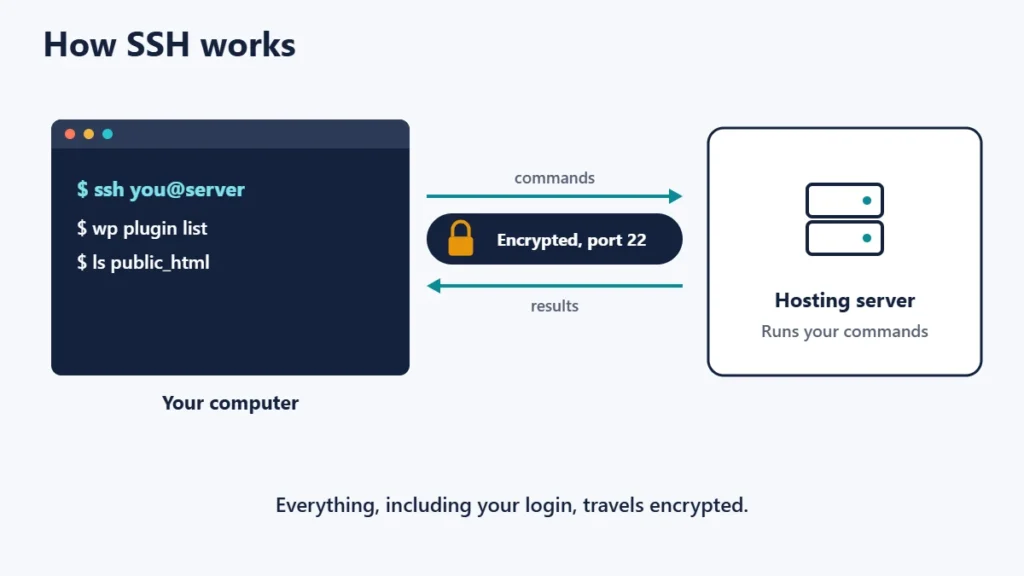
With SSH, you open a terminal on your own computer, connect to the server, and type commands as if you were sitting in front of it. Everything, including your login and the commands’ output, travels encrypted. The OpenSSH manual describes the ssh program as intended to provide secure encrypted communications between two untrusted hosts over an insecure network.
Typical uses for website owners include:
- Managing files and folders quickly, including finding what is using space or inodes.
- Running command-line tools, such as WP-CLI for WordPress, Git or Composer.
- Importing and exporting databases that are too large for browser tools.
- Checking logs to troubleshoot errors.
How an SSH connection works
RFC 4251 explains that SSH has three main parts: the transport layer, which provides server authentication, confidentiality and integrity; user authentication, which proves who you are to the server; and the connection protocol, which carries your session and other channels through the encrypted tunnel.
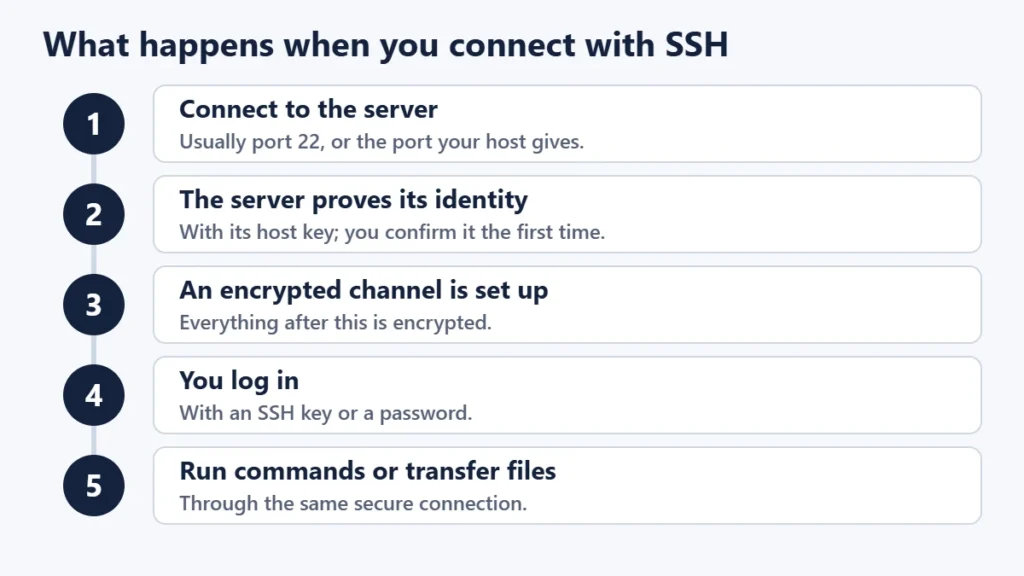
- Your computer connects to the server. RFC 4253 notes that the server normally listens on port 22, the port registered for SSH.
- The server proves its identity with its host key. The first time you connect, you are asked to confirm it; after that, your computer warns you if it changes.
- An encrypted channel is set up.
- You log in, with a key or a password.
- You run commands or transfer files.
Password login vs SSH keys
RFC 4252, the SSH authentication standard, covers public key, password and host-based login methods. For most people the choice is between a password and a key pair.
| Password | SSH key pair | |
|---|---|---|
| What you use | Something you type | A private key on your computer, matched to a public key on the server |
| Guessing attacks | Possible if the password is weak | Not practical against a modern key |
| Convenience | Type it each time | Log in without typing a password, or use a passphrase |
| Main risk | Weak or reused passwords | Losing or leaking the private key |
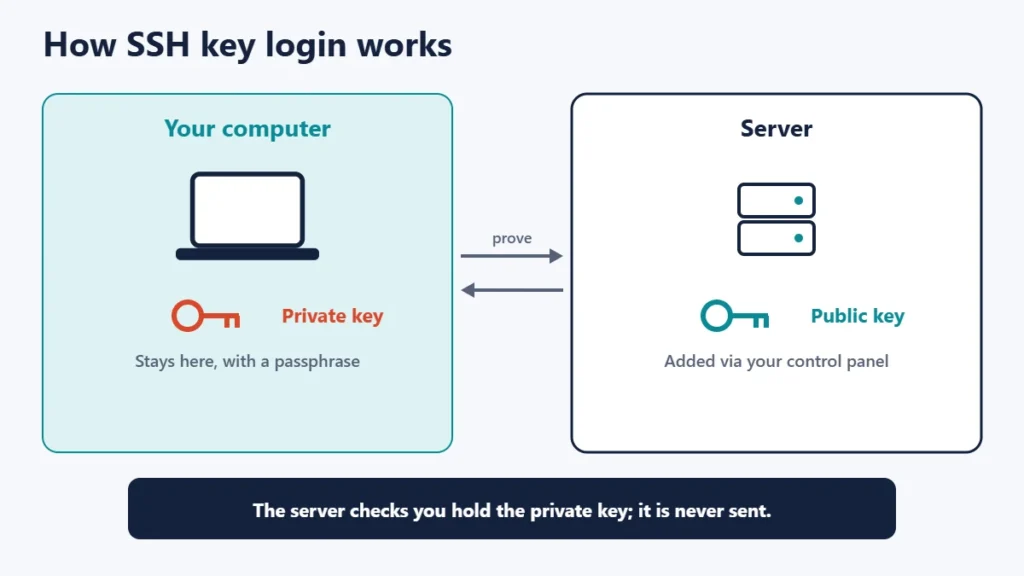
To use keys, you create a key pair with a tool such as ssh-keygen, which the OpenSSH manual describes as generating authentication keys for SSH. You keep the private key on your computer and add the public key to the server, usually through your hosting control panel. Many hosting panels have an SSH keys page for this.
SSH, SFTP and FTP
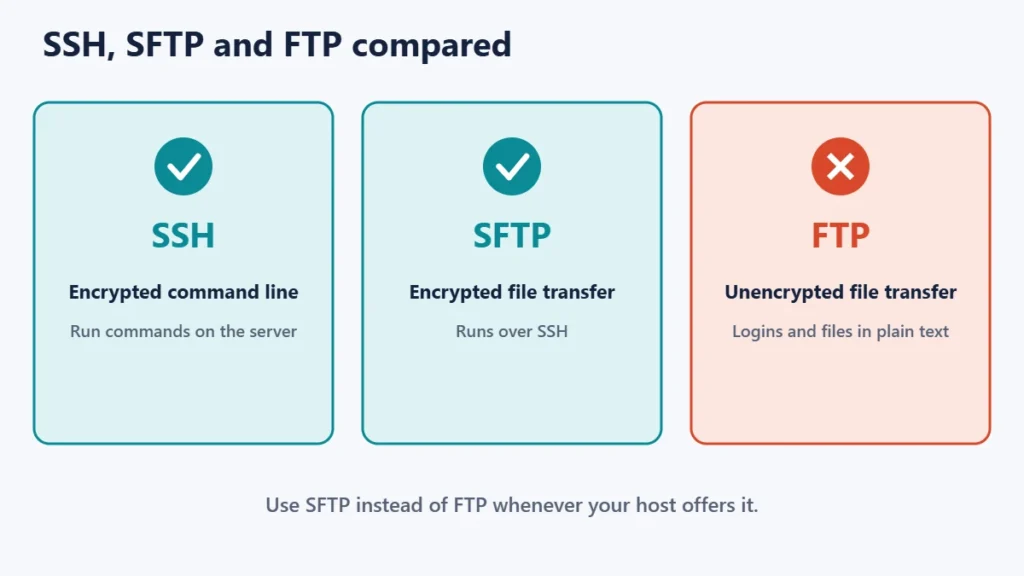
SFTP is a file transfer method that runs over SSH, so your login and files are encrypted. The OpenSSH manual describes sftp as a file transfer program that performs all operations over an encrypted SSH transport. Plain FTP, by contrast, was not designed with encryption, which is why our guide on reasons to stop using FTP recommends moving away from it. Most file transfer apps support SFTP; see our list of FileZilla alternatives.
How to connect to your hosting with SSH
- Turn on SSH access in your hosting control panel if it is off.
- Note the details: server address, username and port. Many shared hosts use a port other than 22.
- Add your public key in the control panel, if you use keys.
- Open a terminal. macOS and Linux have one built in, and Windows includes an SSH client in recent versions.
- Connect with a command like
ssh -p PORT username@server, using the values from your host. - Check the host key on first connection against the one your host lists, if it provides one.
Keeping SSH secure
- Prefer keys over passwords, and protect your private key with a passphrase.
- Never share your private key, or paste it into websites or chats.
- Use strong, unique passwords if you must use passwords; see our guide to two-factor authentication for extra account protection.
- Turn SSH off if you never use it, and remove old keys you no longer need.
- Take host-key warnings seriously. A changed key can mean the server was rebuilt, or something is wrong; check with your host.
- Back up before running commands you are unsure of. Our guide to the 3-2-1 backup rule helps.
Common mistakes
- Using plain FTP when SFTP is available.
- Ignoring host-key warnings.
- Running destructive commands such as deleting folders without double-checking the path.
- Leaving old SSH keys for former developers on the server.
- Uploading the private key to the server instead of the public key.
Frequently asked questions
Is SSH the same as SFTP?
No. SSH is the secure connection; SFTP is a file transfer method that runs over it.
What port does SSH use?
Port 22 by default, but many hosts use a different port. Check your hosting details.
Do I need SSH for a WordPress site?
No, but it makes tasks like large imports, WP-CLI and troubleshooting much easier.
Is SSH safe?
Yes, when used with strong keys or passwords and a verified host key.
Do all hosting plans include SSH?
Many do, but some basic plans do not, or keep it switched off until you enable it.
Can I use SSH on Windows?
Yes. Recent versions of Windows include an SSH client, and other SSH apps are available.
The short version
SSH is an encrypted way to log in to your server and run commands, normally on port 22. Use SSH keys rather than passwords where you can, keep the private key safe, and use SFTP instead of FTP to move files. Turn SSH off if you do not need it, and remove old keys. For hosting basics, see what web hosting is.

Justwebworld has published guides since 2012. How we write and update articles Report an error
