

Most DNS changes show up within minutes to a few hours, and usually within about 48 hours at most. A change to a record such as an A, CNAME or MX record takes up to that record’s old TTL. Big sites we checked use 3 to 15 minutes, but hosting accounts can use longer values (cPanel’s setup guide gives 14,400 seconds, or 4 hours, as its example TTL), so check yours. A change of nameservers on a .com domain can take up to about 2 days, because the .com registry tells the world’s DNS resolvers to keep the old nameservers for 172,800 seconds (48 hours).
“Propagation” is a slightly misleading word. Your change is not slowly pushed around the internet. It is live on your DNS host straight away. What takes time is everyone else’s cached copy of the old answer running out. This guide shows where those wait times come from, using TTL values we measured ourselves, and how to make your next change faster.
Why DNS changes are not instant
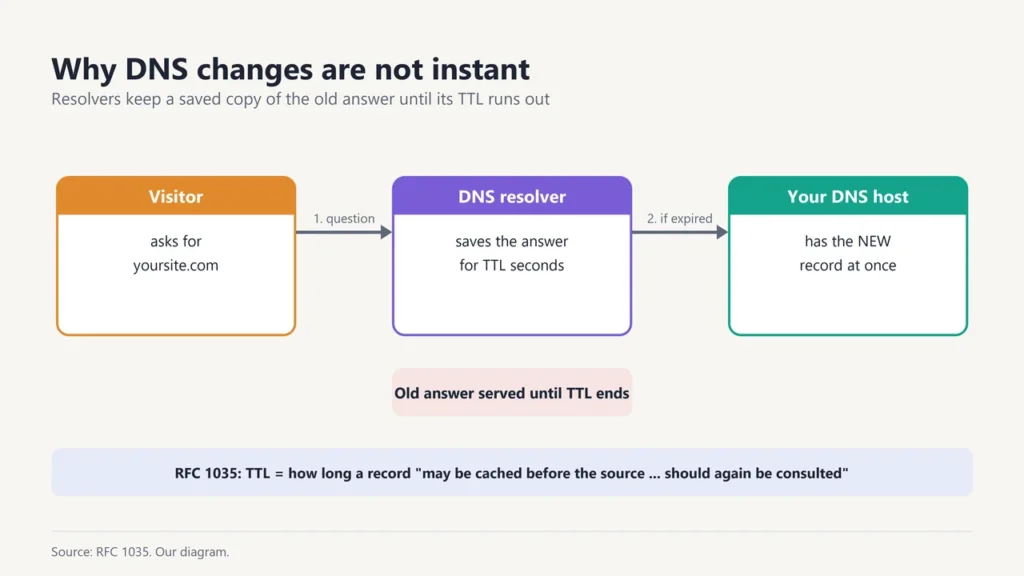
When someone visits your site, their device asks a DNS resolver (usually run by their internet provider, or a public one such as Google’s 8.8.8.8 or Cloudflare’s 1.1.1.1) for your domain’s address. The resolver asks your DNS host, then saves the answer so it doesn’t have to ask again for every visitor.
How long it may keep that saved answer is set by the record’s TTL (time to live). The DNS standard, RFC 1035, defines TTL as the time a record “may be cached before the source of the information should again be consulted”. So if your old record had a TTL of 3,600 seconds, a resolver that fetched it just before your change can keep serving the old answer for up to an hour.
How long each kind of change takes
| What you changed | What sets the wait | Typical wait |
|---|---|---|
| A, AAAA, CNAME, MX or TXT record | The old record’s TTL | Up to the old TTL: 3-15 minutes on the big sites we checked; hours if your host uses longer TTLs (cPanel’s example is 4 hours); 1 day if it was 86,400 |
| Nameservers (switching DNS host) | The registry’s TTL for your domain’s NS records | Usually up to about 48 hours for .com and .co.uk; about 1 hour for .org (measured below) |
| A brand-new subdomain or record | “Negative caching” of the earlier “does not exist” answer | Usually instant; up to the domain’s SOA minimum if someone looked it up before you created it |
Real TTL values we measured
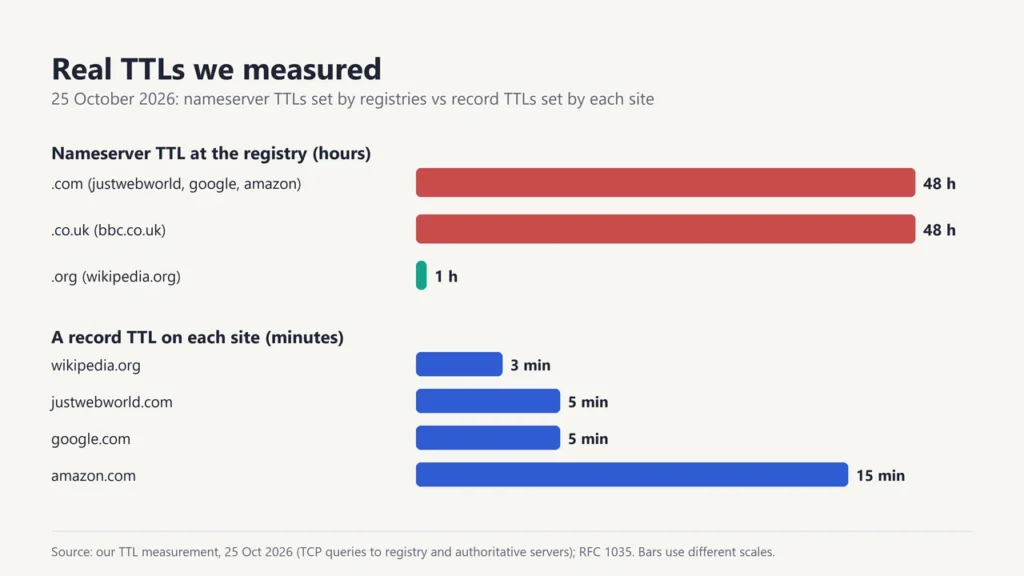
To see where the familiar “up to 48 hours” comes from, we queried the registry servers and each domain’s own nameservers directly on 25 October 2026. We sent standard DNS queries over TCP and read the TTL in each answer.
| Domain | Nameserver TTL at the registry | A record TTL | MX record TTL | Negative-cache time (SOA) |
|---|---|---|---|---|
| justwebworld.com | 172,800 s (48 h) | 300 s (5 min) | 300 s | 1,800 s (30 min) |
| google.com | 172,800 s (48 h) | 300 s | 300 s | 60 s |
| amazon.com | 172,800 s (48 h) | 900 s (15 min) | 900 s | 60 s |
| wikipedia.org | 3,600 s (1 h) | 180 s (3 min) | 300 s | 3,600 s |
| bbc.co.uk | 172,800 s (48 h) | – | – | – |
Two things stand out. The 48-hour figure is real for nameserver changes on .com and .co.uk, because that is how long the registries tell resolvers to keep NS records (some resolvers use the nameserver TTL in your DNS host’s own zone instead, which can be shorter or longer). But everyday record changes on big sites wait only 3 to 15 minutes, because they use short TTLs.
One more lesson from our test: our first attempt over the normal DNS port gave wrong answers, which suggests our network was redirecting DNS traffic to its own resolver. Some networks do this. On such a network, switching to a public resolver won’t help, because those queries are redirected too. Use a web-based DNS checker, another connection such as mobile data, or the TCP option shown below.
How to make DNS changes faster
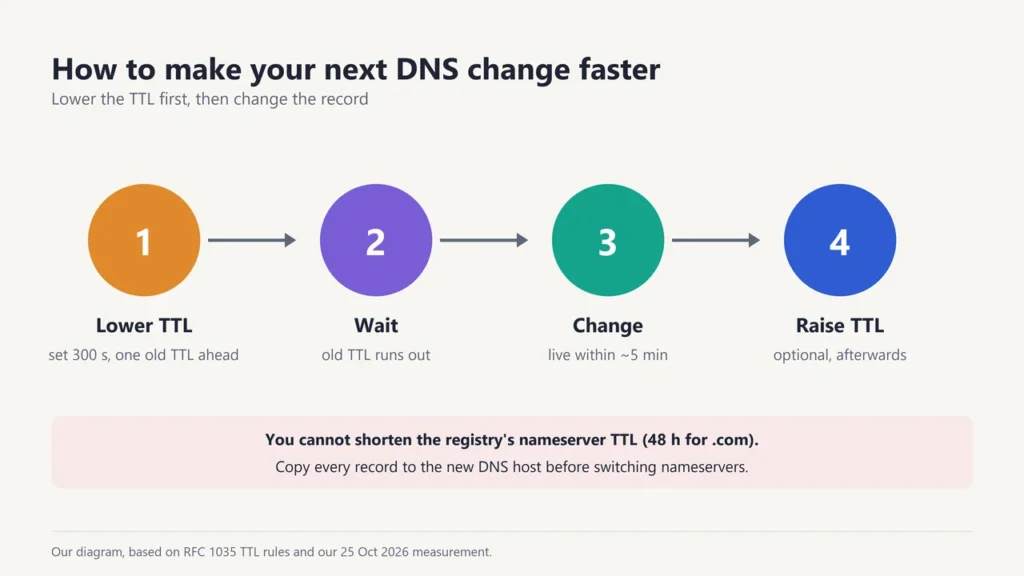
- Lower the TTL first. At least one old-TTL period before the change (for example a day ahead if it is 86,400), set the record’s TTL to 300 seconds.
- Wait for the old TTL to run out. Resolvers that cached the record with the old, long TTL still keep it until that time is up.
- Make the change. Most resolvers will now pick it up within about 5 minutes.
- Raise the TTL again once everything works, if you prefer fewer lookups.
You cannot shorten the registry’s 48-hour nameserver TTL; only the registry controls it. If you are moving DNS hosts:
- Copy every record first. Set up the same records on the new host before switching nameservers, so old and new nameservers give the same answers during the changeover.
- Keep the old DNS host running for at least 48 hours after the switch. Don’t delete the old zone or cancel that account straight away.
- Check DNSSEC. If DNSSEC is turned on for your domain, update or remove the DS record at your registrar before switching, or the domain can stop working.
Records cached from the old host can also stay in use until their own TTLs run out.
How to see the new records now
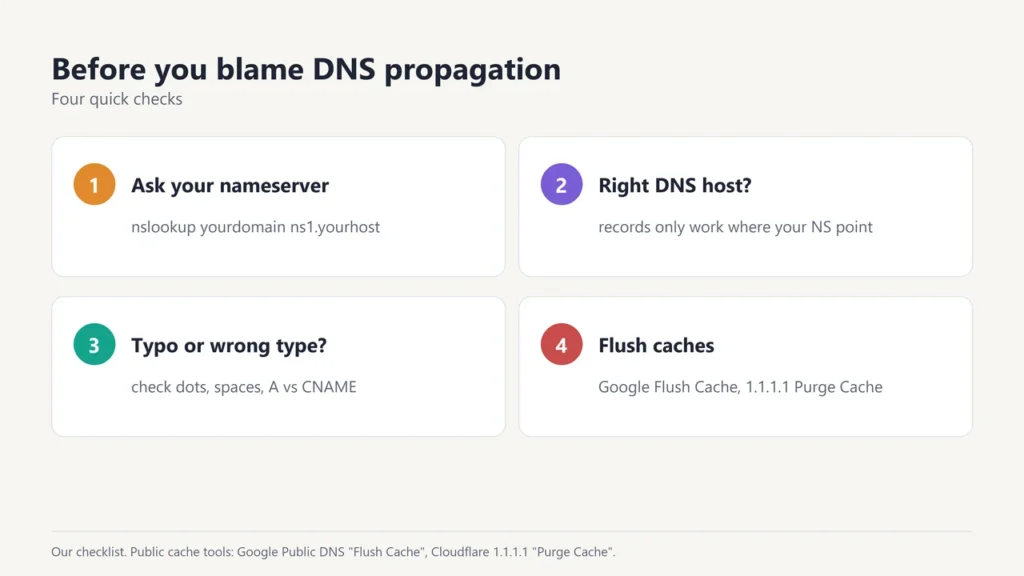
- Ask your DNS host directly. Querying your own nameserver skips resolver caches and shows the current answer, unless your network redirects DNS (see the commands below).
- Clear the public resolvers’ caches. Google Public DNS has a “Flush Cache” page, and Cloudflare’s 1.1.1.1 has a “Purge Cache” tool. Both refresh one domain and record type.
- Clear your own computer’s cache. On Windows, run
ipconfig /flushdnsin Command Prompt. On a Mac, runsudo dscacheutil -flushcache; sudo killall -HUP mDNSResponderin Terminal. Browsers keep their own short DNS cache too, so also try a private window. - Check from many places. Online “DNS propagation checker” tools query resolvers around the world, so you can see which still show the old answer.
nslookup example.com ns1.your-dns-host.com
nslookup -vc example.com ns1.your-dns-host.com
Replace example.com with your domain and ns1.your-dns-host.com with one of your own nameservers. The second line asks over TCP, which helps on networks that redirect normal DNS traffic. If this shows the new value, your change is live, and the rest of the world will catch up as caches expire.
Why a new subdomain can seem “missing”
If you, or a tool, looked up a name before you created it, the resolver may remember that it doesn’t exist. RFC 2308 says this “negative” answer is cached for the smaller of the domain’s SOA minimum value and the SOA record’s own TTL. For the domains we tested that ranged from 60 seconds to 1 hour. Avoid testing a new name until you have created it, or flush the public resolvers’ caches.
What to check before you blame propagation
- Right place? If your domain uses another company’s nameservers, records added at your registrar won’t do anything.
- Typos? A missing dot, an extra space or the wrong record type is more common than slow propagation.
- Browser cache? Try a private window or another device.
- Is the host actually down? If the old and new addresses both fail, it may be an outage, not DNS. Our guide to what 99.9% uptime means explains how much downtime hosts allow.
- Email records? Mail servers cache MX records too. See our business email setup guide for the records a mailbox needs.
More web hosting guides: what web hosting is, how to install WordPress on Hostinger and Hostinger alternatives.
Frequently asked questions
Does DNS propagation really take 48 hours?
Usually only for nameserver changes on domains like .com, where the registry’s NS TTL is 172,800 seconds. Record changes take up to their old TTL: minutes on short TTLs, a few hours on longer ones.
How long does an A record change take?
Up to the old record’s TTL. With a 300-second TTL that is about 5 minutes.
Can I speed up DNS propagation?
Yes for records: lower the TTL to 300 seconds well before the change. You can’t speed up a registry’s nameserver TTL, but you can flush Google’s and Cloudflare’s public caches.
Why do I see the new site but my friend sees the old one?
You are probably using different DNS resolvers, and theirs still has the old answer cached. It will update when that cached copy’s TTL runs out.
What TTL should I use?
For records you may change soon, 300 seconds. Large sites we checked use 180 to 900 seconds; hosting accounts can use longer values, such as the 14,400 seconds cPanel shows as an example. Longer TTLs mean fewer lookups but slower changes.
How do I flush DNS on Windows?
Open Command Prompt and run ipconfig /flushdns. On a Mac, use sudo dscacheutil -flushcache; sudo killall -HUP mDNSResponder. Either clears only your computer’s cache, not your internet provider’s.

Justwebworld has published guides since 2012. How we write and update articles Report an error
