

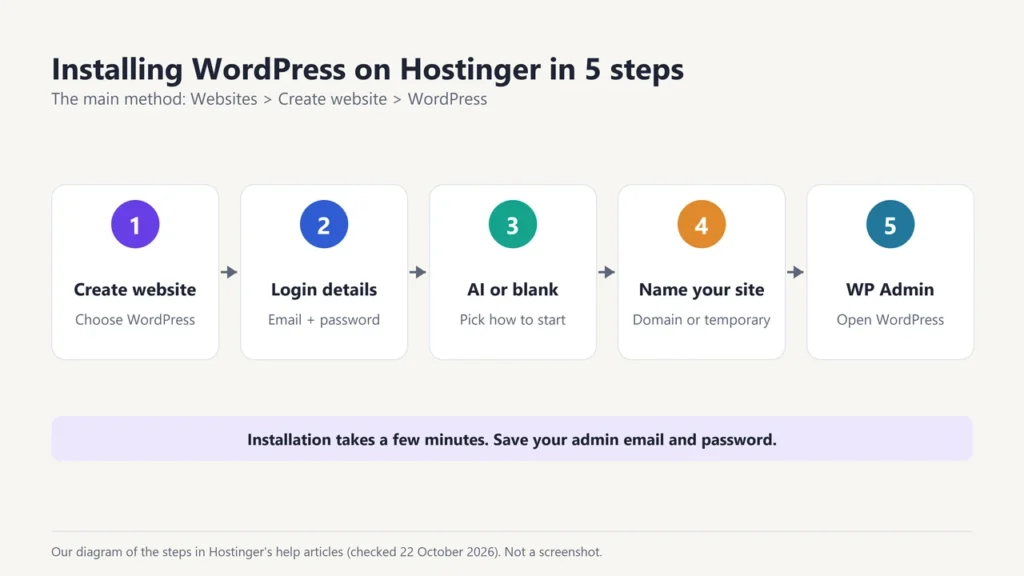
To install WordPress on Hostinger, go to Websites in your Hostinger dashboard, click Create website on your hosting plan and choose WordPress. Enter an admin email and password, pick “start with a blank WordPress site” (or build with AI), then choose your domain or a temporary one. Hostinger installs WordPress in a few minutes, and you open it with the WP Admin button.
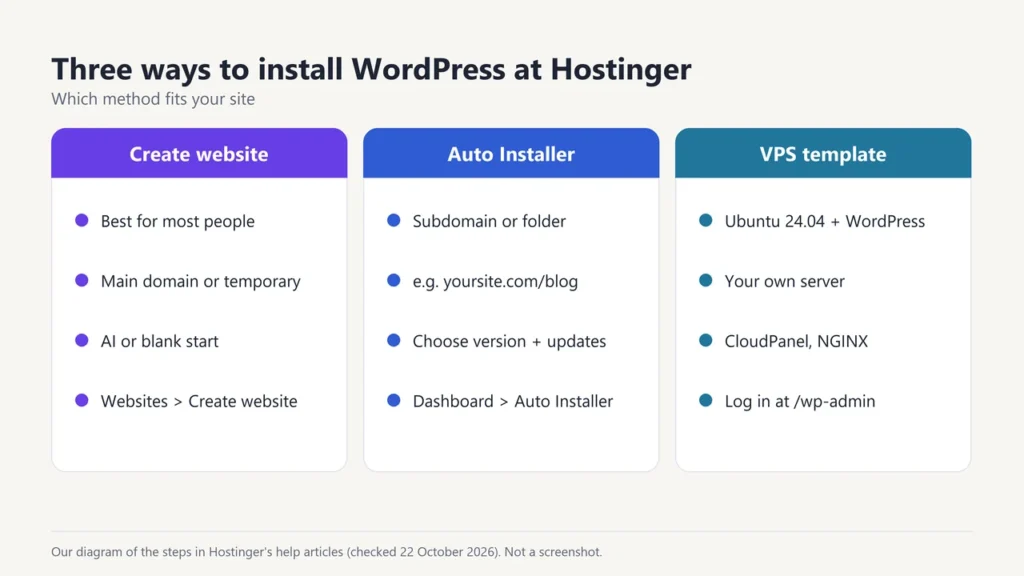
This guide follows Hostinger’s own help articles, checked on 22 October 2026, step by step. It also covers installing on a subdomain or a folder with Auto Installer, connecting a domain you bought elsewhere, SSL, and the WordPress template on a Hostinger VPS. The diagrams below are our own drawings of the steps, not screenshots of Hostinger’s dashboard.
- Time needed: about 10 minutes, plus up to 24 hours if you need to point a domain to Hostinger
- You need: a Hostinger web, cloud or Agency hosting plan, and an email address
- Cost: WordPress is free; you only pay for hosting (see our Hostinger plans and pricing guide)
- SSL: free and installed automatically once your domain points to Hostinger
Before you start
- A hosting plan. Any Hostinger web hosting plan (Premium, Unlimited or Ecommerce Startup) can run WordPress.
- A domain (optional at first). You can use a domain from Hostinger, one you own elsewhere, or a temporary domain until you are ready.
- A strong password. You will create the WordPress admin password during setup. Hostinger can generate one for you.
How to install WordPress on Hostinger, step by step
This is the main method, from Hostinger’s article “How to add a WordPress website in Hostinger”.
Step 1: Create a website and choose WordPress
Log in to your Hostinger dashboard and open Websites. Click Create website on the hosting plan you want to use, then select WordPress.
Step 2: Create your WordPress login
Choose the language for your WordPress admin panel, enter the administrator email address, and create (or generate) a strong password. Save these details: they are how you will log in to WordPress.
Step 3: Build with AI or start blank
Hostinger gives you two options:
- Create a website with AI: Hostinger’s AI assistant asks about your site, lets you choose the Gutenberg or Elementor editor, and suggests a page structure.
- Start with a blank WordPress site: a normal WordPress installation with no AI content. Choose this if you want full control.
Hostinger’s article also mentions an optional AI text step, where you add your brand name and a short description. You can skip it.
Step 4: Name your website (choose a domain)
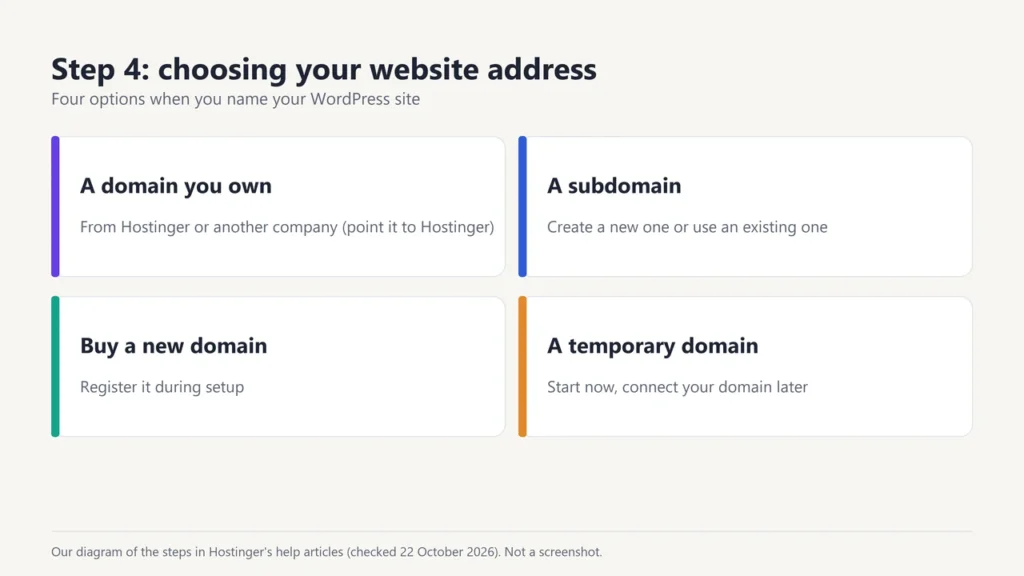
Now pick the address of your site. You can:
- use a domain you already own, from Hostinger or another company;
- create a subdomain, or use one you already have;
- buy a new domain; or
- click Use a temporary domain and decide later.
Click Next. After a few minutes, the installation is complete.
Step 5: Open the WordPress dashboard
Go back to Websites and click WP Admin next to your new site. This opens the WordPress dashboard, where you add pages, posts, themes and plugins. That’s it: WordPress is installed.
How to connect a domain you bought elsewhere
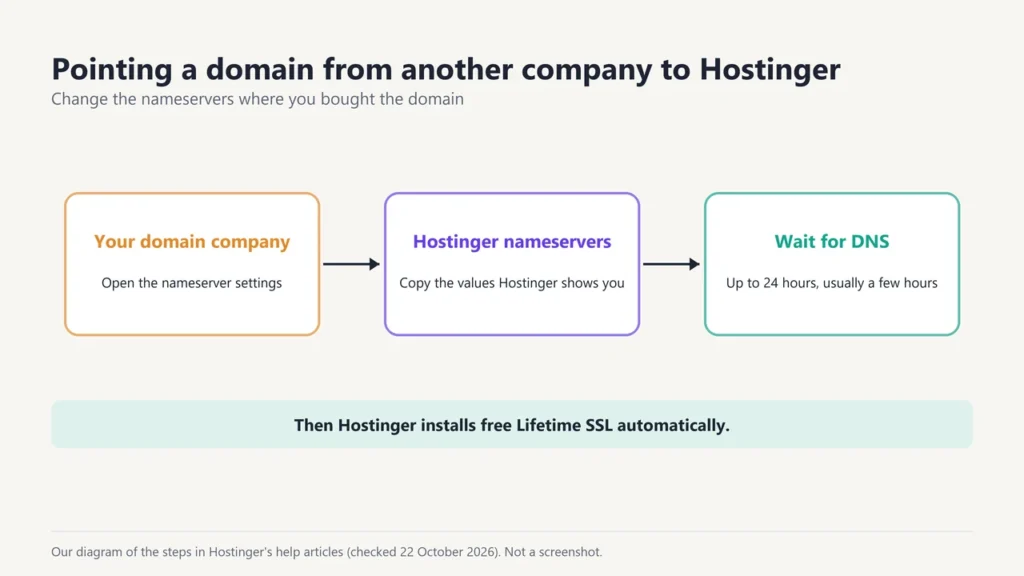
If your domain is registered at Hostinger, it is set up for you once it is added to your hosting plan. If it is registered with another company, you need to point it to Hostinger:
- In Hostinger, go to Websites, find your site and click Connect domain. Hostinger shows the nameservers to use. (For a site already on your domain, you can also find them under Hosting plan, then Plan Details, on the Nameservers card.)
- Log in to the company where you bought the domain and replace its nameservers with Hostinger’s.
- Wait. Hostinger says DNS changes can take up to 24 hours to spread, but usually take effect within a few hours.
Always copy the exact nameserver values shown in your own Hostinger dashboard; Hostinger says they can differ by domain.
How to install WordPress on a subdomain or folder (Auto Installer)
To put WordPress at an address like blog.yoursite.com or yoursite.com/blog, Hostinger’s help centre uses Auto Installer. First make sure the domain points to Hostinger, is added to your plan, and (for a subdomain) that the subdomain exists. Then:
- Go to Websites, open the site’s Dashboard, and click Auto Installer in the left sidebar. Select WordPress.
- Enter the website title, admin email, admin username and password. Hostinger recommends a unique username.
- Open the Advanced section to choose a subdomain or a folder (for example /blog), or to use an existing database.
- Click Next, then choose the WordPress version (the latest is recommended), the admin language and the update schedule (minor updates are recommended).
- Click Install. After a few minutes, clear your browser cache and visit the site.
Does WordPress on Hostinger get free SSL?
Yes. Hostinger says its free Lifetime SSL is included for every domain and subdomain on web, cloud and Agency plans. It installs automatically once the domain is added to your plan and points to Hostinger, and it renews automatically while the site is hosted there.
If it does not appear, open the site’s Dashboard, go to Security, then SSL, and click Install SSL. It takes a few minutes, and the status changes from Installing to Active.
How to install WordPress on a Hostinger VPS
On a VPS, Hostinger offers a ready-made template: Ubuntu 24.04 64bit with WordPress. Once the template is installed, go to http://your-vps-hostname/wp-admin and log in with the email admin@your-vps-hostname and the password you set when installing the template. To use your own domain, point it to the VPS IP address and change the server hostname to your domain. Hostinger notes that this template uses CloudPanel with an NGINX web server.
A VPS gives you more power and control, but you manage more yourself. For most first websites, normal web hosting is the simpler choice.
What to do after installing WordPress
- Check SSL. Visit your site with https:// in a private window.
- Pick a theme. In WordPress, go to Appearance, then Themes. Hostinger points to the free Starter Templates plugin by Astra for ready-made designs.
- Set your title and links. Go to Settings, then General for the site title, and Settings, then Permalinks for readable web addresses.
- Add your first page. Use Pages, then Add New.
- Keep it updated. Update WordPress, themes and plugins regularly, and make backups.
New to WordPress? Our guide to making a WordPress website explains the first settings and common mistakes, and our list of WordPress plugins worth installing helps with the next step.
How to delete a WordPress installation on Hostinger
Hostinger recommends making and downloading a backup first. Then go to Websites, click the ⋯ (more) button next to the site and choose Delete. For a site installed with Auto Installer, the ⋮ menu on the Auto Installer page also has a delete option.
Still choosing a host? Read our Hostinger review, or compare Hostinger vs Bluehost and Hostinger vs GoDaddy.
Frequently asked questions
Is WordPress free on Hostinger?
Yes. WordPress itself is free software. You pay only for your Hostinger hosting plan, and SSL is included free.
How long does it take to install WordPress on Hostinger?
Hostinger says the installation finishes in a few minutes. Pointing a domain from another company can take up to 24 hours.
Can I install WordPress on Hostinger without a domain?
Yes. Choose “Use a temporary domain” during setup, then connect your own domain later with Connect domain.
How do I install WordPress on a subdomain in Hostinger?
Create the subdomain first, then use Auto Installer, open the Advanced section and select the subdomain before you click Install.
How do I log in to WordPress on Hostinger?
Go to Websites in your Hostinger dashboard and click WP Admin next to your site. You can also visit yoursite.com/wp-admin and sign in with the admin details you created.
How do I install a WordPress theme on Hostinger?
Inside WordPress, go to Appearance, then Themes, and click Add New. Hostinger no longer asks you to choose a theme during setup.
Do I need a VPS to run WordPress?
No. Any Hostinger web hosting plan runs WordPress. A VPS is for sites that need their own server resources and full control.

Justwebworld has published guides since 2012. How we write and update articles Report an error
