

In web hosting, an inode is a record the server keeps for each file and folder on your account, so your inode count is essentially how many files and folders you have. The Linux manual describes it this way: each file has an inode containing metadata about the file. Many hosting plans limit inodes, and hitting the limit can stop you creating new files even when you still have disk space.
Inode limits often come as a surprise, because hosting plans advertise storage in gigabytes, not file counts. This guide explains what inodes are, what uses them up, what happens when you hit the limit, and how to bring the count down.
Key takeaways
- One inode per file or folder, regardless of size.
- Many hosts set an inode limit alongside disk space.
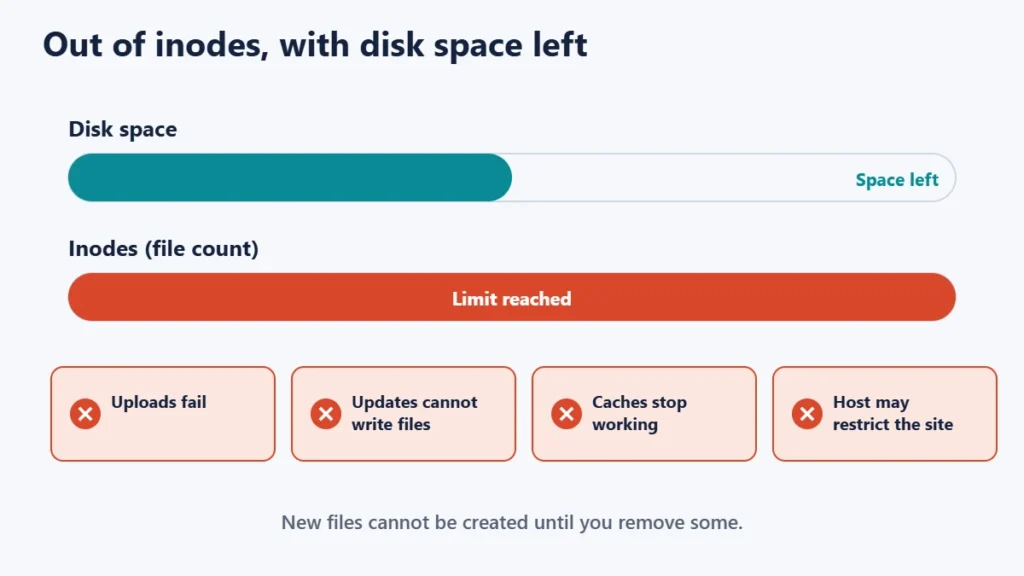
- At the limit, new files cannot be created, even with space left.
- Cache, backups, old plugins and email are common culprits.
- Cleaning up regularly keeps you well under the limit.
What an inode is
A file system needs to keep track of every file: who owns it, its permissions, its size and where its data is stored. On Linux servers, which run most web hosting, that information lives in an inode. The Linux manual notes that each file in a file system has a unique inode number. Hostinger’s support guide puts the hosting view simply: each file or directory counts as one inode.
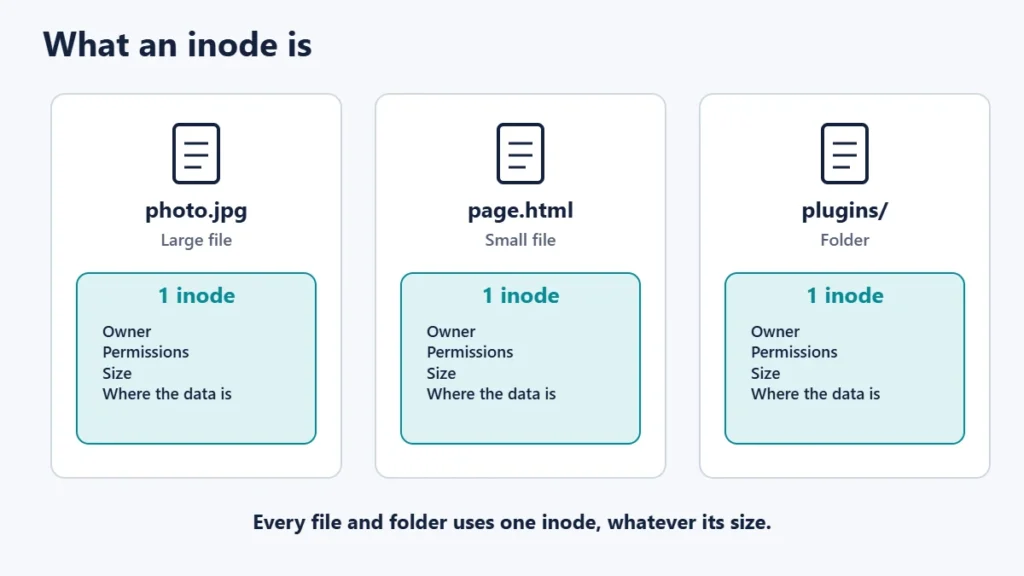
Because size does not matter, one large video uses one inode, while a folder of ten thousand tiny cache files uses ten thousand. That is why a site can run out of inodes long before it runs out of space.
Disk space vs inodes
| Disk space | Inodes | |
|---|---|---|
| Measures | How much data you store | How many files and folders you have |
| Units | MB or GB | A count |
| Filled fastest by | Large files, videos, backups | Many small files, such as cache and sessions |
| Shown in plans as | Storage | Inode or file limit, often in the fine print |
Typical inode limits
Limits vary by host and plan, and some hosts do not publish them prominently. SiteGround’s fair use article, for example, lists 200,000 inodes on its StartUp plan, 400,000 on GrowBig and 600,000 on GoGeek. DreamHost’s resource policy says its web hosting plans are metered by disk storage, inode count and a monthly visitor threshold, with numbers depending on the plan. Hostinger says every hosting plan has a fixed storage and inode limit. Check your own plan, because these figures change.

What uses up inodes
- Cache files. Page and object caching can create thousands of small files.
- Backups stored on the server, especially those created by plugins.
- Unused plugins and themes, each with many files.
- Resized images, because WordPress creates several sizes of each upload.
- Old staging sites and unused websites on the same account.
- Log files that are never cleared.
- Email, on some hosts. SiteGround counts email messages as inodes, while Hostinger says emails, databases and automated backups are stored separately and do not count toward its inode quota. Check your host’s rules.
What happens when you hit the limit
Hostinger explains that once the inode limit is reached, you cannot create new files or directories, even if you have available disk space, which can cause websites to stop working properly or show errors. In practice that can mean failed uploads, plugin updates that break halfway, or caching that stops working. SiteGround’s policy says it may need to limit access to your website until you take action.
How to check your inode usage
- In your hosting control panel. Many dashboards show inode or file usage next to disk usage.
- Over SSH, if your plan allows it. Hostinger notes its File Manager does not show inode counts per folder, so SSH is the way to find which folders hold the most files.
- Ask your host’s support, who can usually tell you the current count and the limit.
How to reduce inodes

- Delete old backups on the server, and store new ones off-site. Our guide to the 3-2-1 backup rule explains a better approach.
- Clear cache files, and check your caching plugin’s settings.
- Remove unused plugins, themes and websites. Hostinger also suggests removing old staging environments.
- Delete redundant files, such as unneeded resized images and old log files.
- Empty unwanted email folders if your host counts email, especially spam and trash.
- Use your host’s clean-up tool if it has one. Hostinger, for example, offers a “Reduce inodes” option for temporary files.
If you are regularly near the limit after cleaning, it may be time for a bigger plan or a different type of hosting. Our guide to what web hosting is covers the options.
Common mistakes
- Keeping backups on the same server. They use inodes and do not protect you if the server fails.
- Deactivating plugins instead of deleting them. Their files remain.
- Ignoring cache folders that grow for years.
- Looking only at disk space when choosing a plan.
- Deleting files you do not recognise without a backup. Check first.
Frequently asked questions
What is an inode in simple terms?
It is the server’s record for one file or folder. Your inode count is roughly how many files and folders you have.
Does a large file use more inodes?
No. Each file uses one inode regardless of size.
Do emails count as inodes?
It depends on the host. SiteGround counts email messages; Hostinger says emails do not count toward its inode quota.
Why can’t I upload files when I have disk space?
You may have reached your inode limit. Check your usage and remove unneeded files.
How many inodes does a WordPress site use?
It varies widely with plugins, themes, uploads and cache. Check your control panel for your actual count.
Is unlimited hosting free of inode limits?
Not always. Many “unlimited” plans still set inode or file limits in their fair use policies.
The short version
An inode is the server’s record for each file and folder, and many hosting plans cap how many you can have. Hitting the cap stops new files being created, even with disk space left. Keep the count down by deleting old backups, clearing cache, removing unused plugins, themes and sites, and checking whether your host counts email. For another hosting figure worth reading closely, see what 99.9% uptime means.

Justwebworld has published guides since 2012. How we write and update articles Report an error
