Close Menu
JustwebworldJustwebworld
  • Astrology
  • Business & Finance
    • Cryptocurrency
    • Make Money
    • Entrepreneur
    • Brands
    • Companies
    • Personal Finance
      • Banking
      • Insurance
      • Trading and Investing
  • Tech
    • Computing
    • Cybersecurity
    • Electronics
    • Android
    • Apple
    • Gadgets
    • Social Media
    • Mobile Apps
    • Softwares
  • Education
    • Vocabulary
    • Abbreviations
    • General Knowledge
    • Writing & Translation
  • Lifestyle
    • Beauty & Cosmetics
    • Fashion & Style
    • Furniture & Decor
    • Luxury
    • People & Relationships
    • Pets and Animals
    • Shopping
    • Parenting
    • Gardening
    • Birthdays
  • Health
  • Travel
  • Auto
  • Gaming
  • Food
  • Entertainment
  • Sports
Facebook X (Twitter) Instagram Pinterest YouTube LinkedIn WhatsApp Telegram
Saturday, April 18
  • About
  • Contact Us
  • Advertise With Us
  • Disclaimer
  • Terms & Conditions
  • Privacy Policy
JustwebworldJustwebworld
  • Astrology
  • Business & Finance
    • Cryptocurrency
    • Make Money
    • Entrepreneur
    • Brands
    • Companies
    • Personal Finance
      • Banking
      • Insurance
      • Trading and Investing
  • Tech
    • Computing
    • Cybersecurity
    • Electronics
    • Android
    • Apple
    • Gadgets
    • Social Media
    • Mobile Apps
    • Softwares
  • Education
    • Vocabulary
    • Abbreviations
    • General Knowledge
    • Writing & Translation
  • Lifestyle
    • Beauty & Cosmetics
    • Fashion & Style
    • Furniture & Decor
    • Luxury
    • People & Relationships
    • Pets and Animals
    • Shopping
    • Parenting
    • Gardening
    • Birthdays
  • Health
  • Travel
  • Auto
  • Gaming
  • Food
  • Entertainment
  • Sports
JustwebworldJustwebworld
Home » Technology » Softwares » How to Record Screen and Upload Videos to YouTube With Wondershare DemoCreator

How to Record Screen and Upload Videos to YouTube With Wondershare DemoCreator

By Michael Austin Softwares
Facebook Twitter LinkedIn Telegram Pinterest Reddit WhatsApp
Follow Us
WhatsApp Telegram

If you are looking for a platform to post videos and interact with others, then YouTube should be your first pick. Used by over a billion people, it is the biggest video-sharing platform in the world. Though, if you have never created videos in the past, then running a YouTube channel can be confusing.

In this post, I will help you with some tips regarding YouTube strategies and for using a screen recorder for PC that will make your job a whole lot easier.

Table of Contents

Toggle
  • A Step-by-Step Guide on Becoming Successful on YouTube
    • Step 1: Come Up with a Strategy for Your YouTube Channel
    • Step 2: Try and Test Video Equipment for Beginners
    • Step 3: Record your Screen to Make YouTube Videos
    • Step 4: Edit your Videos before Posting
    • Step 5: Export your Videos and Upload it

A Step-by-Step Guide on Becoming Successful on YouTube

In nutshell, becoming successful on YouTube would be related to your target audience and the kind of content you post. If you have a faithful audience and they like your content, then you can easily taste success on YouTube. Here are some steps that I would recommend following to start your YouTube journey.

Step 1: Come Up with a Strategy for Your YouTube Channel

Before you start posting videos, you should consider the following things in mind to maximize the reach of your content.

  1. Study your target audience

If you have been using YouTube for a while, then you can go to its Analytics page to know more about your audience. You can also know what kind of topics they are interested in. By knowing their gender, age, geography, etc. you can also think of relevant topics.
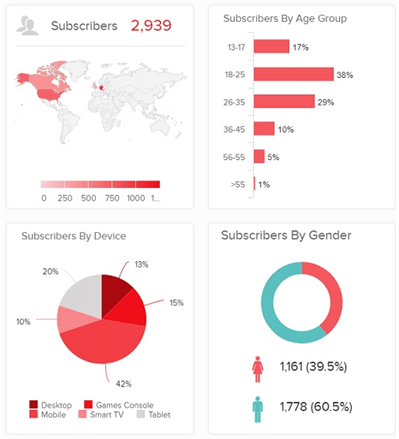
Study your target audience

  1. Find the right topics for your videos

After studying these analytics, you can try to match it with your skills to come up with engaging topics. For instance, if you are already a master in any topic like Photoshop or video editing, then you can come up with these tutorials.

Also Read: The Top Five DVD Copy Software for Windows/Mac The Top Five DVD Copy Software for Windows/Mac

If you want to market your product, then you can create demo videos for it. From travel to education, you can post videos about anything on YouTube.

  1. Share and be consistent

Chances are that some of your videos might not get so many views. Therefore, you can try to share your videos on other social platforms like Twitter or Facebook. Also, keep posting videos to have an engaging community that would appreciate your efforts.

Step 2: Try and Test Video Equipment for Beginners

If you want to come up with professional videos, then you need to have the right microphone, camera, and even a screen recorder for PC.

  1. Microphone

To include your voice in a video tutorial, getting a microphone would be a must. There are different kinds of microphones in the market at all price ranges. Even getting a decent microphone with a stand would improve the quality of your content easily.

Microphone

  1. A Reliable Screen Recorder and Video Editor

For those who like to make gameplay tutorials or lectures, a screen recording tool would be needed. You can consider trying Wondershare DemoCreator as it provides a seamless screen recording experience. Using the tool, you can also record your voice, include a webcam screen, and even edit your videos – all in one place.

Wondershare DemoCreator

  1. Work on lighting

You might already know that lighting can bring a huge difference in video recordings. If you are recording people or even objects, then consider having a blank background screen (like green) and set up the right lights to focus on important objects.

Also Read: Hide My IP Review: Enjoy Private Web Surfing Hide My IP Review: Enjoy Private Web Surfing

Step 3: Record your Screen to Make YouTube Videos

Great! Once you have the setup, you can start recording your videos. If you are coming up with a video tutorial, then you can use Wondershare DemoCreator to record your screen. It will help you record educational video, presentation, or any other software tutorial as well.

  1. Launch Wondershare DemoCreator

At first, you can just download and launch Wondershare DemoCreator on your system and select the option to capture the screen. From its home, you can switch between the Screen Recorder and Video Editor features.
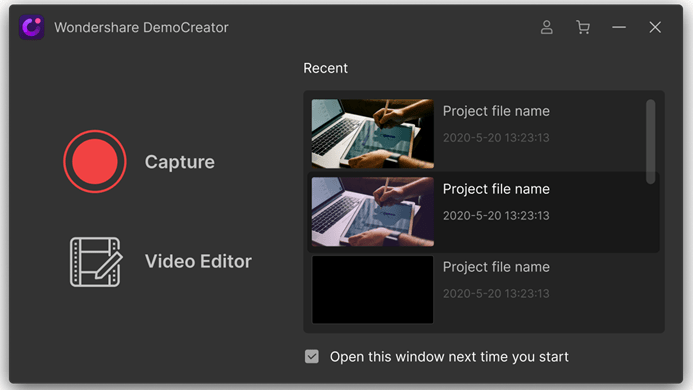
Launch Wondershare DemoCreator

  1. Set your preferences to start recording

On DemoCreator, you can further go to the Screen Capture settings to customize how you record your videos. For instance, you can go to the Screen tab to select the area to record and at a preferred frame rate.

Set your preferences to start recording

In the same way, you can visit the Audio and Camera tab to check the audio input or your webcam. You can also select the default input for audio/camera and further explore its advanced settings.
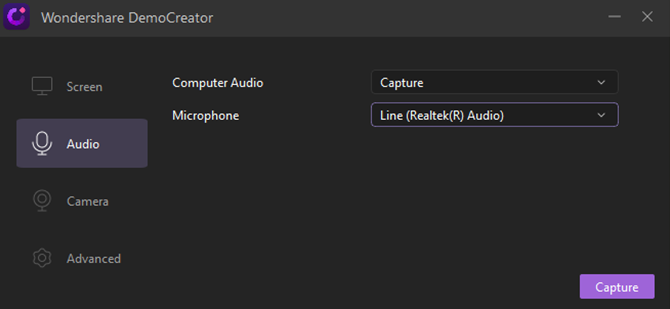
Screen Capture settings

One of the best things about DemoCreator is that you can include your webcam and microphone audio with the recording of your screen.

  1. Start recording

When recording with DemoCreator, you can add real-time screen drawing and use the mouse spotlight to highlight any key point on your screen clearly.
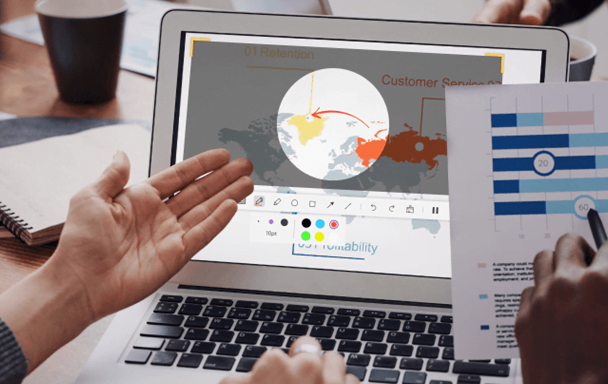
Start recording with DemoCreator

Step 4: Edit your Videos before Posting

With the help of a tool like DemoCreator, you can also edit your videos (apart from recording your screen). For this, you have to first add your video to DemoCreator and drag it to the working timeline.

Also Read: 5 Features Chiropractors Should Look For In A Cloud Billing Software 5 Features Chiropractors Should Look For In A Cloud Billing Software
  1. Trim or clip your videos

Once the video is added, use the clip feature to adjust the starting and ending point of the video to trim the necessary parts.
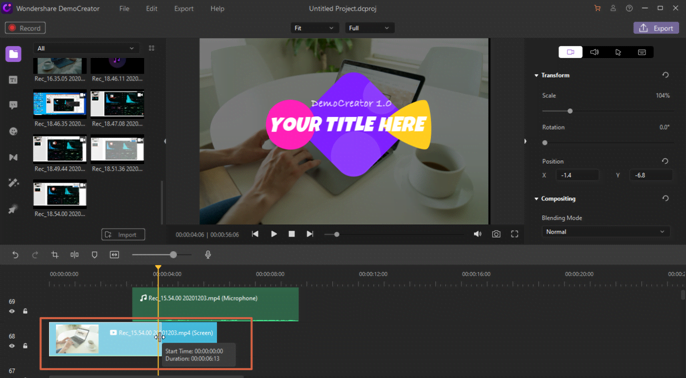
Trim or clip your videos

  1. Include transitions and animations

From the right sidebar of DemoCreator, you can also visit the Transitions tab and implement the option of your choice.
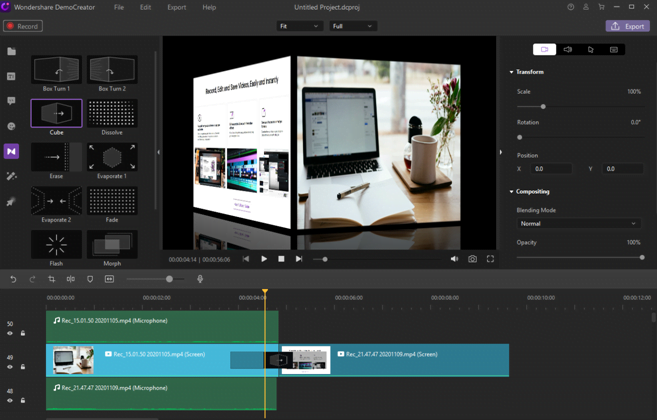
Transitions and animations

Similarly, you can also find all kinds of annotations, animations, stickers, etc. on the sidebar that you can drag-and-drop to your videos.

Include transitions and animations

  1. Add Texts or Captions

Under the Annotations feature in DemoCreator, you can find options to add all kinds of captions and texts to your videos.

Add Texts or Captions

  1. Add Voiceovers or Music

If you want, you can readily import any other audio file to DemoCreator to add music to your videos. Besides that, you can also click on the voiceover icon above the timeline to record your voice in the background for the video.
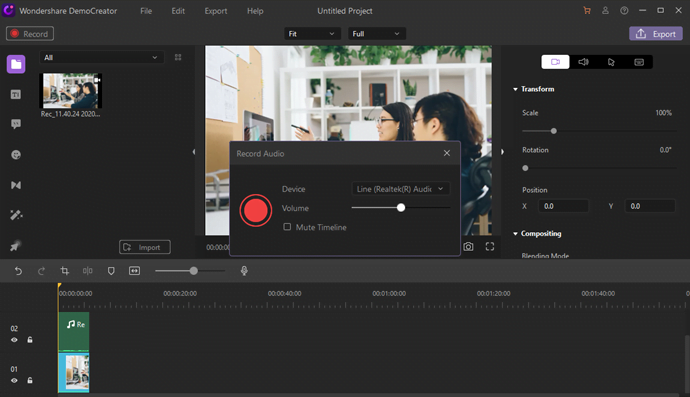
Add Voiceovers or Music

Step 5: Export your Videos and Upload it

That’s it! Once you are done editing, you can go to the Export feature on DemoCreator and choose a preferred format (like MP4, AVI, WMV, etc.) to save your file. In the end, you can go to the YouTube website or app to upload your video to your channel.
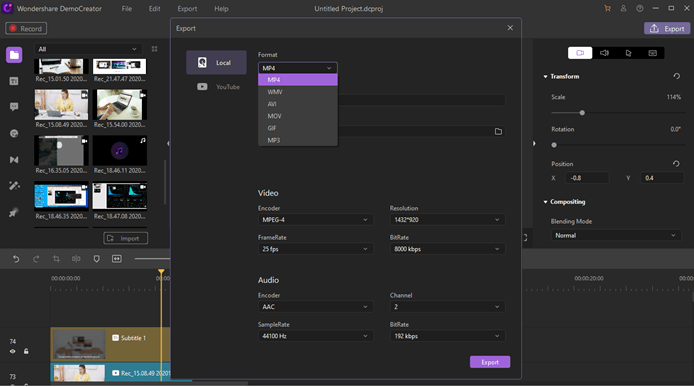
Export your Videos and Upload it

That’s a wrap, folks! I’m sure that after reading this post, you would be able to know more about recording your YouTube videos.

If you want to make things easier and get better results, then you can use a screen recorder for PC (like Wondershare DemoCreator). Since it is free to download, you can try it on your own and start recording professional videos for YouTube easily.

Also Read: Discover The CMMS Software For Maintenance Management Discover The CMMS Software For Maintenance Management

cards
Powered by paypal
Follow on WhatsApp Follow on Telegram
Share. Facebook Twitter Pinterest LinkedIn Tumblr Telegram WhatsApp Copy Link
Previous ArticleWhat Is A Rootkit Virus Scan & Why Do You Need It?
Next Article Getting a Loan after Bankruptcy: Myth or Reality?
Michael Austin
  • Website
  • Facebook
  • X (Twitter)
  • Pinterest
  • Instagram
  • LinkedIn

Michael Austin is an expert writer who loves creating engaging and easy-to-understand content. With years of experience, he specializes in writing well-researched articles that inform, inspire, and entertain readers. His clear and simple writing style makes complex topics easy to grasp. Whether it's trending news, helpful guides, or expert insights, Michael’s content is designed to be valuable and SEO-friendly, ensuring it reaches the right audience. Stay connected for his latest articles!

Related Posts

Turn Your Business Email Clutter-Free With Greenmor Mail

Turn Your Imagination Into Reality With CapCut AI Image Generator

Behind the Scenes Vlogging With CapCut PC: Blending AI Voiceovers and Auto Captions for Storytelling Magic

Must-Have Call Management Software for Small Business Teams

Cloud‑Based Nonprofit Case Management Software: Remote Access for Field Teams

Know How To Choose The Best Incentive Compensation Software For Your Business

Leave A Reply

Subscribe to Blog via Email

Enter your email address to subscribe to this blog and receive notifications of new posts by email.

Join 42.5K other subscribers
Categories
Latest Posts

Embracing Cultural Immersion: Ultimate Guide to Authentic Travel, Local Experiences & Global Culture

The Connection Between Warm Meals and Mental Wellness

Bridging High Fashion With Everyday Wear: Turn Luxury Style Into Daily Outfits

Cheapest Isn’t Always Best: What to Check Before You Compare Policies

Best Free AI Tools for Students 2026 | Homework Help, Assignments, Writing & Study Tools

Best Health Insurance in India for 2026: What has Changed and Why the Evaluation Criteria Have Evolved

Bookshelf Design, Furniture Stores in Kochi: Stylish Bookshelves and Where to Find Them in Kochi

Cloudways Review 2026: Fastest Managed Cloud Hosting for WordPress? Pricing, Speed & SEO Secrets

DupDub AI Review 2026: Best AI Voice Generator & Video Dubbing Tool for Creators

Cultivating Mindful Online Habits

The content on this website is provided solely for educational and informational purposes. We do not promote, endorse, or deal in any products, services, or activities mentioned. While we strive to share accurate and up-to-date information, we make no warranties regarding completeness, reliability, or accuracy. Any action you take based on the information found here is strictly at your own risk, and we will not be liable for any losses or damages in connection with the use of our website.

DMCA.com Protection Status
Quick Links
Age Calculator
Angel Number Calculator
Case Converter
Sudoku Online
Word Counter
Love Calculator
Jack Doherty YouTuber
Snake Dream Meaning
Get Rid of Cockroaches
Indian Cricket Team Coaches
Best Volleyball Team Names
Useful Links
Number to Words
Period Calculator
Yes-No Picker Wheel
Demon Name Generator
Kingdom Name Generator
Harry Potter Name Generator
Daddy Yankee Biography
Crocodile Dream Meaning
Goa Budget Trip Guide
Maryse Mizanin WWE Diva
Best Cricket Team Names
Helpful Resources
Colors Name In English
Best Computer Brands
WhatsApp Web
Most Beautiful Beaches
Tesla Cybertruck Review
Richest Actors in the World
India Jarvis Actress
Cat Dream Meaning
Belmar Beach New Jersey
Aryna Sabalenka Tennis Superstar
Best WhatsApp Group Names
Explore More
Good Morning Handsome
Best English Songs of All Time
Cricket World Cup Winners
Ways to Say Rest In Peace
Britain’s Got Talent Winners
American Idol Winners
Dude Perfect Net Worth
Horse Dream Meaning
Ramakrishna Beach Visakhapatnam
Anastasia Potapova Tennis Star
Best Funny Team Names
Facebook X (Twitter) Instagram Pinterest YouTube Tumblr LinkedIn WhatsApp Telegram Threads RSS
  • About
  • Contact Us
  • Advertise With Us
  • Disclaimer
  • Privacy Policy
  • Terms & Conditions
  • Web Stories
Copyright © 2012-2026. JustWebWorld - All Rights Reserved. | Sitemap

Type above and press Enter to search. Press Esc to cancel.

×

👇 Bonus Reads for You 🎁

System Integration or software integration
How to Detect That You Need a Software Integration
Workforce Intelligence Software
4 Things You Should Know About Workforce Intelligence Software
Access Files on Your PC or Mac from iPhone
Access Files on Your PC or Mac from iPhone – younity Review
PDF Editor
The PDF Editor for the Business Savvy