Close Menu
JustwebworldJustwebworld
  • Astrology
  • Business & Finance
    • Cryptocurrency
    • Make Money
    • Entrepreneur
    • Brands
    • Companies
    • Personal Finance
      • Banking
      • Insurance
      • Trading and Investing
  • Tech
    • Computing
    • Cybersecurity
    • Electronics
    • Android
    • Apple
    • Gadgets
    • Social Media
    • Mobile Apps
    • Softwares
  • Education
    • Vocabulary
    • Abbreviations
    • General Knowledge
    • Writing & Translation
  • Lifestyle
    • Beauty & Cosmetics
    • Fashion & Style
    • Furniture & Decor
    • Luxury
    • People & Relationships
    • Pets and Animals
    • Shopping
    • Parenting
    • Gardening
    • Birthdays
  • Health
  • Travel
  • Auto
  • Gaming
  • Food
  • Entertainment
  • Sports
Facebook X (Twitter) Instagram Pinterest YouTube LinkedIn WhatsApp Telegram
Friday, February 27
  • About
  • Contact Us
  • Advertise With Us
  • Disclaimer
  • Terms & Conditions
  • Privacy Policy
JustwebworldJustwebworld
  • Astrology
  • Business & Finance
    • Cryptocurrency
    • Make Money
    • Entrepreneur
    • Brands
    • Companies
    • Personal Finance
      • Banking
      • Insurance
      • Trading and Investing
  • Tech
    • Computing
    • Cybersecurity
    • Electronics
    • Android
    • Apple
    • Gadgets
    • Social Media
    • Mobile Apps
    • Softwares
  • Education
    • Vocabulary
    • Abbreviations
    • General Knowledge
    • Writing & Translation
  • Lifestyle
    • Beauty & Cosmetics
    • Fashion & Style
    • Furniture & Decor
    • Luxury
    • People & Relationships
    • Pets and Animals
    • Shopping
    • Parenting
    • Gardening
    • Birthdays
  • Health
  • Travel
  • Auto
  • Gaming
  • Food
  • Entertainment
  • Sports
JustwebworldJustwebworld
Home » Technology » Softwares » iToolab WatsGo – Easily Transfer WhatsApp From Android to iPhone

iToolab WatsGo – Easily Transfer WhatsApp From Android to iPhone

By Vidya Menon Softwares Technology
Facebook Twitter LinkedIn Telegram Pinterest Reddit WhatsApp
Follow Us
WhatsApp Telegram

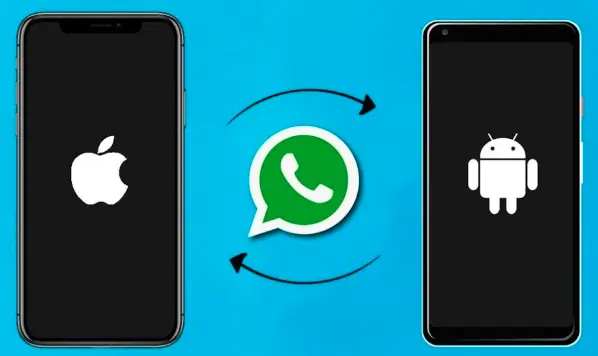
Are you someone who has recently thought of upgrading your phone to an iPhone? If yes, the first thing that will come to your mind is how to transfer Whatsapp from Android to iPhone. If this is the question in your mind, iToolab WatsGo is the best option for you.

Table of Contents

Toggle
  • WhatsApp Transfer Between Android and iPhone
    • Download WatsGo, install it, and launch it
    • Connect the Android phone as well as the iPhone
    • Backup and find Whatsapp backup on your Android
    • Generate the backed up Whatsapp data and recover it to iPhone
    • Whatsapp is transferred successfully
  • Transfer Whatsapp to new phone keeping the same number – The steps
    • Transfer Whatsapp from iPhone to another new iPhone
    • How to transfer Whatsapp from Android to Android through PC

WhatsApp Transfer Between Android and iPhone

WhatsApp Transfer Between Android and iPhone

Are you not aware of what iToolab WatsGo is? Well, you needn’t worry as we’re here to help you with a guide of how to transfer your Whatsapp data from Android to iPhone, iPhone to Android, Android to Android, and iPhone to iPhone.

In fact, iToolabWatsGo can also be used to backup Whatsapp Android and iPhone, and then choose history backup in order to recuperate the device.

Steps to Transfer Whatsapp Business/Whatsapp from Android to an iPhone.

If you already had an Android phone but you’re trying to upgrade to an iPhone, here are the steps that you need to take in order to initiate the transfer.

Download WatsGo, install it, and launch it

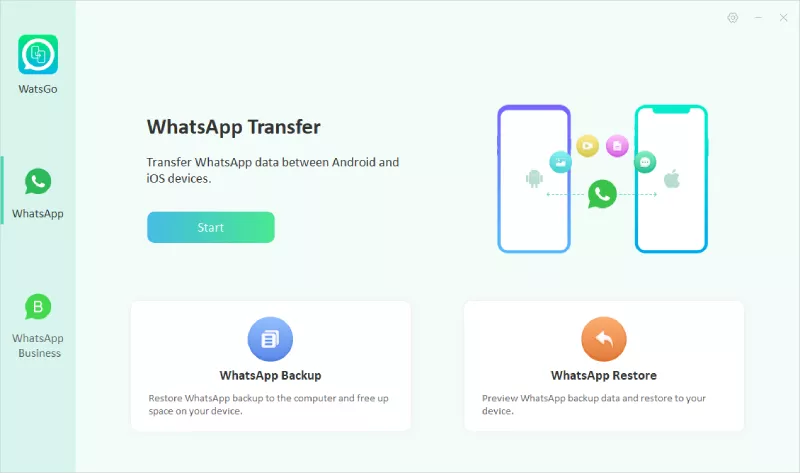
The first step to take is to download iToolab WatsGo and install it. After successfully launching the software, choose Whatsapp from the left panel and then choose ‘Whatsapp Transfer’.

Connect the Android phone as well as the iPhone

The next step is connecting the source device along with the target device to the PC. In case of a mistake, you can even click on the arrow to flip the devices in order to alter the target and source device.

Also Read: How to Permanently Deactivate/Delete Facebook Account? How to Permanently Deactivate/Delete Facebook Account?

However, you need to ensure that there are varied requirements for the iPhone and the Android phone to be identified by the computer.

  • For iPhone: You have to tap on the ‘Trust’ on your smartphone as soon as the device is connected to the computer. Then turn off Find My on your iPhone and unlock the phone with passcode on the device.
  • For Android: In case of your Android device, the program will ask you to open USB debugging and this will remind you to allow USB authorization on your device.

Backup and find Whatsapp backup on your Android

Once your phone is connected, the first step should be to back up all your data and files on the target device. You just have to follow the given instructions to backup.

In case you have already backed up with WatsGo, you only have to choose history backup. When you’re done with backing up Whatsapp data manually, the program will begin to obtain this backup.

Generate the backed up Whatsapp data and recover it to iPhone

Next you reach the data generation stage. You need to wait for a few minutes and then the Android Whatsapp backup can be easily converted to the format that is applicable on iPhone. It is then that the Whatsapp backup data will start being restored to the target device.

Whatsapp is transferred successfully

Finally, you can now transfer Whatsapp to new phone successfully and this will mean your transfer has been done. You have to reboot your iPhone and check if the Whatsapp has been transferred totally.

Also Read: Cloud-Based Application for Business: The Good and the Bad Cloud-Based Application for Business: The Good and the Bad

Transfer Whatsapp to new phone keeping the same number – The steps

The digital messaging apps have this quality of automatically backing up a copy of all your messages daily. However, the best way to ensure that you don’t lose any message from your conversations is by creating a backup copy before installing the app on the target mobile. Here are the steps involved.

Transfer Whatsapp from iPhone to another new iPhone

When you have to transfer your Whatsapp messages from one iPhone to another iPhone or transfer whatsapp from android to iphone, you’ll have to backup Whatsapp to iCloud and later on restore it on your new phone.

Step #1: Ensure you have logged into iCloud account and allow Whatsapp to access your iCloud.

  • Tap on the settings app of your iPhone.
  • Tap on your username and choose iCloud.
  • Sign in if you still didn’t and tap on iCloud drive.
  • Switch it ‘ON’.
  • Check whether Whatsapp is ON.

Step #2: Next you should back up the Whatsapp chat to iCloud and here is the process to follow:

  • Open Whatsapp and go to Settings.
  • Next, tap on the Chats option and choose Chat Backup.
  • Turn on ‘Include Videos’ if you want to backup videos.
  • Finally, tap on ‘Back Up Now’.

Step #3: After following the above listed steps, you can backup Whatsapp chat. Now you have to transfer them in between your two iPhone. Here are the steps to take:

  • Before everything, ensure you’re signed into iCloud and provide the required permissions to Whatsapp.
  • If Whatsapp has still not been installed, visit the App store to install it.
  • Open the app and agree on terms and conditions.
  • Whatsapp account is linked with your phone number. You should be able to receive SMS and calls to activate the account. Make sure the SIM of your number is present on the phone.
  • Tap Restore Chat History and click on Next to start the Whatsapp.

How to transfer Whatsapp from Android to Android through PC

Now what if you want to transfer Whatsapp from one Android device to another through a computer? While there are numerous ways of doing it, the simplest way to do is to use iToolab WatsGo’s tool. Here are the steps to take:

Also Read: The Product of the New Era-Smart Watch The Product of the New Era-Smart Watch

Step #1: Download the application and launch it on your PC. Then click on ‘Whatsapp Transfer’ option.
How to transfer Whatsapp

Step #2: Connect the devices using Android devices and allow the application to detect the devices. As they’re recognized, you can find the source and also the destination options.

iToolab WatsGo’s Tool

Step #3: Next, click on ‘Start Transfer’ option to transfer the Whatsapp data. Wait for a minute till the data has been transferred. However, ensure you don’t disconnect your phone from the PC during the entire process.
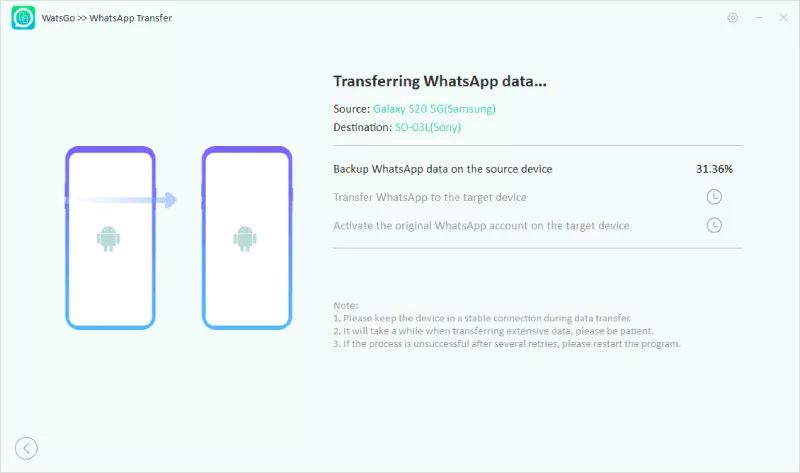
WhatsApp Transfer

As the transfer is completed, restart or reboot the target Android device. Check out whether or not the messages are transferred successfully. This is the process to transfer Whatsapp messages from Android to Android using a PC.
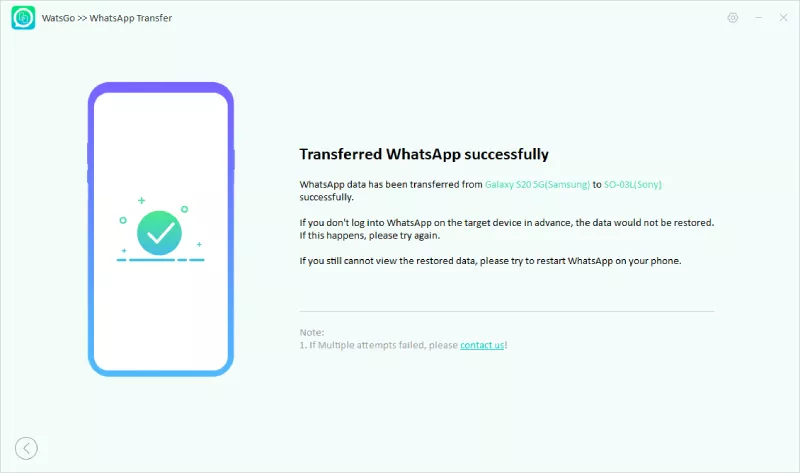
WhatsApp Transfering

So, now that you know all the ways of transferring Whatsapp chat history from one phone to another, what are you waiting for? Try and experiment the steps and let us know whether you succeeded.

cards
Powered by paypal
Follow on WhatsApp Follow on Telegram
Share. Facebook Twitter Pinterest LinkedIn Tumblr Telegram WhatsApp Copy Link
Previous Article5 Reasons Why Local SEO Is Important for Your Business
Next Article Restaurant POS System Cost?
Vidya Menon

Vidya Menon is a talented content writer who brings ideas to life with clarity and creativity. She writes across diverse topics, making complex subjects easy to understand and engaging to read. With a passion for storytelling, she delivers content that informs, inspires, and leaves a lasting impact.

Related Posts

Why People Fear Automation | AI Job Loss, Robots Replacing Jobs & The Future of Work Explained

Why Data Is More Valuable Than Money | The Secret Asset Behind Billion-Dollar Tech Companies

From Legacy ECC to Future-Ready Core: Strategic Migration Pathways for Resilient Enterprises

Why Privacy Is Becoming a Luxury in 2026: The Shocking Reality of Digital Surveillance

Solving Visibility in Logistics With Unified Last Mile Carrier Tracking

Why Tech Billionaires Are Suddenly Building Offline Businesses

Leave A Reply

Subscribe to Blog via Email

Enter your email address to subscribe to this blog and receive notifications of new posts by email.

Join 43K other subscribers
Categories
Latest Posts

Why People Fear Automation | AI Job Loss, Robots Replacing Jobs & The Future of Work Explained

Why Data Is More Valuable Than Money | The Secret Asset Behind Billion-Dollar Tech Companies

Why Smart Shopping Starts With the Right Savings Platform

7 Things to Consider When Buying a Used Truck

A Beginner’s Guide On How To Choose The Right Solar Inverter For Your Home

Building a Budget That Actually Works

3 Birkenstock Sandals to Pack for You and Your Partner’s Next Weekend Escape

Meat Cleaver Knives: Uses, Benefits, and When They’re the Right Choice

From Legacy ECC to Future-Ready Core: Strategic Migration Pathways for Resilient Enterprises

Why a Child Bank Account Is the Ultimate Gift

The content on this website is provided solely for educational and informational purposes. We do not promote, endorse, or deal in any products, services, or activities mentioned. While we strive to share accurate and up-to-date information, we make no warranties regarding completeness, reliability, or accuracy. Any action you take based on the information found here is strictly at your own risk, and we will not be liable for any losses or damages in connection with the use of our website.

DMCA.com Protection Status
Quick Links
Age Calculator
Angel Number Calculator
Case Converter
Sudoku Online
Word Counter
Love Calculator
Jack Doherty YouTuber
Snake Dream Meaning
Get Rid of Cockroaches
Indian Cricket Team Coaches
Best Volleyball Team Names
Useful Links
Number to Words
Period Calculator
Yes-No Picker Wheel
Demon Name Generator
Kingdom Name Generator
Harry Potter Name Generator
Daddy Yankee Biography
Crocodile Dream Meaning
Goa Budget Trip Guide
Maryse Mizanin WWE Diva
Best Cricket Team Names
Helpful Resources
Colors Name In English
Best Computer Brands
WhatsApp Web
Most Beautiful Beaches
Tesla Cybertruck Review
Richest Actors in the World
India Jarvis Actress
Cat Dream Meaning
Belmar Beach New Jersey
Aryna Sabalenka Tennis Superstar
Best WhatsApp Group Names
Explore More
Good Morning Handsome
Best English Songs of All Time
Cricket World Cup Winners
Ways to Say Rest In Peace
Britain’s Got Talent Winners
American Idol Winners
Dude Perfect Net Worth
Horse Dream Meaning
Ramakrishna Beach Visakhapatnam
Anastasia Potapova Tennis Star
Best Funny Team Names
Facebook X (Twitter) Instagram Pinterest YouTube Tumblr LinkedIn WhatsApp Telegram Threads RSS
  • About
  • Contact Us
  • Advertise With Us
  • Disclaimer
  • Privacy Policy
  • Terms & Conditions
  • Web Stories
Copyright © 2012-2026. JustWebWorld - All Rights Reserved.

Type above and press Enter to search. Press Esc to cancel.

×

👇 Bonus Reads for You 🎁

Troubleshooting on Using Audacity
How to Solve Common Errors In Audacity
What Is Virtual Reality
What Is Virtual Reality?
ClipDown Video Downloader Review
ClipDown Video Downloader – Best YouTube Video Downloader 2021
Zcash - Privacy protecting digital currency
How To Buy And Sell Zcash