

To check whether a website is down for everyone or just you, open it on a different connection, such as your phone on mobile data, and check whether other websites still work on your own connection. If the site fails everywhere, the problem is almost certainly on the website’s side. If it fails only on your connection, the problem is local, often DNS, your network, a browser extension or a VPN.
The browser’s error message is a valuable clue too. This guide explains what common error messages mean, shows a few quick checks you can run from your own computer, and covers the fixes that solve most “just me” problems.
Key takeaways
- Test on another network first. It is the quickest way to tell “everyone” from “just me”.
- Read the error message. It often tells you which part of the connection failed.
- Error codes from 500 to 599 come from the website’s servers, not from you.
- DNS problems are a common “just me” cause, and they are usually quick to fix.
- If it is your own website, check your host’s status page and set up monitoring.
The quick check
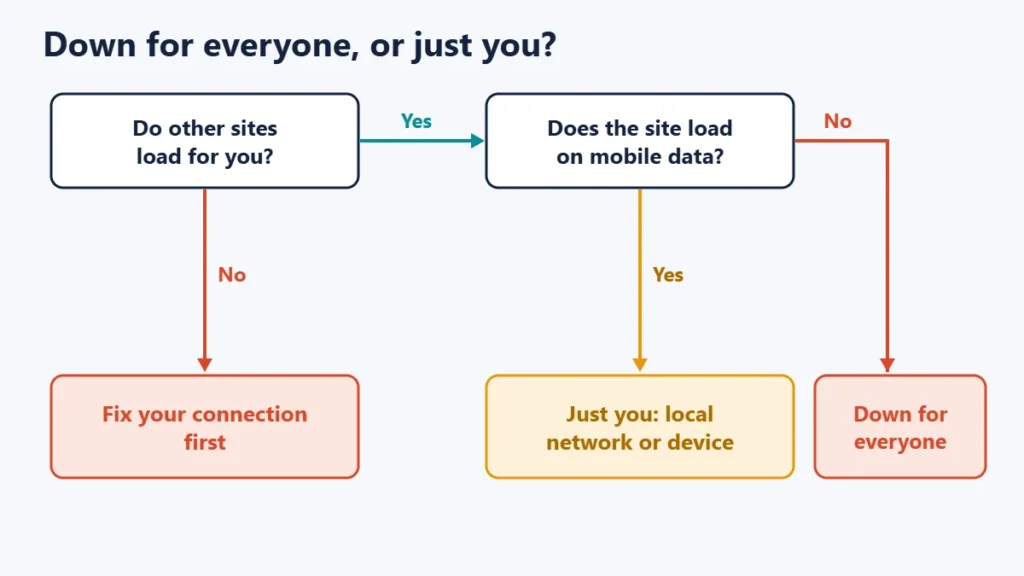
- Do other websites load? Google’s Chrome help suggests checking whether a problem affects one website or many. If many fail, check your own internet connection first. Our guide to Wi-Fi connected but no internet can help.
- Does the site load on a different network? Turn off Wi-Fi on your phone and try mobile data. If it works there, the site is up, and something about your connection or device is blocking it.
- Does it fail everywhere? Then the website is probably down. Check its social media accounts or status page, or try an online website status checker, which tests the site from servers elsewhere.
What the error message tells you
Chrome and other Chromium-based browsers such as Edge show specific error codes. The descriptions below come from Chromium’s own definitions of these errors.
| Error | What it means | Usually whose side? |
|---|---|---|
| ERR_NAME_NOT_RESOLVED | The host name could not be resolved, so no IP address was found | Your DNS, or the site’s domain settings |
| ERR_CONNECTION_REFUSED | A connection attempt was refused | Usually the site’s server; sometimes local security software |
| ERR_CONNECTION_TIMED_OUT | A connection attempt timed out | Either side: a busy server, a firewall or a network problem |
| ERR_CONNECTION_RESET | The connection was cut off partway | Either side, often a network device or VPN |
| ERR_INTERNET_DISCONNECTED | Your internet connection has been lost | Your side |
| ERR_CERT_DATE_INVALID | The certificate appears expired, or not yet valid, by your clock | The site’s certificate, or a wrong clock on your device |
| 500, 502, 503 or 504 page | The website’s server reported a problem | The website’s side |
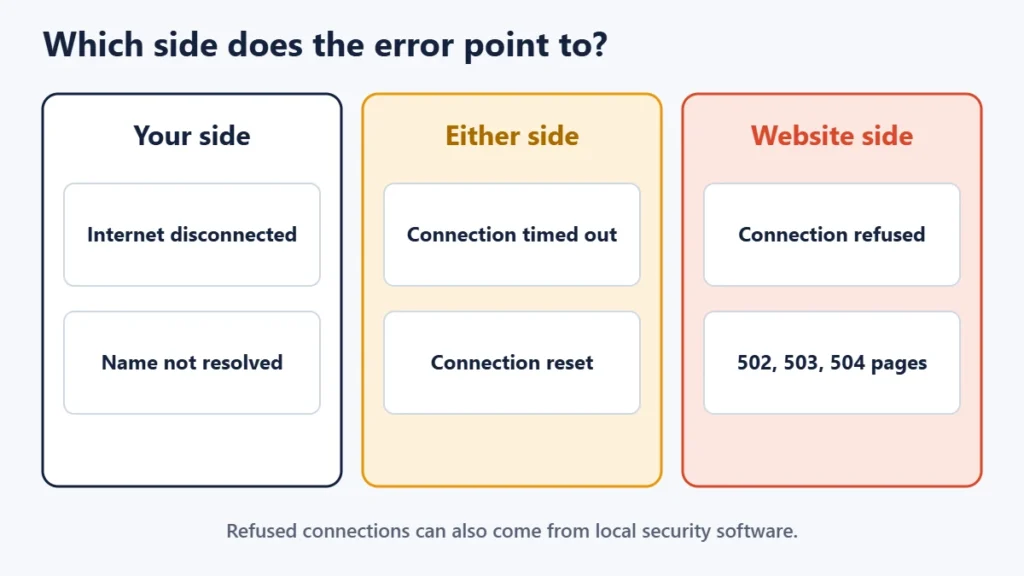
If you see a numbered error page in the 500s, the site’s server is having trouble, and there is little you can do except wait. Our guide to 502, 503 and 504 errors explains each one.
Three checks you can run yourself
These commands work on Windows, macOS and Linux. Replace example.com with the site you are testing.
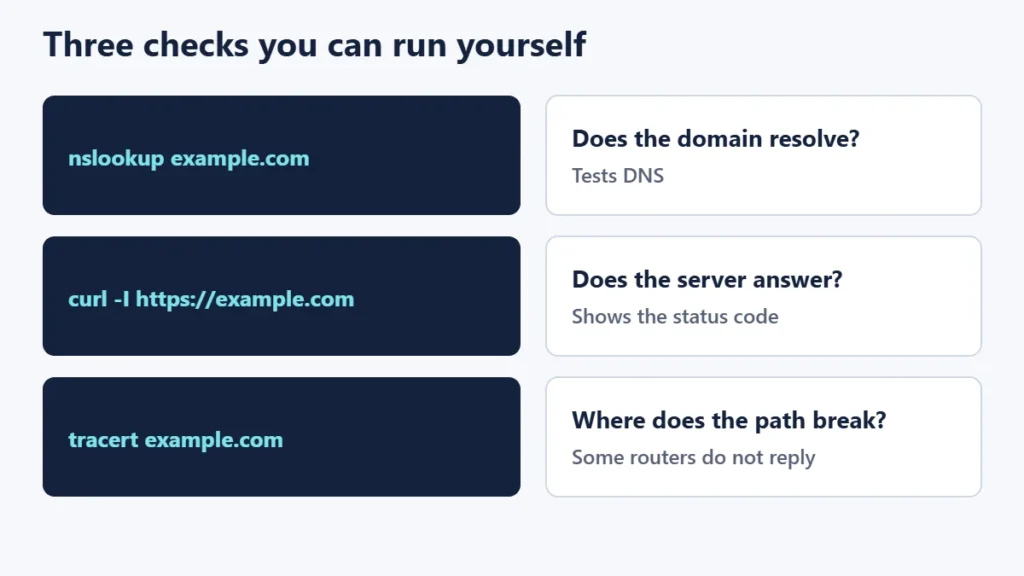
1. Does the domain resolve?
nslookup example.comIf you get an IP address, DNS is working for that domain. An error here, combined with ERR_NAME_NOT_RESOLVED in the browser, points to a DNS issue. Our guide to nameservers and A records explains how domains point to servers.
2. Does the server answer?
curl -I https://example.comThe -I option asks for the response headers only. The first line shows the status code: 200 means the server answered normally, codes in the 300s are redirects, and codes in the 500s are server errors. If curl reports that it could not connect, the server is not responding to you at all. The curl command is included with current versions of Windows 10 and 11, macOS and most Linux systems.
3. Where does the path break?
tracert example.comOn macOS and Linux, use traceroute instead. Microsoft’s documentation explains that tracert maps the path by sending packets with increasing time-to-live values. It also notes that some routers do not reply, so a row of asterisks for one hop is not necessarily a problem. Treat a traceroute as a clue, not proof.
Ping is also commonly used, but many websites block ping requests entirely, so a failed ping does not mean a site is down. If you want to understand ping results, see our guide to ping, jitter and latency.
If it is just you: how to fix it
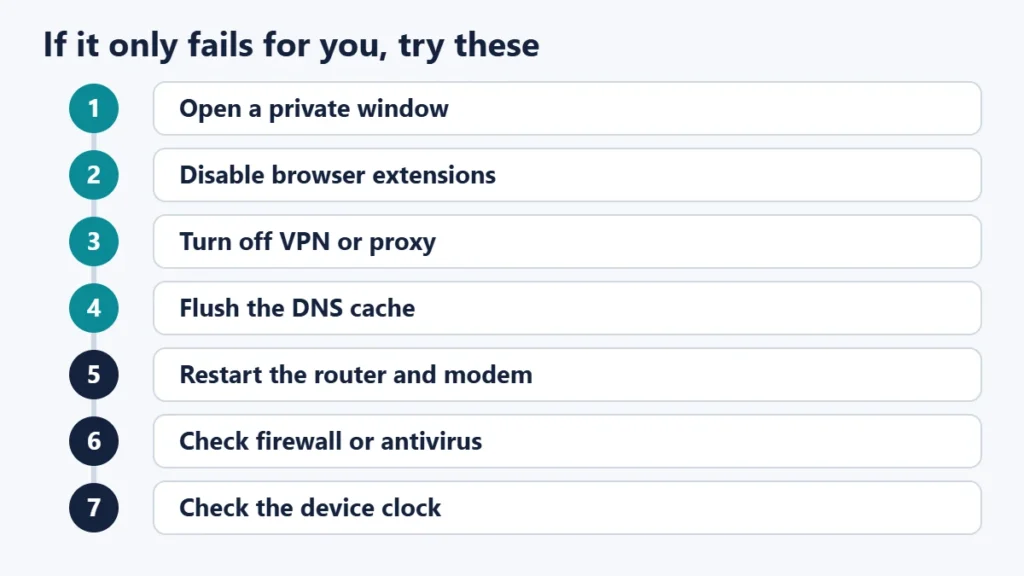
- Try a private window. Google’s Chrome help lists Incognito mode as a step, because it runs without most extensions and saved data.
- Disable browser extensions, especially ad blockers and privacy tools, then reload.
- Clear the site’s cookies and cache, which Chrome’s help also suggests.
- Turn off VPNs and proxies to see whether they are blocking or rerouting the site.
- Flush your DNS cache. On Windows, run
ipconfig /flushdns, which Microsoft says flushes and resets the DNS client resolver cache. Switching to a public DNS server can also help. - Restart your router and modem, or contact your internet provider if the problem continues.
- Check firewall or antivirus settings. Chrome’s help notes that these can block connections.
- Check your device’s clock if you see certificate errors, since a wrong date can make valid certificates look expired.
If it is your own website
- Check your host’s status page or dashboard for reported incidents.
- Test from outside your network, such as mobile data, so you see what visitors see.
- Look at the error code visitors get, since 5xx errors point to the server.
- Check recent changes, including DNS edits, renewals and plugin updates. An expired domain or certificate can take a site offline.
- Set up uptime monitoring so that you hear about outages before visitors do. Our explainer on what 99.9% uptime means shows how much downtime a typical guarantee allows.
If you are unsure which company runs the server, our guide to finding who hosts a website explains how to look it up.
Common mistakes
- Assuming a site is down because ping fails. Many servers ignore ping.
- Testing only on the same Wi-Fi. A local DNS or network problem affects every device on it.
- Ignoring the error message. It often points straight to the cause.
- Forgetting the VPN. Some sites block VPN addresses, and some VPNs block certain sites.
- Refreshing a checkout repeatedly. Check for a confirmation email first to avoid duplicate orders.
Frequently asked questions
How can I tell if a website is down right now?
Try it on a different network, such as mobile data, and use an online status checker. If it fails in both places, it is very likely down.
Why does a website work on my phone but not my computer?
Something specific to the computer is involved, such as a browser extension, cached data, a VPN, firewall software or a stale DNS cache.
Why does a website work on mobile data but not my Wi-Fi?
The problem is likely your home network: the router, the DNS servers it uses, or your internet provider.
What does “This site can’t be reached” mean?
It is Chrome’s general message for a failed connection. The error code shown underneath, such as ERR_NAME_NOT_RESOLVED, tells you more.
Can my internet provider block a website?
Yes, providers can block or filter sites, sometimes because of local laws. A test on a different network will show whether that is happening.
How long do website outages usually last?
Many are resolved within minutes, while major incidents can last hours. A site’s status page or social accounts usually give the best estimate.
The short version
Check other websites, then try the problem site on another network. If it fails everywhere, the site is down and you can only wait. If it fails only for you, read the error message, then work through private browsing, extensions, VPNs, DNS and your router. Those steps resolve most “just me” problems in minutes.

Justwebworld has published guides since 2012. How we write and update articles Report an error
