

“Connected, no internet” means your device has joined the Wi-Fi network but cannot reach the wider internet through it. The break is usually at the router, the internet provider or your device’s address or DNS settings. Start by checking whether other devices on the same Wi-Fi are online, because that one test tells you where to look.
Instead of trying fixes at random, start with three quick tests that locate the failure, then use only the fixes that apply to that spot. You will also avoid the drastic resets that are seldom needed.
Key takeaways
- Wi-Fi and internet are separate. Wi-Fi only links your device to the router.
- Other devices offline too? Focus on the router or provider.
- Only one device offline? Focus on that device’s settings.
- A 169.254 address means your device did not get a working address from the router.
- Keep network resets for last. They remove saved settings.
Why does Wi-Fi say connected with no internet?
Your home connection is a chain. Your device talks to the router over Wi-Fi, the router talks to your provider, and your provider connects you to everything else. A Wi-Fi icon confirms only the first link.
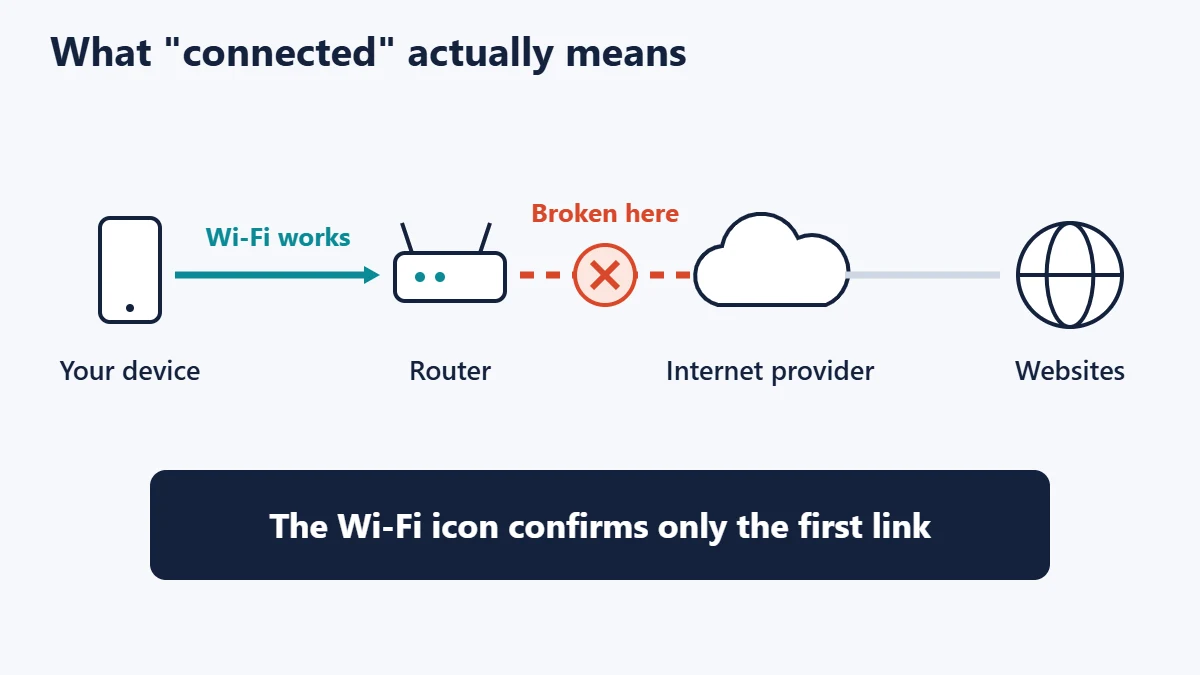
Windows decides what to show using a component called the Network Connectivity Status Indicator. According to Microsoft’s documentation, it sends a small web request to a Microsoft test server and also watches network traffic passively. If the test does not complete or fails, Windows can report no internet.
That has a useful consequence: the warning is not always accurate. A proxy, for instance, can block the test while browsing still works. Before fixing anything, open a few well-known websites in a browser and see what really happens.
Start here: three questions that locate the problem
| What you see | Most likely location | Go to |
|---|---|---|
| Every device on the Wi-Fi is offline | Router, modem or provider | Fix 1 |
| A hotel, airport or cafe network with no login page | Captive portal | Fix 2 |
| Only one device is offline | That device | Fixes 3 to 5 |
| Some apps work, but websites do not load | DNS, VPN or proxy | Fixes 4 and 5 |
Apple’s guidance makes the same first move: try the network on other devices, since a problem on all of them may indicate a service outage.
Three tests on a computer
On Windows, open Command Prompt. On a Mac, open Terminal. Run these in order and stop at the first one that fails.
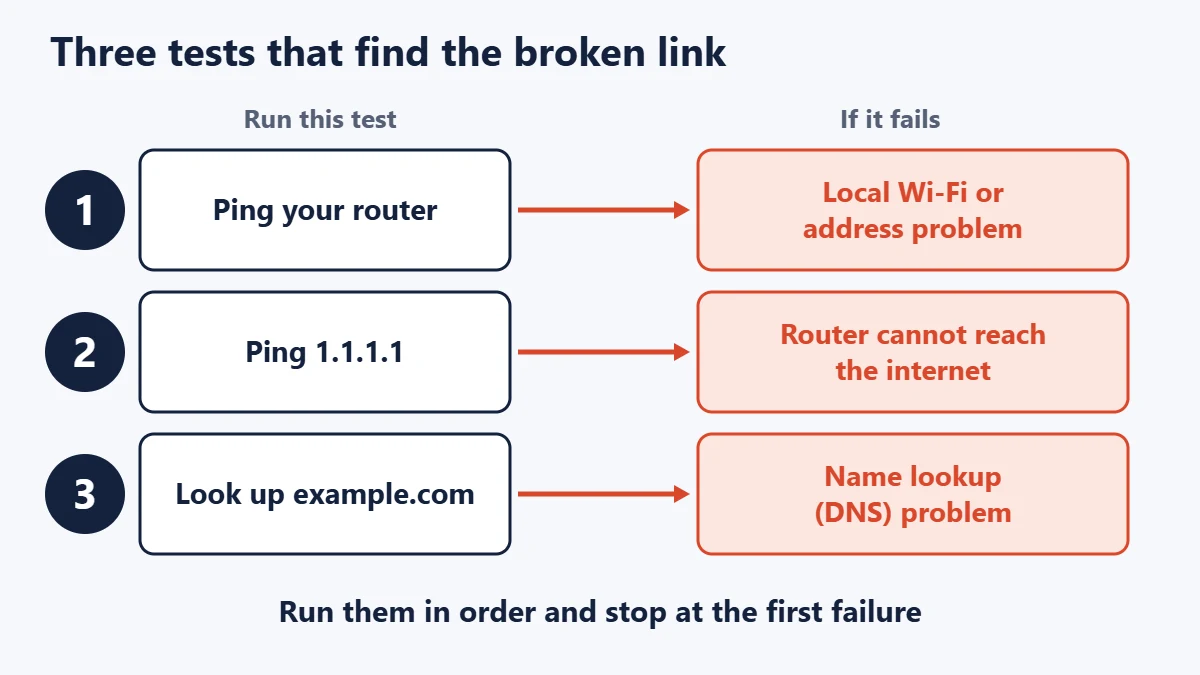
- Find your router’s address. On Windows, run
ipconfigand read “Default Gateway”. Our guide to finding your router’s IP address covers other devices. - Ping the router. Run
ping 192.168.1.1, replacing the number with your own gateway. Replies show the local link works. - Ping an internet address. Run
ping 1.1.1.1. Replies show that data is reaching the internet without using names. - Test a name lookup. Run
nslookup example.com. If this fails while the previous test succeeded, DNS is the likely cause.
On macOS and Linux, add -c 4 so that ping stops by itself, as in ping -c 4 1.1.1.1. Results are not perfect, since some networks block ping, so treat one failed test as a strong clue instead of proof. On a phone, try opening https://1.1.1.1 in a browser. If that loads while ordinary websites do not, DNS is again the prime suspect.
Check your IP address
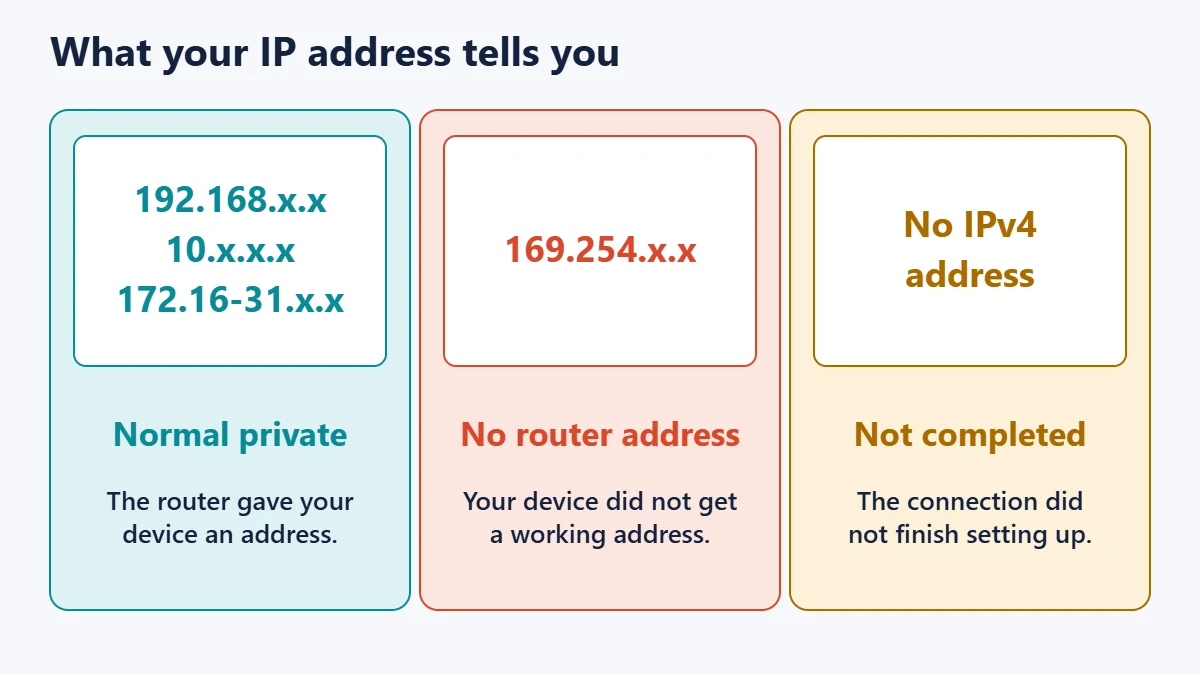
Addresses beginning with 169.254 are link-local addresses, used when a device has no routable address available, and they cannot be forwarded through a router. Seeing one normally means your device never received a working address from the router, so the internet cannot be reached however strong the signal looks.
The fixes, from quickest to most disruptive
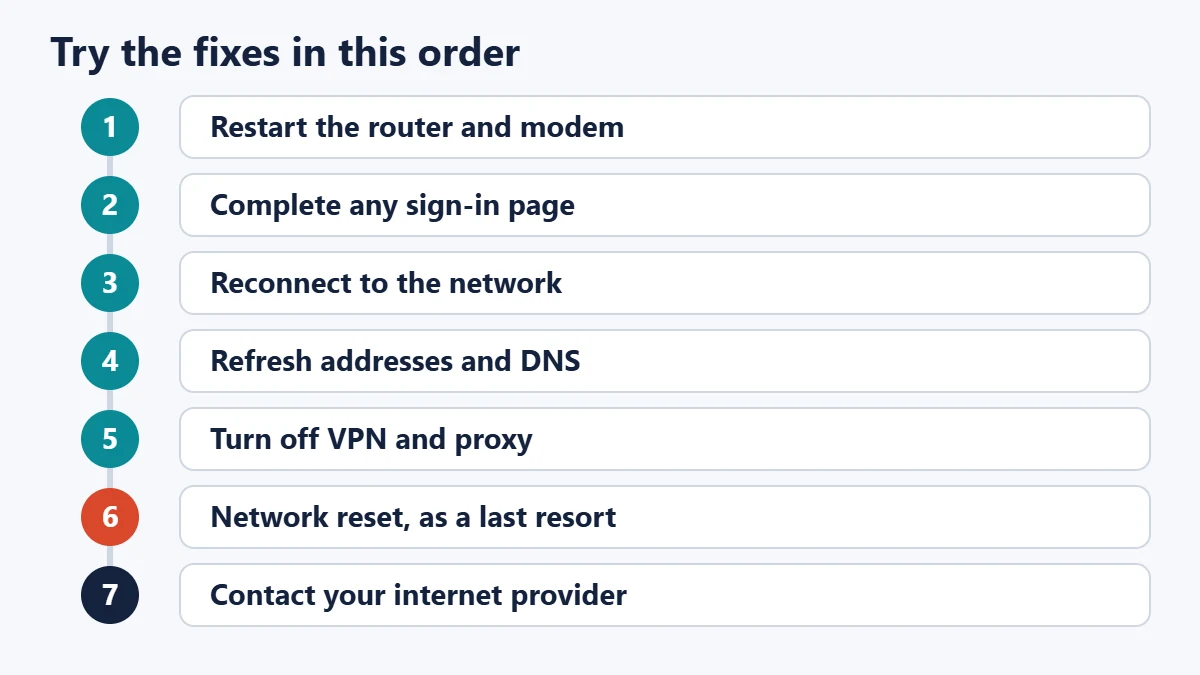
Fix 1: Restart the router and modem
Apple’s advice is to unplug the router and modem, then plug them back in. Power up the modem first if they are separate boxes, and give each a couple of minutes. Check whether the modem’s internet or WAN light looks abnormal, then look at your provider’s status page using mobile data. An unpaid bill or an exhausted data allowance can produce the same symptoms.
Your router’s admin page may also reveal whether it has an internet connection. See our router login guide for common brands.
Fix 2: Complete any sign-in page
Public networks often use a captive portal, a page where you accept terms or log in before getting online. Microsoft notes that these portals can intercept connectivity tests, so your device may show no internet until you sign in. If no page appears, try visiting a plain website by typing its address. Take care on shared networks; our guide to using free Wi-Fi securely covers the risks.
Fix 3: Forget and rejoin the network
Remove the network from your device and connect again using the password. On iPhone, go to Settings, then Wi-Fi, tap the info button beside the network, and choose Forget This Network. On Android, look under Network & internet, then Internet, though menus vary by manufacturer. Check that the date and time are also correct, as wrong clocks can break secure websites.
Fix 4: Refresh addresses and DNS on Windows
Run Windows’ network troubleshooter first. If that does not help, Microsoft’s guide lists these commands, which you should run in order from a Command Prompt opened as administrator:
netsh winsock reset
netsh int ip reset
ipconfig /release
ipconfig /renew
ipconfig /flushdns
Restart the computer afterwards. If the DNS test was the one that failed, you can also try a public DNS service to find out whether your provider’s servers are the issue.
Fix 5: Rule out VPN, proxy and security software
Disconnect any VPN and test again. On Windows, check Settings, then Network & internet, then Proxy, and turn off a manual proxy you do not need. On Android, if you use a custom Private DNS provider, try setting it to Off briefly as a test, then restore it afterwards. Google also suggests restarting in safe mode: if Wi-Fi works there, a downloaded app is the likely cause.
Fix 6: Update or reinstall the Wi-Fi driver
This applies mainly when one Windows PC fails after an update. Download the driver from the PC manufacturer on another device, since the affected PC cannot get online.
Fix 7: Use a network reset as a last resort
Windows’ Network reset, found under Advanced network settings, removes and reinstalls network adapters, and Microsoft warns that VPN software may need reinstalling. On iPhone, Reset Network Settings removes all saved network configurations. Have your Wi-Fi passwords ready first.
Fix 8: Router updates, factory reset or your provider
If every device is still offline, check for router firmware updates. A factory reset erases your configuration, and some connections need provider login details to be re-entered, so find those first. If the modem cannot get a signal, contact your provider and tell them which tests failed.
If it keeps happening
A connection that drops repeatedly points to a different set of causes than one that has failed outright. Test with a cable, if you can: when Ethernet stays stable while Wi-Fi does not, the problem is likely wireless coverage or interference, and our guide to improving Wi-Fi signal can help. If the cable drops too, suspect the modem, the line or the provider. Write down when it happens, since a pattern gives your provider something to investigate.
Frequently asked questions
Why do my other devices work but not my laptop?
The router and provider are probably fine. Concentrate on the laptop: check for a 169.254 address, disconnect any VPN, reconnect to the network and refresh its address and DNS settings.
Why does my phone say no internet but apps still work?
The phone’s connectivity check may have failed while real traffic is getting through. Some apps may also be using mobile data, so turn mobile data off briefly to test Wi-Fi alone.
Can a router be working if the internet is down?
Yes. A router can keep broadcasting Wi-Fi with no connection to your provider, which is exactly why devices can show “connected” with no internet.
Does a stronger signal fix this?
Only if weak coverage is the cause. Full signal bars measure the link to your router and say nothing about the connection beyond it.
Will resetting network settings delete my files?
No. Network resets remove network configuration such as saved Wi-Fi networks, not personal files.
How do I tell if my provider has an outage?
Check its status page or app using mobile data. If every device is offline, the router has restarted and your modem shows no connection, an outage or line fault is likely.
The quick version
Check another device first. If everything is offline, restart the router and modem and check for an outage. If one device is offline, look at its IP address and work through reconnecting, refreshing DNS and removing VPN or proxy settings. Leave the resets until last, and you will usually fix the problem without losing a single saved setting.
Sources
- Network Connectivity Status Indicator overview (Microsoft Learn)
- Fix Wi-Fi connection issues in Windows (Microsoft Support)
- If you can’t connect to Wi-Fi on your iPhone or iPad (Apple Support)
- How to fix Wi-Fi connection problems (Google Fi Help)
- RFC 3927: Dynamic Configuration of IPv4 Link-Local Addresses (IETF)

Justwebworld has published guides since 2012. How we write and update articles Report an error
