

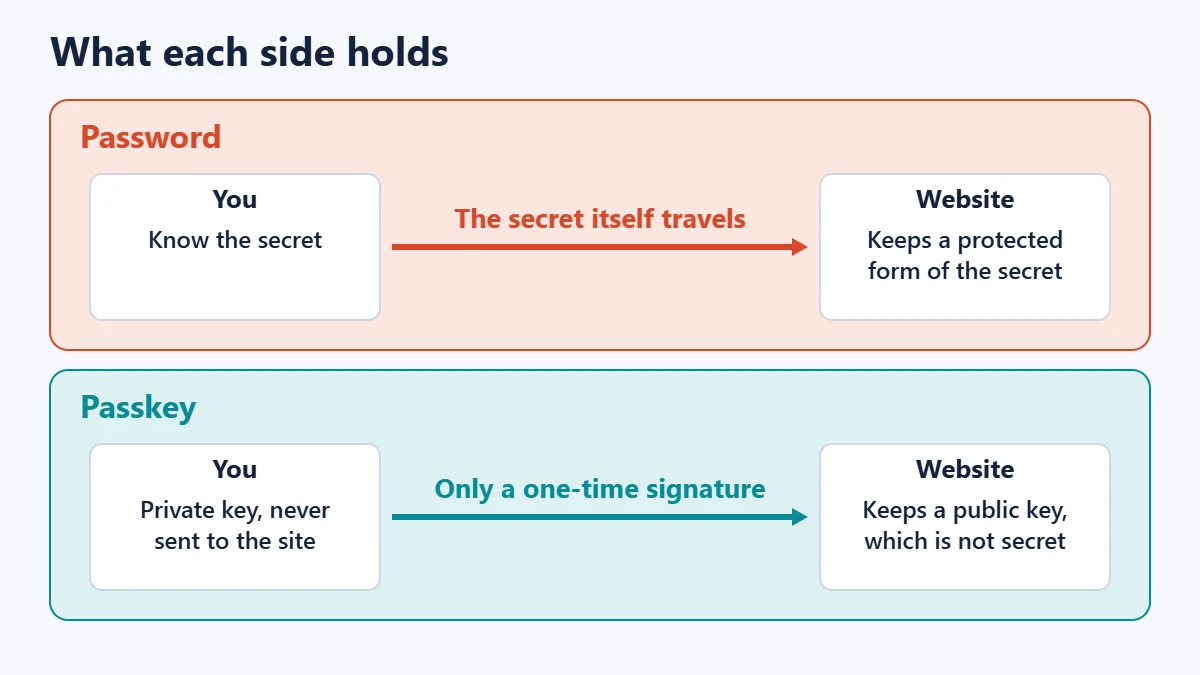
A password is a secret you type and send to a website. A passkey is a pair of cryptographic keys: the website keeps the public half, and the private half stays with you and proves who you are without ever being sent. That design makes passkeys much harder to phish and means a website breach exposes nothing an attacker can log in with.
For most people, passkeys are the safer and quicker option wherever they are offered. There are real catches, though, particularly around lost devices and the password that often stays active in the background. This guide covers how they work, where they fall short and what to do first.
Key takeaways
- Nothing reusable is sent. A passkey signs a one-time challenge instead of transmitting a secret.
- Fake sites are the big win. A passkey is tied to the real site it was created for.
- Your fingerprint stays on your device. It unlocks the passkey locally and is not sent to the website.
- Your account is only as safe as its weakest sign-in option. A leftover password or weak recovery route can still be attacked.
- Your device’s screen lock now matters enormously. Anyone who can unlock the device may be able to use its passkeys.
What is the difference between a passkey and a password?
The FIDO Alliance, the industry group behind the standard, defines a passkey as an authentication credential based on FIDO standards that replaces a password with a cryptographic key pair. The technical foundation for browsers is the Web Authentication (WebAuthn) standard from the World Wide Web Consortium, whose Level 3 version became a W3C Recommendation in August 2026.
| Password | Passkey | |
|---|---|---|
| What you do | Remember or store it, then type it | Approve with fingerprint, face, PIN or pattern |
| What the site stores | A protected form of your secret | A public key, which is not a secret |
| What travels at sign-in | The secret itself, inside an encrypted connection | A one-time signature |
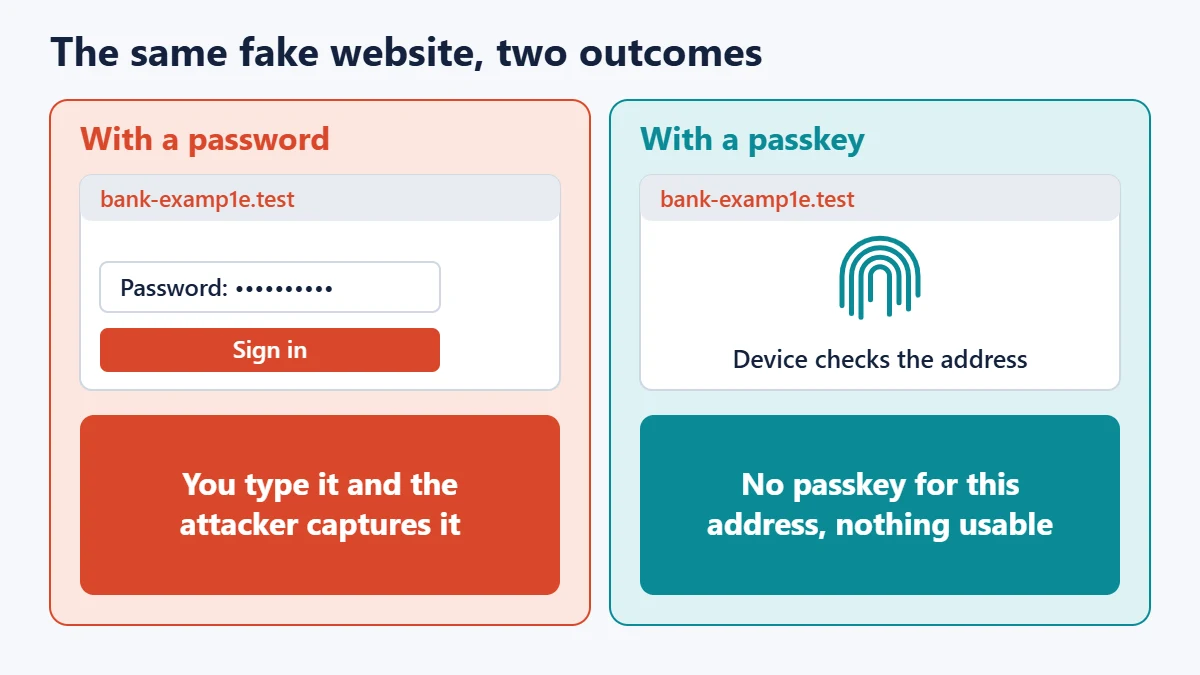
| Fake website risk | You can be tricked into typing it | Bound to the real site |
| If the website is breached | Weak or reused passwords can be cracked and tried elsewhere | The public key alone cannot sign in |
| Reuse across sites | Possible, and common | Each passkey belongs to one service |
| If you lose your device | Unaffected, if you remember it | Depends on sync and recovery setup |
How does a passkey work?
Think of a wax seal. Everyone can be given a picture of your seal to check against, but only you own the stamp. Each time the website wants proof, it hands you a fresh sheet to stamp, so an old stamped sheet is useless.
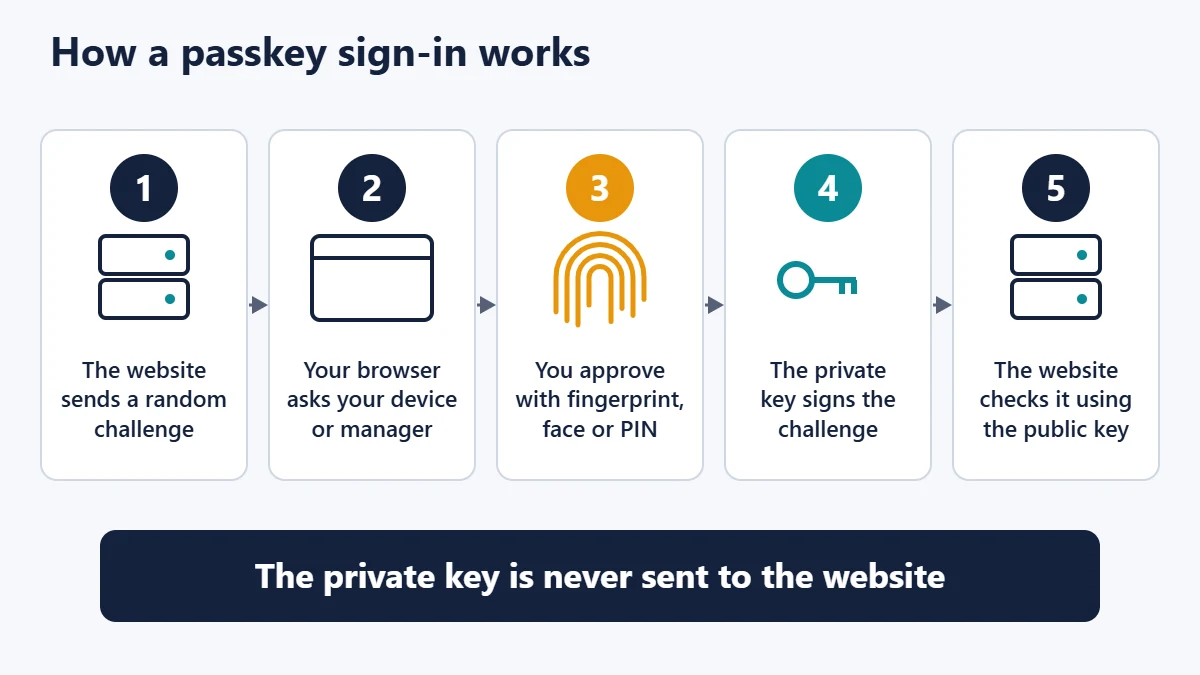
The steps, as MDN’s WebAuthn documentation describes them, look like this:
- The site sends a challenge, which is a large random value of at least 16 bytes.
- Your browser passes the request to your device or password manager, along with the identity of the site asking.
- You approve it with your fingerprint, face, PIN or pattern.
- The private key signs the challenge and the signature is returned to the site.
- The site verifies the signature using the stored public key, confirms the challenge matches the one it issued, and checks that the request was for the correct site.
Does the website get my fingerprint?
No. According to the FIDO Alliance, biometric information and processing stay on the device and are never sent to a remote server. Your fingerprint only unlocks the private key locally. The website learns that the check succeeded, nothing more. If you have reservations about biometrics generally, our overview of biometric authentication covers the trade-offs, and you can usually use a PIN instead.
Why passkeys resist phishing
A phishing page works by getting you to hand over something reusable. Your eyes might miss that a web address is slightly wrong, but a passkey does not rely on your eyes. As MDN puts it, an attacker with a fake login page cannot sign in as you because the signature changes with the origin of the website. The passkey is scoped to the service that created it, so the lookalike site has nothing valid to work with.
The US National Institute of Standards and Technology (NIST) draws the same line in SP 800-63B-4, its 2025 digital identity guidance. Authenticators that involve manually entering an output, such as a typed code from an app, are not considered phishing-resistant. That is the key difference from most two-factor authentication codes, which a convincing fake page can capture and use right away. Our guide to phishing protection covers the broader defences.
Synced vs device-bound passkeys
Passkeys come in two forms, and which one you have affects both convenience and recovery.
| Synced passkey | Device-bound passkey | |
|---|---|---|
| Where it lives | Your credential manager, across your devices | One device or hardware security key |
| Examples | iCloud Keychain, Google Password Manager, third-party managers | A FIDO security key |
| Lose one device | Other synced devices still work | You need another registered key or recovery route |
| Main risk | Depends on the security of the sync account | Lockout if you have no backup |
| Best suited to | Most everyday users | High-risk users and strict workplaces |
Syncing does not mean the provider can read them in the clear. Apple says iCloud Keychain is end-to-end encrypted with keys not known to Apple. Google says passkeys are encrypted on the device before syncing. Android 14 and later also allow compatible third-party password managers.
There is a security trade-off. NIST permits syncable authenticators up to its second assurance level (AAL2) but says they shall not be used at its highest, AAL3, because that level requires a key that cannot be exported. That matters for high-assurance systems far more than for a shopping account.
Using a passkey on someone else’s computer
A passkey stored on your phone can approve a sign-in on a nearby computer. This cross-device flow typically begins with a QR code, while Google notes that Bluetooth must be turned on. The Bluetooth step is a proximity check intended to stop someone far away from using a QR code remotely. Your passkey is not copied to the computer.
Where passkeys fall short
Passkeys are a real security upgrade, but they have limits worth knowing before you rely on them.
- Your old password may still work. Google states that adding a passkey does not remove your existing sign-in or recovery methods. An attacker can still target the password if it remains active.
- Recovery can be the weak link. A strong passkey does not help much if an account can be reset through a poorly protected email inbox or a phone number.
- Screen lock is now a gatekeeper. Google warns that anyone who can unlock a device holding your passkey can access your account. A partner or child who knows your PIN may be able to sign in as you.
- Passkeys protect sign-in, not the whole session. Malware on your device, or a thief with an already logged-in phone, is a different problem.
- Support is uneven. Some sites, browsers and private-browsing modes do not work well with passkeys, so check as you go.
- Moving between ecosystems can take effort. Check your provider’s current export or transfer options before switching platforms.
Are passkeys better than a password and an authenticator app?
Against phishing, yes, because typed codes can be captured on a fake page. A long, unique password stored in a reliable password manager combined with an authenticator app is still solid protection and remains the sensible fallback where passkeys are unavailable. For passwords that protect an account alone, NIST’s current guidance calls for a minimum of 15 characters.
| Option | Fake-site resistance | Survives a site breach | Ease of use |
|---|---|---|---|
| Reused or short password | Poor | Poor | Easy, but risky |
| Unique password from a manager | Moderate; managers may refuse to fill on a wrong address | Good | Good |
| Unique password and app code | Moderate; codes can be relayed | Good | Moderate |
| Synced passkey | Strong | Strong | Very good |
| Hardware security key | Strong | Strong | Needs carrying |
How to start using passkeys safely
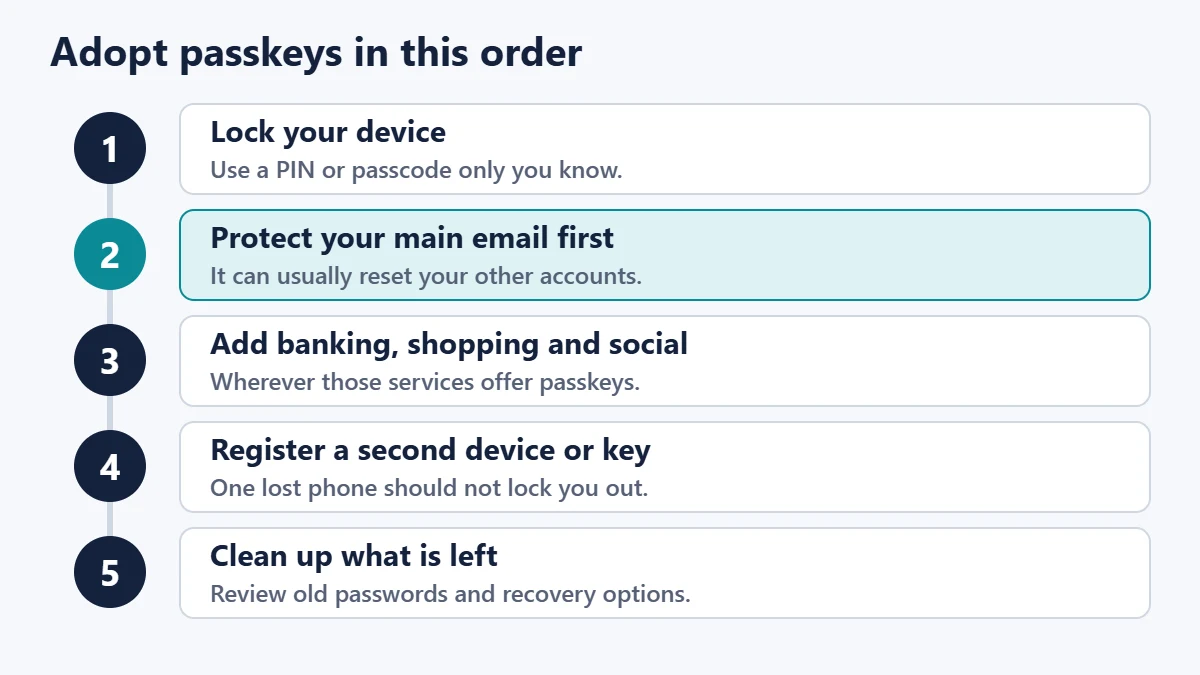
- Tighten your device lock. Use a PIN or passcode that others do not know, and keep your operating system updated.
- Do your primary email account first. It is usually the reset route for everything else. For a Google account, look under Security & sign-in, then “Passkeys and security keys”.
- Move to high-value accounts next, such as banking, shopping, social media and work tools, wherever they support passkeys.
- Set up more than one way in. Sync across a second device, or register a hardware key, so one lost phone is not a crisis.
- Review what you left behind. Make any remaining password long and unique, and check recovery email addresses and phone numbers.
- Plan for the unexpected. Apple lets you set up an account recovery contact, and it is worth including accounts in your digital legacy plan.
If your phone is lost or stolen
Sign in from another device and remove the passkey associated with the lost one. Google’s guidance also notes that if a removed passkey still prompts at sign-in, you should check any third-party credential manager and delete it there. iPhone owners should also review their iPhone security settings before anything goes wrong.
Frequently asked questions
Are passkeys safer than passwords?
In general, yes. They cannot be reused across sites or typed into a fake page, and a server breach does not reveal anything that allows a sign-in. Overall account safety still depends on recovery options and any leftover password.
Can a passkey be hacked?
It is designed to resist remote theft, but no sign-in method is immune. The realistic routes are someone unlocking your device, a compromised sync account or an attack against the account’s fallback sign-in methods.
What happens if I lose my phone?
If your passkeys are synced, sign in on another device and remove access for the lost one. If a passkey existed only on that phone, you will need another registered key or the site’s account recovery process.
Do I still need a password?
Often, yes, at least for now. Many services keep a password as a fallback. If you keep one, make it long, unique and stored in a password manager.
Is a passkey the same as two-factor authentication?
Not the same, though it can do a similar job. It combines possession of a device with a local unlock such as a fingerprint or PIN, and Google lets passkeys serve as the second step. Each service decides how it treats them.
Can I use a passkey on a shared computer?
Use the cross-device option with your phone rather than saving a passkey to that computer. A passkey saved to a shared device could be used by anyone who can unlock it.
Should you switch?
Yes, where a service offers passkeys, starting with your email. Treat the change as an upgrade to your whole account rather than a single setting: secure the device, add a backup route and clear up the weak fallbacks. Doing that gets you the protection passkeys promise. Our guide on keeping logins and passwords secure can help with accounts that do not support passkeys yet.
Sources
- Passkeys (FIDO Alliance)
- Web Authentication Level 3 (W3C)
- SP 800-63B-4: Authentication and Authenticator Management (NIST)
- Web Authentication API (MDN)
- Passkey terminology (passkeys.dev)
- About the security of passkeys (Apple)
- Passkeys developer overview (Google)
- Sign in with a passkey (Google Account Help)

Justwebworld has published guides since 2012. How we write and update articles Report an error
