

Note (September 2026): Earlier versions of this guide said WhatsApp Web needs a download, that your phone must stay online, and that blocking, groups, profile edits and multiple devices were unavailable on the web. Those points are outdated and have been corrected below using the official WhatsApp Help Center.
WhatsApp Web login takes under a minute: open web.whatsapp.com in a desktop browser, then on your phone open WhatsApp, go to Linked devices > Link a device and scan the QR code on the computer screen. You can also link with your phone number and an eight-character code. No download or separate account is needed.
Key Takeaways
- WhatsApp Web runs in a browser at web.whatsapp.com and needs no installation; the optional WhatsApp desktop app is available for Windows and Mac.
- You log in by scanning a QR code from your phone’s Linked devices screen, or by entering an eight-character code linked to your phone number.
- One WhatsApp account can have up to four linked devices at the same time, and they keep working when your phone is off.
- Linked devices log out if your primary phone is not used for more than 14 days, as of September 2026.
- Only use official WhatsApp apps and web.whatsapp.com; WhatsApp warns that unofficial apps can lead to an account ban.
The Internet is a tool which has helped connect people across the world. Through various web applications like Facebook, Twitter, LinkedIn, WhatsApp, Snapchat etc. Anyplace on the globe is within reach just a few clicks away.
Apart from desktop versions for various program’s, mobile applications are also immensely popular. Currently, most people use smartphones to access the internet and various sites. However, this hasn’t caused any dent in the popularity of web users.
WhatsApp is one of the most popular mass communication tools being currently used by people. WhatsApp says more than 3 billion people in over 180 countries use its service (as of September 2026). WhatsApp does not publish a separate user count for WhatsApp Web, its browser-based version.
Why Opt for WhatsApp Web Login On PC/Computer?
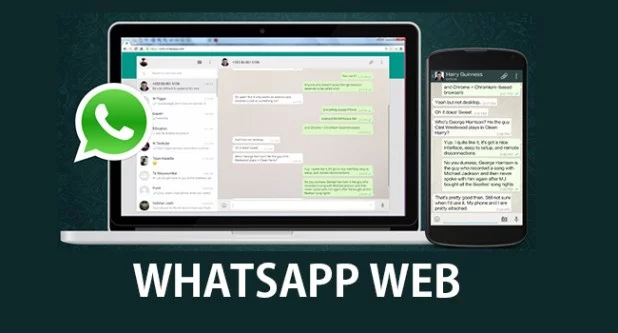
The WhatsApp Web Login feature had been introduced by WhatsApp for its web users earlier. This feature allows WhatsApp users to access the app using a browser. It has tremendously eased life for the users of the social networking chat very much as now WhatsApp users can access their WhatsApp chats using any browser or any device.
Quite similar to the Android app, WhatsApp Web helps replicate your mobile app on your PC for your comfort.
What’s more, the end to end encryption security protocols between two users that exists on your mobile devices can also be established on your computer system.
How to Download WhatsApp Web on PC?
WhatsApp Web is an official online client that allows its users to use their WhatsApp account through a supported computer browser such as Chrome, Edge, Firefox, Safari or Opera (Internet Explorer is not on WhatsApp’s supported list). Similar to WhatsApp, you don’t need to register yourself with an email ID. One can start using the WhatsApp browser by just scanning the QR code.

You also won’t need any additional programs or plug-in installations to use the WhatsApp Web through the browser.
However, if you want, you can install the official WhatsApp desktop app for Windows (from the Microsoft Store) or Mac (from WhatsApp’s download page or the Apple App Store) instead of using the browser. There are certain disadvantages too while using a web browser to use WhatsApp Web login.
Security tool scams, malware, and viruses are some of the threats that users can face while using this system of communication.
Before you start using your WhatsApp Web Login there are certain points to remember. There are some mandatory requirements for people who wish to use WhatsApp Web login. They are as follows:
- A supported web browser. According to the WhatsApp Help Center (as of September 2026), WhatsApp Web works on Windows, Linux and macOS with Chrome 100+, Edge 100+, Firefox 115+, Safari 15+ or Opera 86+.
- A primary phone with an active WhatsApp account. As of September 2026, WhatsApp supports Android phones running Android 6.0 or newer and iPhones running iOS 15.1 or newer (iOS 15.5 or newer from November 30, 2026). BlackBerry, Windows Phone and Nokia phones are not on the supported list, and iPhones work with WhatsApp Web just as Android phones do.
- Updated mobile app version downloaded and installed on your Android or iOS device.
- An internet connection on the computer and, while you link, on the phone. After linking, WhatsApp Web keeps working even when your phone is offline, but you need to open WhatsApp on your primary phone at least once every 14 days to keep linked devices connected.
Any individual can start using the WhatsApp Web login. It is extremely user-friendly and easy to use.
For someone who has been using the messaging platform on their smartphones, this will be a piece of cake. Here are the steps one needs to follow to start using WhatsApp web login.
- The primary step is to open the WhatsApp link (Https://Web.WhatsApp.Com) using any of the internet browsers previously mentioned.
- WhatsApp Web itself runs in the browser, so there is nothing to download. If you prefer an installed app, you can get the official WhatsApp app for Windows from the Microsoft Store (Windows 10 64-bit version 1903 or later) instead.
- If you chose the desktop app, open it once it has installed; it shows the same QR code screen as WhatsApp Web.
- The link opened on the desktop requires the user to scan the QR code provided.
- Simultaneously you also need to open WhatsApp on your mobile.
- On Android, tap the More options menu (three vertical dots) > Linked devices > Link a device. On iPhone, tap Settings (or your profile picture) > Linked devices > Link device.
- If prompted, verify your identity with your fingerprint, face or phone PIN. The camera then opens: point your phone at the computer screen to scan the QR code.
- Recognition of the QR code will be followed by syncing of your devices.
- The WhatsApp Web login is complete and you can start using the messaging service on your desktop too!
How to Use WhatsApp Web Login
Any person who has used WhatsApp on their mobile will find the transition to the web version familiar. There are many similarities between the mobile version and the desktop version of the application.
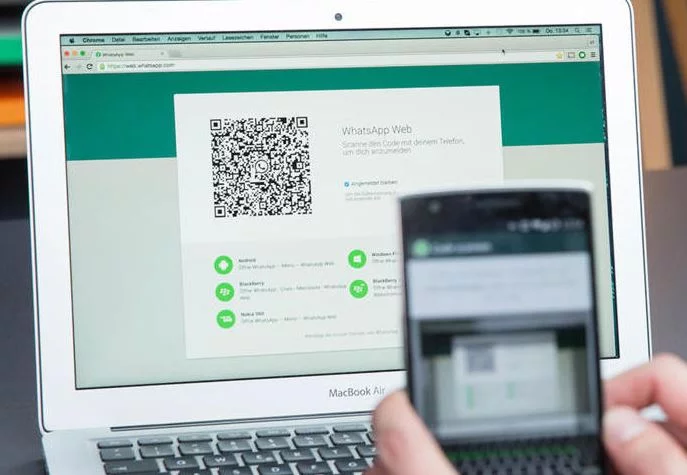
The interface is quite similar to that of the mobile app. However, It should be noted that the desktop notifications are supported. In case it is a shared PC, you might want to switch off the notification settings using the settings menu. It can be easily done by clicking on the 3-dot icon. This opens up the various setting options, choose the notification icon and then de-select the desktop alerts.
- You might find slight changes in the way you start a conversation using the WhatsApp web compared to the phone version. The search option allows you to not only scroll through the existing chats but also lets you search for a contact to start a new conversation.
- You can use emoticons, and other icons while typing texts. These are located on the side of the text entry field at the bottom. A paperclip icon on the top is used to attach files (text doc, audio, video, gif or Photo). You can also view contact information using the specific icon.
Essential Features of WhatsApp Web Login
There are many features that are available on the android/iOS WhatsApp application. While using WhatsApp Web login, you can find the following features of the mobile app.
- You can see the information about your sent messages on the message info screen.
- A single gray check mark means the message was successfully sent.
- Two gray check marks mean the message was delivered to the recipient’s phone or one of their linked devices.
- Two blue check marks mean the recipient has read your message.
There are some catches to using WhatsApp Web login.
- You can’t block users using the desktop connection. (Correction: this is no longer true. According to the WhatsApp Help Center, you can block and report a contact on WhatsApp Web from the chat menu.)
- You can’t start or leave a group chat. (Correction: WhatsApp now lists creating groups among the features of WhatsApp Web.)
- Viewing a live location is not supported on linked devices such as WhatsApp Web, according to the WhatsApp Help Center; broadcast lists and WhatsApp Flows are also unavailable there.
- You can’t edit your status or update your profile picture. (Correction: the WhatsApp Help Center now gives WhatsApp Web steps for changing your profile photo, name and About.)
- You can’t use two browsers simultaneously. (Correction: since multi-device support arrived, one account can be linked to up to four devices at the same time, such as a browser, a Windows PC and a tablet.)
What Is WhatsApp Web?
WhatsApp Web is the official browser version of WhatsApp. It mirrors your chats on a computer so you can read and send messages, share files and make calls with a full keyboard and a larger screen. According to the WhatsApp Help Center, WhatsApp Web does not require you to download a desktop app.
WhatsApp Web is a linked device. You still need a primary phone to register your WhatsApp account and to link new devices, but each linked device connects to WhatsApp independently, and personal messages, media and calls stay end-to-end encrypted.
How to Log In to WhatsApp Web With a QR Code
The QR code method is the standard WhatsApp Web login and works on any supported browser.
- On your computer, go to web.whatsapp.com (type the address yourself rather than following a link from a message).
- Open WhatsApp on your primary phone.
- On Android, tap the three-dot More options menu, then Linked devices > Link a device. On iPhone, tap Settings or your profile picture, then Linked devices > Link device.
- Unlock with your fingerprint, face or phone PIN if asked.
- Point the phone’s camera at the QR code on the computer screen.
- Your chats load in the browser. If WhatsApp does not recognize the device, it asks you to confirm with Link device or cancel with Don’t link.
How to Log In to WhatsApp Web With a Phone Number
If your phone camera cannot scan the QR code, WhatsApp Web also offers a phone-number login. As of September 2026, the WhatsApp Help Center says this option is available only on WhatsApp Web and WhatsApp for Windows.
- On web.whatsapp.com, click Link with phone number (or Log in with phone number).
- Select your country, enter the phone number of your WhatsApp account and click Next.
- An eight-character code appears on the computer screen.
- On your phone, tap the Enter code to link new device notification, check the device name and location shown, and tap Confirm.
- Verify your identity if prompted, then type the eight-character code on your phone.
You can also start from the phone: on Android, open Linked devices > Link a device > Link with phone number instead and enter the code shown on the computer.
WhatsApp Web vs. the WhatsApp Desktop App
WhatsApp Web and the WhatsApp desktop app use the same account and the same linking process. The main difference is that the desktop app is installed software, while WhatsApp Web runs in a browser tab.
| Feature | WhatsApp Web | WhatsApp desktop app |
|---|---|---|
| Installation | None; open web.whatsapp.com | Windows: Microsoft Store. Mac: WhatsApp’s download page or the Apple App Store |
| Operating systems | Windows, Linux and macOS | Windows 10 64-bit version 1903 or later; macOS 11 or later |
| Login | QR code or phone number | QR code (phone number also on Windows) |
| Calls | Free internet calls; works best on Chrome, Edge, Firefox, Safari and Opera | Voice and video calls with up to 32 people |
| Counts toward the four-device limit | Yes | Yes |
Requirements in this table reflect the WhatsApp Help Center as of September 2026 and can change with future updates. For older installation methods, see this site’s guide to installing WhatsApp on a PC.
Which Browsers Support WhatsApp Web?
According to the WhatsApp Help Center, WhatsApp Web supports these minimum browser versions as of September 2026:
| Browser | Minimum version |
|---|---|
| Google Chrome | 100 |
| Microsoft Edge | 100 |
| Mozilla Firefox | 115 |
| Apple Safari | 15 |
| Opera | 86 |
If WhatsApp Web will not load or the QR code does not appear, updating the browser to a current version is the first thing to check.
Does Your Phone Need to Stay Online for WhatsApp Web?
No. Since WhatsApp introduced multi-device support, linked devices such as WhatsApp Web work without your phone being online. There are two time limits to know, as of September 2026:
- 14 days: linked devices log out if your primary phone is not used for more than 14 days.
- 30 days: WhatsApp says it also automatically disconnects linked devices after 30 days of inactivity.
WhatsApp also notes a known issue where some linked devices do not show up to one year of chat history; your full history remains on the primary phone.
What Can’t You Do on WhatsApp Web?
Most everyday features work on WhatsApp Web, including chats, groups, file sharing, calls, blocking and profile edits. According to the WhatsApp Help Center, these features are not supported on linked devices as of September 2026:
- Viewing a live location.
- Creating and viewing broadcast lists.
- Interacting with businesses through WhatsApp Flows.
A linked device also cannot act as the primary device of an account; registering the account and linking new devices always happens on the primary phone.
How to Log Out of WhatsApp Web
Logging out matters most on shared or public computers. There are two ways to do it:
- From your phone: open WhatsApp, go to Linked devices, tap the device and tap Log out. This works even if you are no longer at the computer.
- From the computer: in WhatsApp Web, open Settings > Log out and confirm.
How to Keep Your WhatsApp Web Login Secure
- Check linked devices regularly. The Linked devices screen on your phone lists every browser and computer connected to your account; log out any you do not recognize.
- Keep push notifications on. WhatsApp says push notifications let you review and remove devices you don’t recognize directly from the notification.
- Use only official apps and web.whatsapp.com. WhatsApp warns that linking your account to an unofficial app or website may result in a temporary or permanent ban and could let your account be used to send spam and scams.
- Never share a QR code or eight-character code. The code is what links a new device to your account, so anyone who uses it could see your chats.
- Log out on shared PCs and turn off desktop notifications there, as described earlier in this guide.
For broader habits that protect conversations, read this site’s guide on keeping the messages you send safe and secure.
Common WhatsApp Web Login Problems
- QR code will not scan: try the phone-number login instead, which needs no camera.
- Page does not load: check that your browser meets the minimum versions listed above and that the computer is online.
- Logged out unexpectedly: open WhatsApp on your primary phone; linked devices disconnect after 14 days without phone use.
- Cannot link another device: an account can have up to four linked devices, so log one out from the Linked devices screen first.
- Old chats missing: WhatsApp acknowledges a known issue with chat history on some linked devices; your phone still holds the full history.
More WhatsApp Guides
- WhatsApp tricks and tips for everyday shortcuts.
- How to send ZIP, PDF and other files on WhatsApp.
- How to schedule messages on WhatsApp.
- WhatsApp alternatives if you want to compare other messaging apps.
Frequently Asked Questions
How do I log in to WhatsApp Web?
Open web.whatsapp.com on your computer, then on your phone open WhatsApp, go to Linked devices > Link a device, and scan the QR code shown in the browser. Alternatively, click Link with phone number and enter the eight-character code on your phone.
Can I use WhatsApp Web without my phone?
Yes, after the first login. Linked devices work without your phone online, but you must still have a primary phone to register the account and link devices, and linked devices log out if the phone is not used for more than 14 days, according to the WhatsApp Help Center.
How many devices can use WhatsApp Web at the same time?
WhatsApp allows up to four linked devices per account at the same time, as of September 2026. WhatsApp Web, the Windows and Mac apps, tablets and companion phones are all linked devices.
Do I need to download anything to use WhatsApp Web?
No. WhatsApp Web runs entirely in a supported browser. The separate WhatsApp desktop app is optional and is installed from the Microsoft Store on Windows or from WhatsApp’s download page or the Apple App Store on Mac.
Can I make calls on WhatsApp Web?
Yes. The WhatsApp Help Center lists free internet calling among WhatsApp Web’s features and says calling works best on Chrome, Edge, Firefox, Safari and Opera. The Windows and Mac apps support voice and video calls with up to 32 people.
Is WhatsApp Web safe to use?
WhatsApp Web is safe when you use the official site, because personal messages, media and calls remain end-to-end encrypted. The main risks are leaving a session logged in on a shared computer and linking your account to unofficial apps, so review Linked devices on your phone regularly.

Justwebworld has published guides since 2012. How we write and update articles Report an error

1 Comment
open my account on the pc.