

To delete a YouTube channel, sign in to YouTube Studio on a computer, open Settings, select Channel, then Advanced settings, and choose Remove YouTube content. Pick “I want to permanently delete my content,” tick the confirmation boxes and select Delete my content. This removes the channel only; your Google Account and Gmail stay active.
Key Takeaways
- A YouTube channel is deleted in YouTube Studio under Settings, Channel, Advanced settings, Remove YouTube content (as of October 2026).
- YouTube Help says a channel cannot currently be deleted on mobile devices, so use a computer browser.
- Deleting the channel permanently removes its videos, comments, messages, playlists and history, but not the Google Account.
- Hiding the channel is a reversible alternative that makes the channel name, videos, likes, subscriptions and subscribers private.
- The old Google+ method no longer works because Google+ ceased operations in 2019.
Note (September 2026): Google+ shut down in 2019, so the Google+ steps below no longer work. You can delete a YouTube channel from the advanced settings of your channel in YouTube Studio.
How to Delete Your YouTube Account: YouTube, the video-sharing platform owned by Google, is one of the most visited websites in the world. People use it to watch, upload and share videos. This guide explains how to close a YouTube channel, and how that differs from deleting the Google Account behind it. If you no longer want to use YouTube, you can stop by deleting or Removing YouTube account.
How to Delete YouTube Account

The original version of this guide described two ways to delete a YouTube account. The first went through Google+, the Google social network that was linked to YouTube; Google+ shut down in 2019, so that route no longer exists. The second goes through YouTube itself, which today means the advanced settings of your channel in YouTube Studio. YouTube carries a very wide range of content. People watch comedy clips, music videos, full-length films and much more.
How to Remove a YouTube Channel and Keep Your Google Account
You can remove your YouTube information without deleting the rest of your Google Account, so your emails and photos stay in place. Under the old first method, this was done through Google+. You can also delete your YouTube watch history and search history on their own, from My Activity in your Google Account. You can also review linked apps and remove their access to your Google Account.
The two methods below come from the original version of this article. The current YouTube Studio steps are further down this page.
Method 1: Through Google+ (No Longer Works)
The first way of Deleting a YouTube account used Google+. These steps are kept for reference only, because Google+ closed in 2019:
1) Visit the Google account management page:
Visit Google.com/account. Your YouTube account is tied to your Google Account.
Today, the Data & privacy section of your Google Account is where you delete a single Google service or the whole account.
Under this old method, deleting the Google+ profile did not delete your emails or other personal information. At the time, photos from Google+ could also be accessed with Picasa.
2) Clicking Data tools opened the option for deleting a Google+ profile.
3) The next step was to click Delete Google+ profile.
4) You then chose the service you wanted to delete.
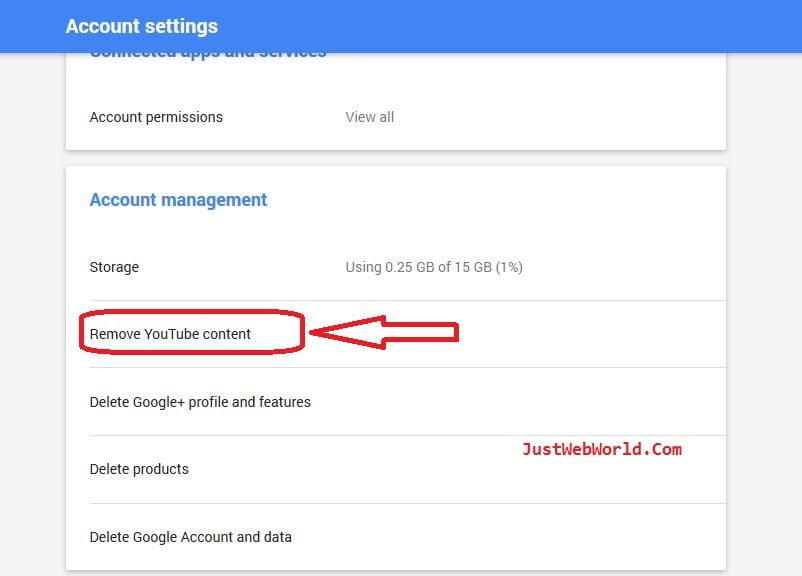
5) The selected services were then removed.
Read: How Famous is YouTube?
Method 2: On the YouTube Website (Older Layout)
The second older method went through the YouTube website itself, using the page layout YouTube had at the time:
1) Sign in to the YouTube channel or account.
2) Open the account link on the page.
3) Click Delete account at the bottom of the page to open the account deletion page.
4) There, you were asked to give a reason for deleting the account, that is, why you wanted to close your YouTube account.

5) Any reason could be given, whether about the service, a bad experience, or feedback to help the YouTube team improve the site.
6) You then had to enter your current account password.
7) Finally, you clicked the Delete account option.
8) The account was then closed permanently. According to YouTube Help, permanently deleting a channel today removes its videos, comments, messages, playlists and history.
Read: Increase Blog Traffic through YouTube
The steps above and below explain how to Delete YouTube account. We hope this guide on how to delete a YouTube account is useful. If it helped, you can share it on social networks such as Facebook, Twitter, Pinterest and LinkedIn. Enjoy 🙂 🙂
How Do You Delete a YouTube Channel Today?
As of October 2026, YouTube Help describes these steps for permanently deleting a YouTube channel from a computer:
- Sign in to YouTube Studio.
- From the left sidebar, select Settings.
- Select Channel, then Advanced settings.
- At the bottom, select Remove YouTube content. Enter your sign-in details if asked.
- Select I want to permanently delete my content.
- Tick the boxes to confirm you want to delete your channel.
- Select Delete my content.
According to YouTube Help, it may take some time for the channel to be permanently deleted, and video thumbnails may remain visible on the site for a short period. After deletion, the channel URL and channel name are no longer visible or searchable in YouTube Analytics, although data such as watch time stays in aggregate reports without being attributed to the deleted channel.
Can You Delete a YouTube Channel on a Phone?
No. YouTube Help states that a channel cannot currently be deleted on mobile devices. Open YouTube Studio in a desktop browser instead.
Hide vs. Delete vs. Delete the Google Account
A YouTube account is part of a Google Account, so there are three different levels of “deleting YouTube.” The table compares them, based on Google’s help pages as of October 2026.
| Option | What happens | Reversible? | Where to do it |
|---|---|---|---|
| Hide your channel | Channel name, videos, likes, subscriptions and subscribers become private | Yes, the channel can be re-enabled | YouTube Studio, Remove YouTube content, I want to hide my channel |
| Delete your channel | Videos, comments, messages, playlists and history are permanently deleted; the Google Account stays | No | YouTube Studio, Remove YouTube content, I want to permanently delete my content |
| Delete your Google Account | The whole account goes, including Gmail, Drive and YouTube, plus content bought with that account on YouTube or Google Play | Possibly, within a limited time, according to Google | Google Account, Data & privacy, More options, Delete your Google Account |
How to Hide a YouTube Channel Instead
Hiding is the safer choice if you might come back. In YouTube Studio, go to Settings, Channel, Advanced settings, select Remove YouTube content, choose I want to hide my channel, tick the confirmation boxes and select Hide my channel. YouTube Help notes that view counts may be inaccurate while the channel is hidden and can take up to a week to update after the channel is re-enabled.
What to Do Before Deleting a YouTube Channel
- Download your videos and data. Google Takeout lets you export YouTube videos and other Google data. Google notes that downloading data does not delete it from Google’s servers.
- Check for a Brand Account. Google’s Takeout help says that if some YouTube videos are missing, they may sit under a Brand Account, which requires switching accounts.
- Check channel ownership. YouTube Help warns that deleting the primary owner account linked to a channel also deletes the channel.
- Expect harder account recovery. YouTube Help says that permanently deleting a channel may make it harder for Google to recover your account.
How to Delete YouTube Watch and Search History Only
If the goal is privacy rather than closing the channel, YouTube history can be removed on its own. According to YouTube Help, go to My Activity, sign in, open YouTube History and use Delete to remove items or a time range; deleting watch history this way also deletes search history for the selected period. The Controls tab can pause watch history, and Manage history offers Auto-delete for a chosen time range.
How to Delete the Whole Google Account
Deleting the Google Account removes YouTube along with every other Google service on that account. Google’s help page lists these steps as of October 2026: go to the Data & privacy section of your Google Account, scroll to “Your data & privacy options,” select More options, then Delete your Google Account, and follow the instructions. Google advises downloading anything you want to keep and adding a new email address to banking, social media or app logins that use the Gmail address first. For a Gmail-only walkthrough, see this guide on how to delete a Gmail account.
Deleting one Google Account does not delete any other Google Accounts you own. Before closing an account that may have been hacked, Google suggests running Security Checkup to see what was accessed; this overview of Google account security covers the basics. Similar steps for other services are in the guides on deleting a Facebook account and deleting a PayPal account.
Common Mistakes When Deleting a YouTube Account
- Following old Google+ instructions, which no longer work.
- Trying to delete the channel in the mobile app, which YouTube Help says is not currently possible.
- Deleting the whole Google Account when only the channel needed to go, and losing Gmail, Drive and Google Play purchases.
- Skipping a Google Takeout export and losing original video files.
Frequently Asked Questions
Does deleting a YouTube channel delete my Google Account?
No. YouTube Help states that the channel deletion steps remove only the YouTube channel, not the Google Account used to sign in. Gmail, Drive and other services stay active.
Can a deleted YouTube channel be recovered?
Permanent deletion removes the channel’s content, and YouTube Help warns it may make account recovery harder. If you may want the channel back, hide it instead, because a hidden channel can be re-enabled.
How long does it take to delete a YouTube channel?
YouTube Help says it may take some time for a channel to be permanently deleted, and thumbnails of its videos may stay visible on the site in the short term. Google does not give a fixed number of days.
Can I delete my YouTube channel from the YouTube app?
No. According to YouTube Help, a channel cannot currently be deleted on mobile devices. Use YouTube Studio in a computer browser.
How do I delete only my YouTube history?
Go to My Activity in your Google Account, open YouTube History and use Delete. YouTube Help notes this also removes search history for the selected time frame, and Auto-delete can clear history on a schedule.

Justwebworld has published guides since 2012. How we write and update articles Report an error

1 Comment
There is absolutely positively no option to cancel the youtube account. I have seen about 10 articles and videos and can’t find the option. but now after this article i found an option to remove youtube account.. 🙂