

The 3-2-1 backup rule means keeping three copies of your data, on two different types of storage, with one copy somewhere else entirely. For most people, that looks like the files on a computer, a backup on an external drive and a third copy in an online backup service.
The rule has lasted because it spreads risk: one failure should never be able to take every copy at once. It also leaves room for mistakes that catch people out, such as treating a synced folder as a backup. This guide explains what each number means, which disasters each copy protects against and how to set it up.
Key takeaways
- 3 copies: the original plus two backups.
- 2 types of storage: so one kind of fault cannot reach everything.
- 1 off-site: so a fire, flood or theft at home does not end the story.
- Sync is not the same as backup. A deletion can spread to every synced device.
- A backup you have never restored is only a hope. Test it.
What does the 3-2-1 backup rule mean?
The rule is commonly credited to photographer Peter Krogh, who wrote about managing digital photo collections. It has since become a general rule of thumb in computing because it is easy to remember and works at any scale.
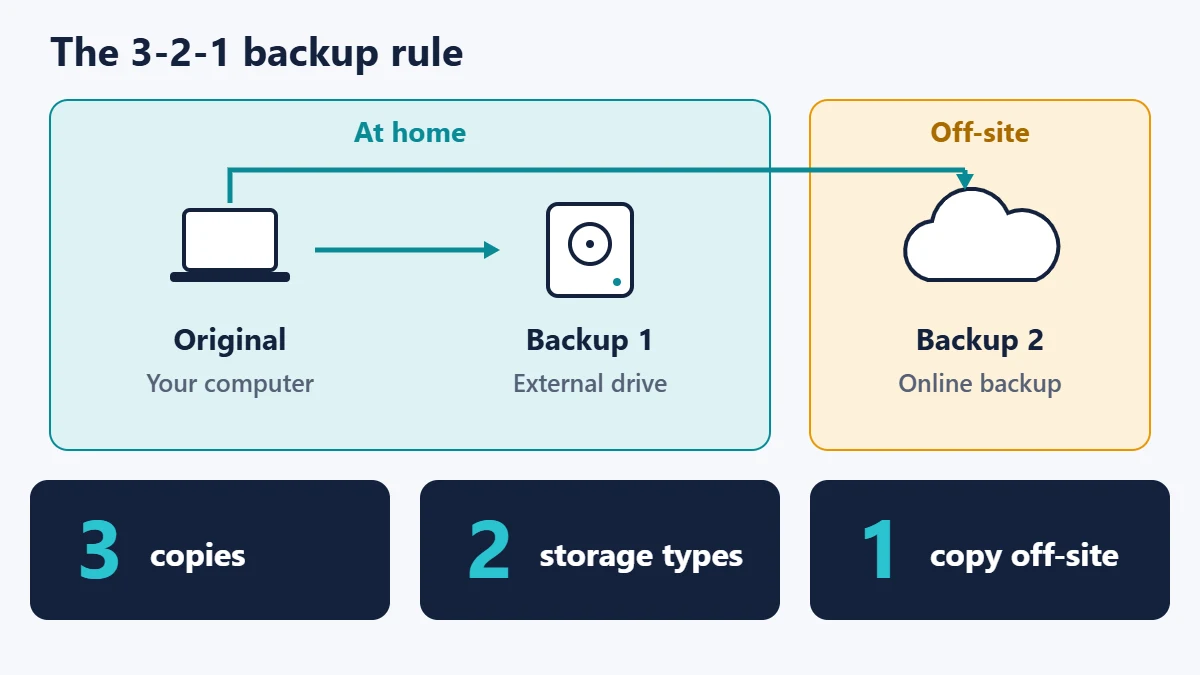
| Number | What it means | What it protects against |
|---|---|---|
| 3 copies | Your working files and two separate backups | A single copy failing or being damaged |
| 2 types of storage | For example, an external drive and a cloud service | One device, batch or storage system failing |
| 1 off-site | A copy physically away from the others | Fire, flood, theft or power damage at one location |
Two partitions on the same hard drive do not count as two copies in any useful sense, because a failure of that drive takes both. Our guide to the different types of data backup explains full, incremental and differential methods if you want more detail on how the copies are made.
Which copy saves you from which disaster?
The three numbers are only half the picture. The more useful question is what actually happens to each copy when something goes wrong. This table is our own assessment of typical home setups, and results vary by product and settings.
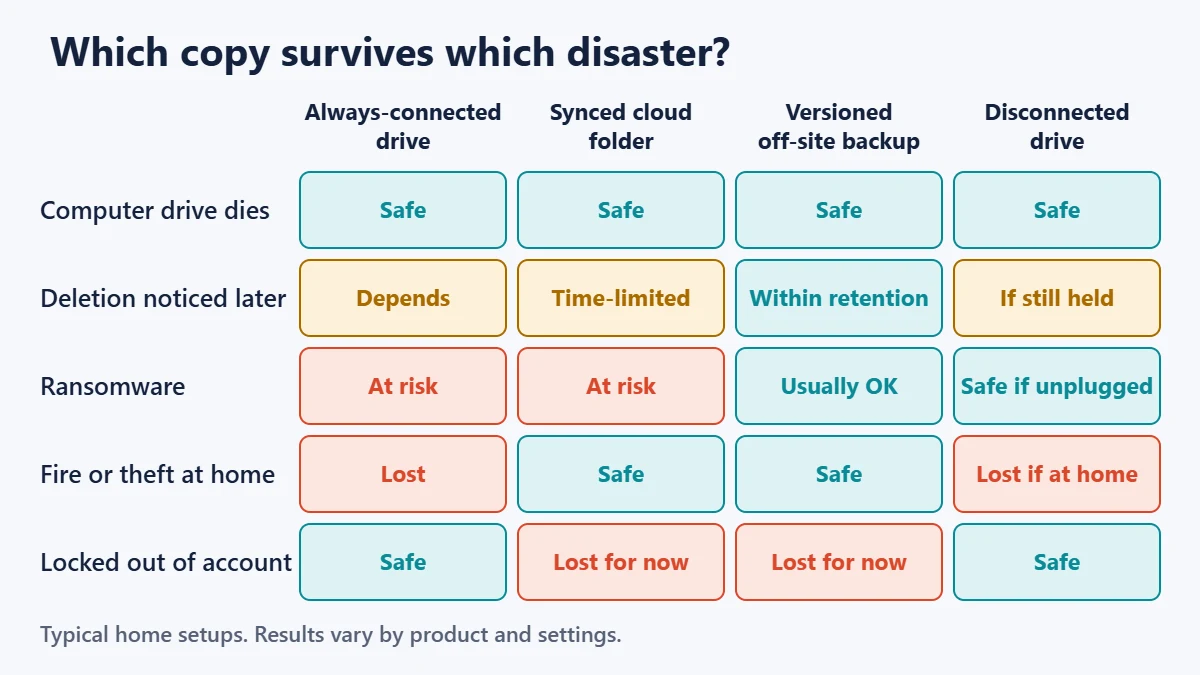
| Disaster | Always-connected drive | Synced cloud folder | Versioned off-site backup | Disconnected drive |
|---|---|---|---|---|
| Computer drive dies | Safe | Safe | Safe | Safe, up to last backup |
| Deletion noticed later | Depends on history kept | Time-limited | Safe within retention | Safe if it still has the file |
| Ransomware | At risk | At risk | Usually recoverable | Safe while unplugged |
| Fire or theft at home | Lost | Safe | Safe | Lost if stored at home |
| Locked out of online account | Safe | Lost until access returns | Lost until access returns | Safe |
The ransomware row deserves attention. The US Cybersecurity and Infrastructure Security Agency (CISA) warns that many ransomware variants try to find and delete or encrypt accessible backups, and advises keeping offline, encrypted backups of critical data. A drive that stays plugged in is accessible.
Why cloud sync is not a backup
Sync services such as Google Drive, OneDrive and iCloud Drive are excellent for keeping files available across devices. Their job is to make every location match, and that includes your mistakes.
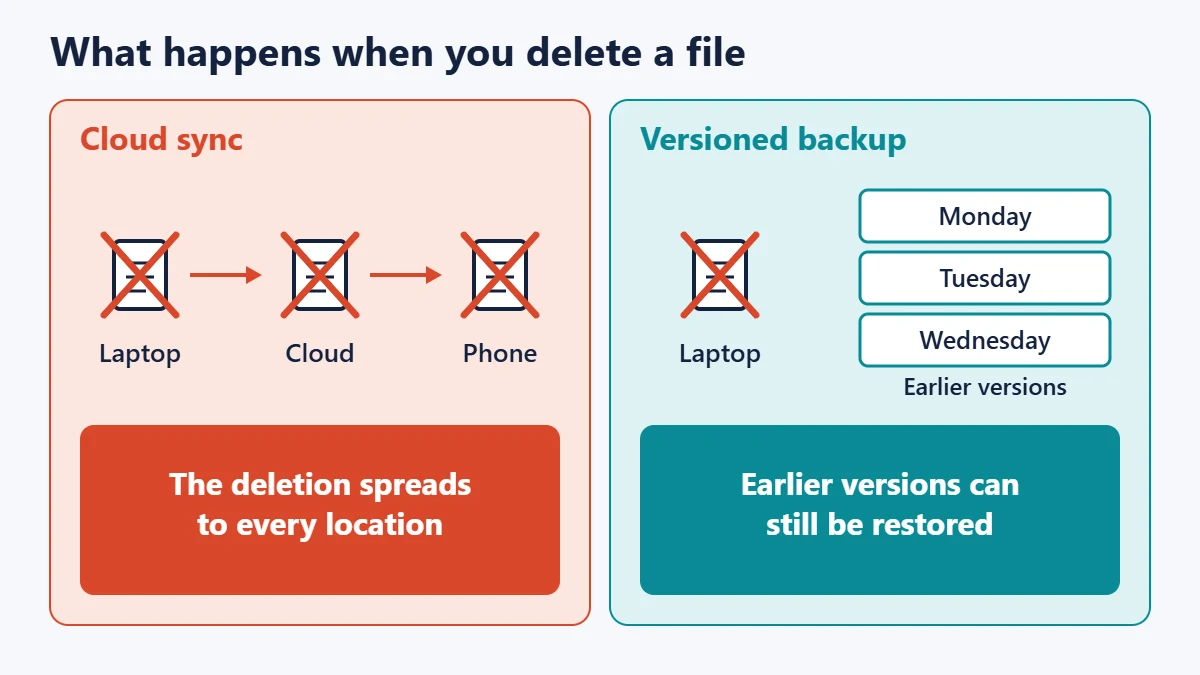
Google spells this out for its own service: with Drive for desktop in mirror or stream mode, files you put in the trash are put in the trash everywhere, and trashed files are deleted permanently after 30 days. A safety net exists, but it is short. If you discover a missing file in three months, it may be gone.
Check your own provider’s retention period, since these rules differ and can change. If your plan includes version history, sync gets closer to backup, though it remains tied to one account.
How to set up a 3-2-1 backup at home
A straightforward setup needs only two purchases: an external drive and an online backup plan. Here is a sensible order.
- List what you cannot replace. Photos, documents, tax records and creative work matter far more than apps you can reinstall.
- Measure it. Check how much space those files use, then allow for growth.
- Set up the local backup. It is the fastest copy to restore from.
- Add an off-site backup. Choose a service that keeps previous versions. Our guide to backing up a computer to the cloud covers the basics.
- Automate both. A backup that depends on memory will eventually be missed.
- Test a restore, then put a repeating reminder in your calendar.
On a Mac
Time Machine is built in. Apple recommends an external drive with at least twice your Mac’s storage capacity. It keeps hourly backups for the past 24 hours, daily backups for the past month and weekly backups for earlier months, deleting the oldest when the disk fills up. That covers your local copy; you still need an off-site one.
On Windows
Windows includes File History for keeping versions of personal files on an external drive, while dedicated tools can image an entire system. Our roundup of Windows backup software is a starting point, but check that any product is still maintained before relying on it.
On a phone
Phones usually back up to the manufacturer’s cloud, which counts as one copy. Our guide on accessing iCloud backups covers Apple devices. For a second copy, periodically transfer important photos and videos to your computer so that they fall under your computer’s backup routine.
How long will the first online backup take?
The first upload is the part that surprises people, because home upload speeds are often far lower than download speeds. These are best-case calculations for continuous uploading, and real transfers will usually take longer.
| Data to upload | At 20 Mbps upload | At 100 Mbps upload |
|---|---|---|
| 100 GB | About 11 hours | About 2.2 hours |
| 500 GB | About 56 hours | About 11 hours |
| 2 TB | About 9.3 days | About 44 hours |
To work out your own figure, multiply gigabytes by 8,000, divide by your upload speed in Mbps, and you have the result in seconds. Our explainer on Mbps vs MB/s shows why the factor of eight is there. Upload your most important folders first so that they are protected early, and check your provider’s data allowances if your plan has a monthly cap.
How to test your backup
CISA’s guidance is to regularly test the availability and integrity of backups. For a household, that takes about ten minutes.
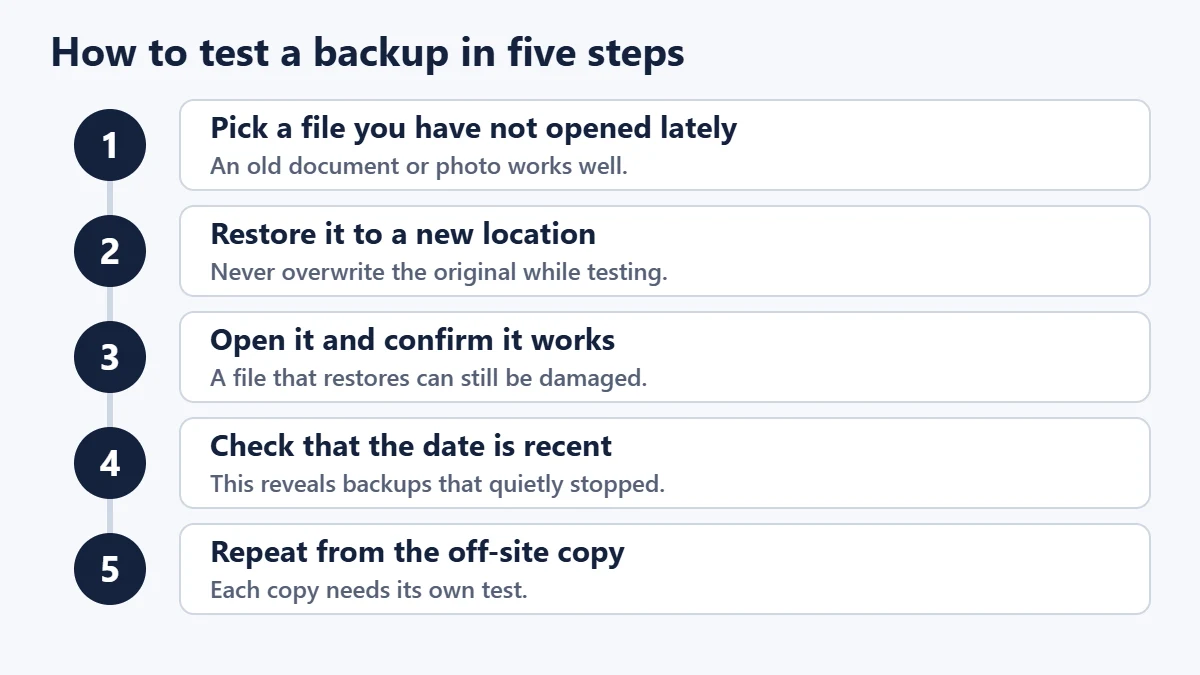
Do this every few months and after changing your computer, backup software or subscription. If a restore needs a password or encryption key, confirm that you still have it. Storing that key only on the computer you are protecting defeats the purpose.
Common 3-2-1 backup mistakes
- Keeping both backups in the same building. It meets the first two numbers and fails the third.
- Leaving the backup drive plugged in permanently. It is convenient, but exposes the drive to ransomware and power surges.
- Treating RAID as a backup. RAID helps a system survive a drive failure, but deletions and corruption are written across the array immediately.
- Backing up only some folders. Check whether desktop folders, application data and photo libraries are included.
- Letting a subscription lapse. Backup storage can be removed after a plan ends.
- Forgetting encryption on a portable drive. An unencrypted drive stored off-site can be read by anyone who finds it.
- Never checking for errors. Backup software can stop working quietly for months.
If a drive has already failed or disappeared from view, stop writing to it and see our guide on external drives not showing on a Mac.
Is 3-2-1 still enough?
For most households, yes, provided at least one copy cannot be reached by malware. You may also see 3-2-1-1-0, a variant promoted mainly by backup vendors. It adds one offline or immutable copy and zero errors after verification. Those two additions are good habits, and you can adopt them without buying anything: unplug a drive between backups and test your restores.
Businesses have extra concerns, including legal retention, recovery time targets and staff accounts. Treat 3-2-1 as a starting point there, and take advice specific to your systems and obligations.
Frequently asked questions
Does the cloud count as one of the three copies?
Yes. A cloud backup can be both a second storage type and your off-site copy, as long as it is separate from your working files.
Does my original file count as one of the three?
Yes. The usual reading is the original plus two backups, for three copies in total.
Is an external hard drive enough?
It is much better than nothing, but one drive at home gives you two copies in one location. Add an off-site copy to complete the rule.
How often should I back up?
Ask how much work you could stand to lose. Files that change daily deserve automatic daily or continuous backup, while a photo archive can follow a slower schedule.
Can I keep the off-site copy at a relative’s house?
Yes. A drive stored with someone you trust counts as off-site. Encrypt it and swap it regularly, because a drive that is a year old only protects a year-old version of your files.
How long do backup drives last?
There is no dependable lifespan for an individual drive, which is exactly why the rule relies on multiple copies. Replace any drive that shows errors.
The simple version
Start with one external drive and one online backup service, automate them both, and restore one file to prove that they work. If you can do only one thing today, make a copy of the files you could never replace and put it somewhere other than your computer. You can also add your accounts and backup instructions to a digital legacy plan so that someone else could recover them.
Sources
- #StopRansomware Guide (CISA)
- Back up your Mac with Time Machine (Apple Support)
- Delete files in Google Drive (Google Drive Help)

Justwebworld has published guides since 2012. How we write and update articles Report an error
