Close Menu
JustwebworldJustwebworld
  • Astrology
  • Business & Finance
    • Cryptocurrency
    • Make Money
    • Entrepreneur
    • Brands
    • Companies
    • Personal Finance
      • Banking
      • Insurance
      • Trading and Investing
  • Tech
    • Computing
    • Cybersecurity
    • Electronics
    • Android
    • Apple
    • Gadgets
    • Social Media
    • Mobile Apps
    • Softwares
  • Education
    • Vocabulary
    • Abbreviations
    • General Knowledge
    • Writing & Translation
  • Lifestyle
    • Beauty & Cosmetics
    • Fashion & Style
    • Furniture & Decor
    • Luxury
    • People & Relationships
    • Pets and Animals
    • Shopping
    • Parenting
    • Gardening
    • Birthdays
  • Health
  • Travel
  • Auto
  • Gaming
  • Food
  • Entertainment
  • Sports
Facebook X (Twitter) Instagram Pinterest YouTube LinkedIn WhatsApp Telegram
Tuesday, March 3
  • About
  • Contact Us
  • Advertise With Us
  • Disclaimer
  • Terms & Conditions
  • Privacy Policy
JustwebworldJustwebworld
  • Astrology
  • Business & Finance
    • Cryptocurrency
    • Make Money
    • Entrepreneur
    • Brands
    • Companies
    • Personal Finance
      • Banking
      • Insurance
      • Trading and Investing
  • Tech
    • Computing
    • Cybersecurity
    • Electronics
    • Android
    • Apple
    • Gadgets
    • Social Media
    • Mobile Apps
    • Softwares
  • Education
    • Vocabulary
    • Abbreviations
    • General Knowledge
    • Writing & Translation
  • Lifestyle
    • Beauty & Cosmetics
    • Fashion & Style
    • Furniture & Decor
    • Luxury
    • People & Relationships
    • Pets and Animals
    • Shopping
    • Parenting
    • Gardening
    • Birthdays
  • Health
  • Travel
  • Auto
  • Gaming
  • Food
  • Entertainment
  • Sports
JustwebworldJustwebworld
Home » Technology » Computing » How to Enable or Disable a Windows 10 User Account

How to Enable or Disable a Windows 10 User Account

By Michael Austin Computing Windows
Facebook Twitter LinkedIn Telegram Pinterest Reddit WhatsApp
Follow Us
WhatsApp Telegram

Windows get updated frequently, and Windows 10 is also not an exception. And so we are here to help you on the topic of how to enable or disable Windows 10 user account. So if are you searching for a guide on this topic start reading.

It is possible when you have more than one users in your Windows 10 PC at office or home. But sometimes it comes a time when you want to disable one or more account for many reasons like a person is leaving a job, or one is creating a nuisance, etc. In such cases, it is a good idea to disable the user account instead of deleting that account so that you can enable it whenever you want. And yes you can do that, too!

Table of Contents

Toggle
  • 2 Ways to Enable or Disable User Accounts In Windows 10
    • 1) DISABLE WINDOWS 10 USER ACCOUNT USING COMPUTER MANAGEMENT
    • 2) DISABLE USER ACCOUNT USING COMMAND PROMPT IN WINDOWS 10
      • Conclusion:

2 Ways to Enable or Disable User Accounts In Windows 10

Enable or Disable User Accounts in Windows 10

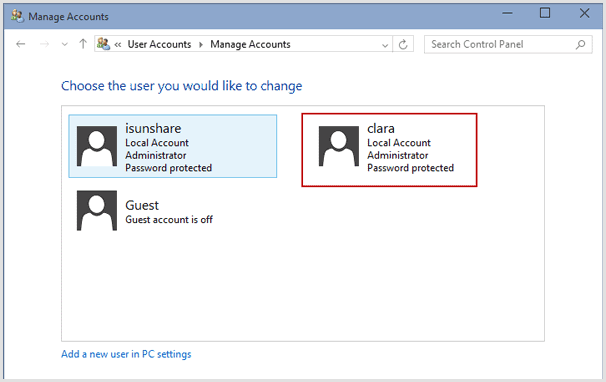
In this article, we will discuss on how to disable or enable a Windows 10 Account. It can be an account which was created using a Microsoft Account or a local account. Both commands can be done using the “Computer Management” interface or using the Command Prompt.

Before you start, you should know that this method and technique work with Windows 10 Enterprise and Windows 10 Pro editions only, and your account must be an Administrator Account. So If you are using a Windows 10 Home version, the bad news is it is not going to work for you. I have read one more interesting article about how to connect ps3 controller on pc.

1) DISABLE WINDOWS 10 USER ACCOUNT USING COMPUTER MANAGEMENT

Step 1:

Also Read: Why Processing Power Is Important Why Processing Power Is Important
  • First, search for “Computer Management,” from the search bar by typing the keyword. You have to select the top word of the list. Even you can search it by using “Win+X” on your keyboard and then press “g” to open it.
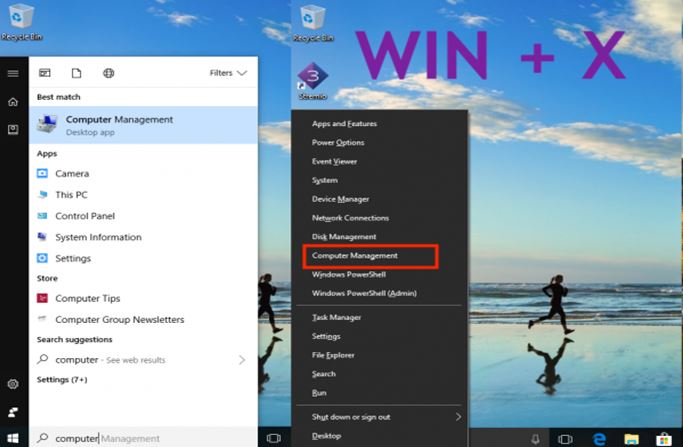
Computer Management (Windows 10)

Step 2:

  • Now go to System Tools > >Local Users and Groups >> Users.

Step 3:

  • Select the username which you want to disable, and select Properties by right-clicking on it.

Step 4:

  • Inside the menu, you will find “Disable Account” option Right under the “General” tab, Check on it, and click on Apply, and then on the ok tab.

Disable Account (Windows 10)

Note: once you apply disable the account, the account will disappear from the “Switch Account” option, and also from the login window. Interesting!

  • To re-enable the account, follow the same step listed above, but this time the only change is you have to uncheck the “Disable” option and then just click on apply.

2) DISABLE USER ACCOUNT USING COMMAND PROMPT IN WINDOWS 10

If you are a regular and powerful user who is more suitable for command prompt, then Windows 10 does let you run 5-word command to enable and disable an account instantly. So start with the steps given below:

Step 1:

  • Make sure to have the account name with you.

Step 2:

  • Using the Windows 10 Search on the taskbar, search for the command prompt.

Step 3:

  • Once it displays up, right click on it and run the programme as administrator. You will ask for a yes or no. You have to select yes.

Step 4:

Also Read: Slow Download Speeds? Find Out Why Slow Download Speeds? Find Out Why
  • Now type the following command to disable (or re-enable) the account.
  • To Disable: net user <accountname> /active:no
  • To Enable it back: net user <accountname> /active:yes

cmd.exe (Windows 10)

NOTE: here you have to Replace <accountname> with the real username. In such situation when you do not know the exact name, type “net user” in place of account name and press the enter key.

After following these steps, you know a bit about the Computer Management interface in Windows 10 when it comes to users. Using this option, you can also much more than this like:

  • Delete Accounts.
  • Remove requirement to change password forever.
  • Unlock a user account in case its locked out because he or she entered the wrong password multiple times.
  • Enable Guest Account.
  • Restrict users not to change password at all which is useful in case of kids account.
  • You can create a new account from here which does not need to have a Microsoft account.

Note that it is a potent tool, so use it carefully. If you ever delete an account from here, you can’t be able to recover it, and all the files and data will lose for forever.

  • How to Create WiFi Hotspot In Windows 10.
  • How to Install Windows 10.
  • How to Reset Forgotten Windows 10 Password.

Conclusion:

It is all about the article of how to enable or disable a user account in windows 10. We hope you like it and find it useful. If it is so, then sharing it and thank you for reading!

Also Read: Everything You Should Know About Troubleshooting Everything You Should Know About Troubleshooting

cards
Powered by paypal
Follow on WhatsApp Follow on Telegram
Share. Facebook Twitter Pinterest LinkedIn Tumblr Telegram WhatsApp Copy Link
Previous Article10 Major Keys That You Must Consider Before Learning How to Build a Website
Next Article 4 Old School Off-Page Optimization Strategies You Should Avoid
Michael Austin
  • Website
  • Facebook
  • X (Twitter)
  • Pinterest
  • Instagram
  • LinkedIn

Michael Austin is an expert writer who loves creating engaging and easy-to-understand content. With years of experience, he specializes in writing well-researched articles that inform, inspire, and entertain readers. His clear and simple writing style makes complex topics easy to grasp. Whether it's trending news, helpful guides, or expert insights, Michael’s content is designed to be valuable and SEO-friendly, ensuring it reaches the right audience. Stay connected for his latest articles!

Related Posts

Ultimate Guide to CapCut Templates 2025 | Create Viral Reels, TikToks & Shorts with Free Trending Video Edits!

15+ Ghibli AI Image Generator: Top FREE Alternatives to ChatGPT & Grok (Apps & Websites)

Unlocking Boundaries: Best Ways to Access GEO-Restricted Resources

Rotating Datacenter Proxies Vs. Static Proxies: Why Dynamic Rotation Matters

Understanding 127.0.0.1:62893 Meaning, Error and Fixing Tips

127.0.0.1:49342: A Guide To Localhost, Fixing, Working and Solutions

1 Comment

  1. Aarif A. Ahnaf on June 21, 2018 4:26 pm

    Can you tell me why my computer management is not open?

Leave A Reply

Subscribe to Blog via Email

Enter your email address to subscribe to this blog and receive notifications of new posts by email.

Join 43K other subscribers
Categories
Latest Posts

What Happens When Bills Fall Behind for Several Months

How to Choose the Best Electric Scooter in India for 2026

Navigate the world of used cars: How BidCars ensures privacy

Why People Fear Automation | AI Job Loss, Robots Replacing Jobs & The Future of Work Explained

Why Data Is More Valuable Than Money | The Secret Asset Behind Billion-Dollar Tech Companies

Why Smart Shopping Starts With the Right Savings Platform

7 Things to Consider When Buying a Used Truck

A Beginner’s Guide On How To Choose The Right Solar Inverter For Your Home

Building a Budget That Actually Works

3 Birkenstock Sandals to Pack for You and Your Partner’s Next Weekend Escape

The content on this website is provided solely for educational and informational purposes. We do not promote, endorse, or deal in any products, services, or activities mentioned. While we strive to share accurate and up-to-date information, we make no warranties regarding completeness, reliability, or accuracy. Any action you take based on the information found here is strictly at your own risk, and we will not be liable for any losses or damages in connection with the use of our website.

DMCA.com Protection Status
Quick Links
Age Calculator
Angel Number Calculator
Case Converter
Sudoku Online
Word Counter
Love Calculator
Jack Doherty YouTuber
Snake Dream Meaning
Get Rid of Cockroaches
Indian Cricket Team Coaches
Best Volleyball Team Names
Useful Links
Number to Words
Period Calculator
Yes-No Picker Wheel
Demon Name Generator
Kingdom Name Generator
Harry Potter Name Generator
Daddy Yankee Biography
Crocodile Dream Meaning
Goa Budget Trip Guide
Maryse Mizanin WWE Diva
Best Cricket Team Names
Helpful Resources
Colors Name In English
Best Computer Brands
WhatsApp Web
Most Beautiful Beaches
Tesla Cybertruck Review
Richest Actors in the World
India Jarvis Actress
Cat Dream Meaning
Belmar Beach New Jersey
Aryna Sabalenka Tennis Superstar
Best WhatsApp Group Names
Explore More
Good Morning Handsome
Best English Songs of All Time
Cricket World Cup Winners
Ways to Say Rest In Peace
Britain’s Got Talent Winners
American Idol Winners
Dude Perfect Net Worth
Horse Dream Meaning
Ramakrishna Beach Visakhapatnam
Anastasia Potapova Tennis Star
Best Funny Team Names
Facebook X (Twitter) Instagram Pinterest YouTube Tumblr LinkedIn WhatsApp Telegram Threads RSS
  • About
  • Contact Us
  • Advertise With Us
  • Disclaimer
  • Privacy Policy
  • Terms & Conditions
  • Web Stories
Copyright © 2012-2026. JustWebWorld - All Rights Reserved.

Type above and press Enter to search. Press Esc to cancel.

×

👇 Bonus Reads for You 🎁

Benefits of 3D Printing
Understanding The Benefits of 3D Printing
Erase or Wipe a Hard Disk
How to Wipe a Hard Drive With SafeWiper for Disk
Mastering Disk Management With MiniTool Partition Wizard
Mastering Disk Management With MiniTool Partition Wizard: A Beginner’s Guide
Triple Monitor Laptop Setup On Remote Work
The Impact Of A Triple Monitor Laptop Setup On Remote Work